
 Operators Guide



Configure custom events for Airship
Airship Custom Events send behavioral events from Amperity to Airship, where each event can trigger an Airship automation — such as a push notification, in-app message, SMS, or email — and personalize the message it sends. Airship is a customer engagement platform that helps marketers connect with their customers across every stage of the customer lifecycle.
Send custom events to Airship so that customer behavior in Amperity can trigger an Airship automation — such as a push notification, in-app message, SMS, or email — and personalize the message it sends. Each row returned by your query is sent as a single Airship custom event, carrying an event name, a customer identifier, an optional timestamp, and any additional columns as event properties.
An event is different from a profile attribute: an Airship automation listens for an event by name and acts when it arrives, whereas attributes only enrich a profile for segmentation and personalization. This connector sends events; the Airship Attributes connector sends attributes. Unlike the file-based Airship connector, which delivers a file to an Airship SFTP location, this connector sends events to Airship directly.
Amperity sends customer identifiers to Airship exactly as your query returns them. Unlike some event connectors, this connector does not hash or normalize identifiers, so provide values in the form Airship expects.
Note
Amperity provides three separate Airship connectors, each with its own credentials: Airship Custom Events (this connector) sends behavioral events; Airship Attributes sends profile attributes; and Airship sends files to an Airship SFTP location. Set up each connector you use separately.
Beta
The Airship Custom Events connector is currently in beta. Contact your Amperity representative to learn more.
Get details
Review the following details before configuring credentials for Airship and before configuring Amperity to send custom events to Airship.

|
Credential settings Client ID
Client Secret
App Key
Data Center
|
|
|
Airship settings Identifier type
|
|
|
Request properties
|
Configure credentials
Configure credentials for Airship before adding a destination.
An individual with access to Airship should use SnapPass to securely share Client ID, Client Secret, App Key, and Data Center details with the individual who configures Amperity.
Before you configure credentials in Amperity, create a set of OAuth client credentials in your Airship project:
Create the credentials in Airship under Settings > Project settings > OAuth > Add credentials. Grant the Events permission and enable the option to generate a client secret (labeled “Allow basic auth”). If you also use the Airship Attributes connector, grant both the Events and Lists permissions to the same credentials rather than creating two sets.
Note
This connector requests the Events permission, where the Airship Attributes connector requests Lists. A set of credentials created for the Attributes connector alone cannot send events. There is no Amperity-managed Airship application: you create these credentials in your own Airship project, and they are scoped to that one project and region.
To configure credentials for Airship Custom Events

|
From the Settings page, select the Credentials tab, and then click the Add credential button. |

|
In the Credentials settings dialog box, do the following: From the Plugin dropdown, select Airship Custom Events. Note Amperity provides three Airship connectors. Select Airship Custom Events to send behavioral events. Airship Attributes sends profile attributes and Airship sends files over SFTP; both are separate connectors. Assign the credential a name and description that ensures other users of Amperity can recognize when to use this destination. |

|
The settings that are available for a credential vary by credential type. For the “airship-custom-events” credential type, configure settings, and then click Save. Client ID
Client Secret
App Key
Data Center
|
Add destination
Use a sandbox to configure a destination for Airship. Before promoting your changes, send a sample audience, and then verify the results in Airship. After verifying the end-to-end workflow, push the destination from the sandbox to production.
To add a destination
|
|
Open the Destinations tab to configure a destination for Airship. Click the Add Destination button to open the Destination dialog box. Enter the name of the destination and a description. For example: “Airship custom events” and “Send custom events to Airship.”. |
|
|
Credentials allow Amperity to connect to Airship. The credential type is set automatically. You may use an existing credential or you may add a new one. Select an existing credential from the Credential dropdown. – or – Select Create a new credential from the Credential dropdown. This opens the Credential dialog box. |
|
|
In the “Destination settings” dialog box, assign the destination a name and description that ensures other users of Amperity can recognize when to use this destination. Configure business user access By default a destination is available to all users who have permission to view personally identifiable information (PII). Enable the Admin only checkbox to restrict access to only users assigned to the Datagrid Operator and Datagrid Administrator policies. Enable the PII setting checkbox to allow limited access to PII for this destination. Use the Restrict PII access policy option to prevent users from viewing data marked as PII anywhere in Amperity and from sending data to downstream workflows. |

|
Configure the following settings, and then click “Save”. Identifier type
|

|
After configuring this destination users may use orchestrations to send query results Airship. |

|
Validate the audience with Airship by using a sample audience with a very small membership. For example: 10 or 100 members or the minimum audience size recommended by Airship. Send the sample audience to Airship and verify the sample audience is correct in Airship. Make adjustments if necessary. Only send full audiences after validation is complete. |
Build a query
Use a query to build a combination of data that returns one row per event to send to Airship. Each row must include a customer identifier and an event name; you can also include a timestamp and any additional columns, which are sent as event properties that an Airship automation can read to personalize its message.
Review the Event fields section for the columns your query must and may return, and the Identifier types section for the allowed Identifier type values.
Bound the query to recent events so each orchestration sends new events instead of re-sending history; choose a window that matches how often the orchestration runs. Airship rejects any event older than three months, so keep the window well inside that bound. A query that returns a collection of recent purchase events for use in Airship is similar to:
 1SELECT
 2  c360.loyalty_id AS airship_identifier  -- the ID your Airship named users are keyed on
 3  ,'purchase' AS event_name              -- lower-cased before sending
 4  ,ut.order_datetime AS occurred         -- when the event occurred
 5  ,ut.order_id AS order_id               -- sent as a property
 6  ,ut.order_revenue AS order_total       -- sent as a property
 7  ,ut.currency AS currency               -- sent as a property
 8FROM Unified_Transactions ut
 9LEFT JOIN Customer_360 c360 ON ut.amperity_id = c360.amperity_id
10WHERE ut.order_datetime > (CURRENT_DATE - interval '30' day)
11AND c360.loyalty_id IS NOT NULL
Note
The airship_identifier column must hold a value that matches the Identifier type you configure on the destination. For named_user_id, use the identifier your Airship named users are registered under; for a channel type, use a channel UUID. See Identifier types.
Identifier types
The Identifier type setting names which kind of Airship identifier the airship_identifier column holds. Airship requires exactly one identifier per event, so this single choice applies to the whole orchestration. The supported values are:
named_user_id — an Airship named user ID. Limited to 128 characters.
channel — a generic Airship channel.
ios_channel, android_channel, amazon_channel, web_channel — a channel for a specific platform.
Every value other than named_user_id must be a valid Airship channel UUID. sms_channel, email_channel, and open_channel are not supported for events even though Airship accepts them for some static list uploads, so an event cannot be keyed on an email address or phone number.
Data validation
Airship validates a batch of events all or nothing: one event it rejects causes the entire batch to be rejected, and no event in that batch is applied. To prevent one bad row from discarding the rest, Amperity validates each row before sending and holds back rows that Airship would reject. Held-back rows are reported as failed with the reason, and the remaining rows are sent. A row is held back when:
airship_identifier is missing.
Identifier type is named_user_id and the identifier is longer than 128 characters.
Identifier type is a channel type and the identifier is not a valid UUID.
event_name is missing, or is longer than 255 characters.
occurred is present but cannot be read as a timestamp, is more than three months old, or is more than one hour in the future.
interaction_id or interaction_type is longer than 255 characters.
The event’s properties serialize to more than 65,536 bytes (64 KB).
Event fields
The following table describes each column Amperity sends to Airship. A query must return columns with the same name as listed in the “Amperity name” column.
Important
A query must return airship_identifier and event_name. All other columns are optional.
Amperity name |
Airship field |
Description |
|---|---|---|
airship_identifier |
user |
Required The customer identifier the event is attached to. The Identifier type setting determines which kind of Airship identifier this is. A named user ID is limited to 128 characters; every channel type must be a valid channel UUID. Sent as returned by your query — not hashed or normalized. |
event_name |
body.name |
Required The name of the event, which is what an Airship automation listens for. Amperity lower-cases the value before sending, because Airship rejects any name containing an uppercase character; spaces, dots, hyphens, leading digits, and non-English characters are all accepted. Limited to 255 characters. Note Airship accepts an event name that no automation listens for and silently does nothing with it. Confirm the exact event names your Airship automations expect, and remember that the automation name must be lower case to match. |
occurred |
occurred |
Optional When the event occurred. Send a full ISO 8601 timestamp that includes a time — for example, |
interaction_id |
body.interaction_id |
Optional An interaction identifier carried on the event body. Limited to 255 characters. Important Send interaction_id and interaction_type under exactly these column names. A property with any other name — including a spelling Airship does not recognize — is accepted and stored as an ordinary property, where Airship reporting cannot find it. The mismatch is invisible at send time and shows up later as missing values in reporting. |
interaction_type |
body.interaction_type |
Optional An interaction type carried on the event body. Limited to 255 characters. |
Any other column |
body.properties.<column> |
Optional Every column that is not one of the fields above is sent as an event property, keyed by the column name. Properties are what Airship message templating reads, so use them to personalize the message an event triggers. Columns with a blank value are dropped rather than sent as empty properties, and all properties together must serialize to no more than 65,536 bytes (64 KB). Note Airship treats value, transaction, and session_id specially in its own API, but this connector does not: a column with one of those names is sent as an ordinary property, not on the event body. |
Workflow actions
A workflow will occasionally show an error that describes what prevented a workflow from completing successfully. These first appear as alerts in the notifications pane. The alert describes the error, and then links to the Workflows tab.
Open the Workflows page to review a list of workflow actions, choose an action to resolve the workflow error, and then follow the steps that are shown.
|
|
You may receive a notifications error for a configured Airship destination. This appears as an alert in the notifications pane on the Destinations tab. 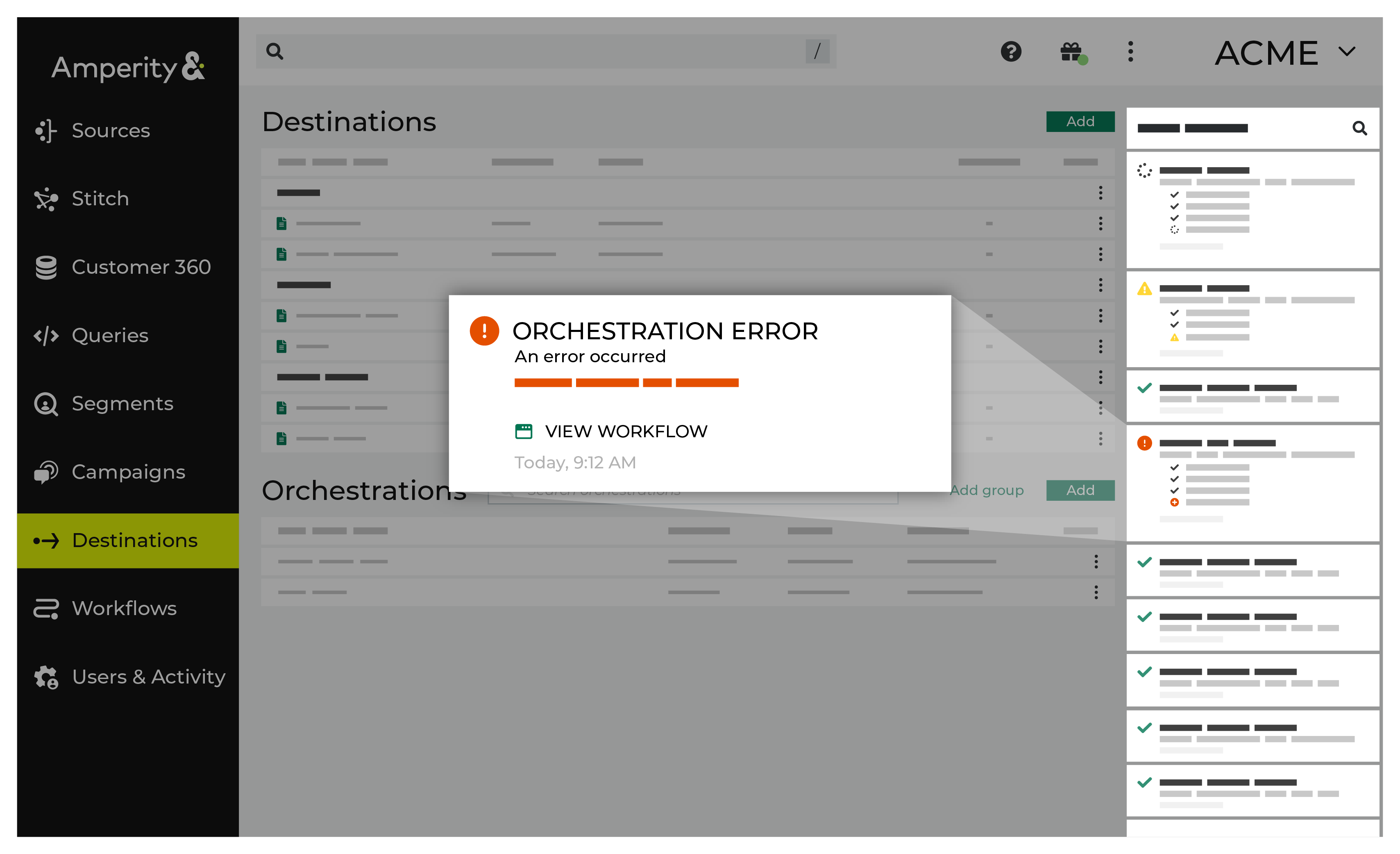
If you receive a notification error, review the details, and then click the View Workflow link to open this notification error in the Workflows page. |
|
|
On the Workflows page, review the individual steps to determine which steps have errors that require your attention, and then click Show Resolutions to review the list of workflow actions generated for this error. 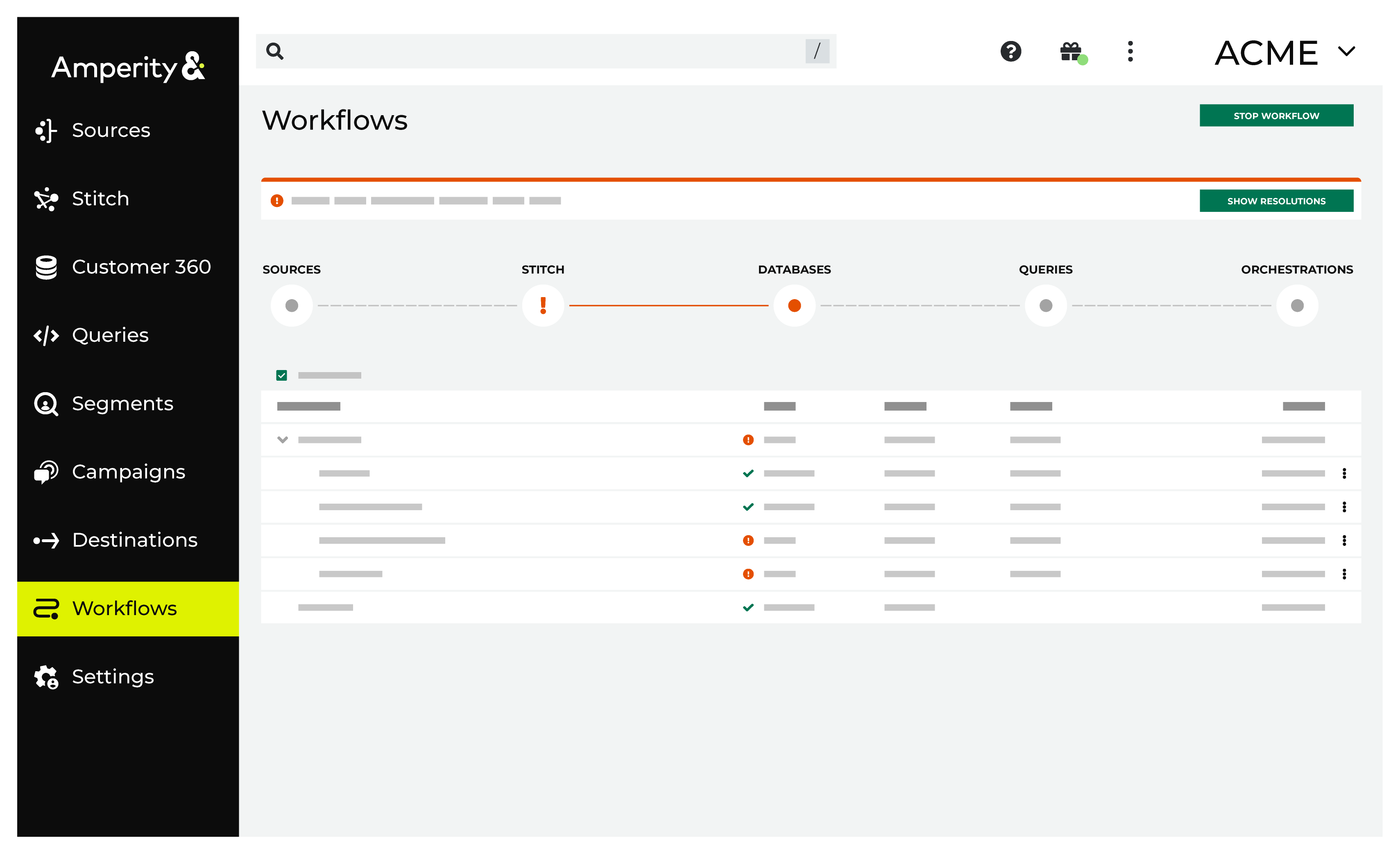
|
|
|
A list of individual workflow actions are shown. Review the list to identify which action you should take. Some workflow actions are common across workflows and will often be available, such as retrying a specific task within a workflow or restarting a workflow. These types of actions can often resolve an error. In certain cases, actions are specific and are shown when certain conditions exist in your tenant. These types of actions typically must be resolved and may require steps that must be done upstream or downstream from your Amperity workflow. Amperity provides a series of workflow actions that can help resolve specific issues that may arise with Airship, including: |
|
|
Select a workflow action from the list of actions, and then review the steps for resolving that error. After you have completed the steps in the workflow action, click Continue to rerun the workflow. |
Note
If Airship rejects an entire batch of events, the workflow reports the error with Airship’s message, which names only the first event Airship objected to — review the event field values returned by your query. If sends are rate limited, Amperity retries automatically; reduce the volume of events sent per orchestration if the limit persists.
Note
A successful send confirms that Airship accepted the events, not that they were delivered. Airship accepts an event whose name matches no automation, and an identifier that matches no Airship user, without reporting an error. Events cannot be deleted, corrected, or deduplicated after they are sent, so a retried send double-counts.
Invalid credentials
Amperity was unable to authenticate with Airship. Verify the credential’s Client ID, Client Secret, and App Key against your Airship project’s client credentials, and confirm the credentials grant the Events permission. Because credentials are regional, also confirm the Data Center matches the region hosting your Airship project. Airship client credentials can also be given an expiration date or be revoked, so confirm they are still active.
To resolve this error, verify the credentials configured for this workflow in Amperity.
Open the Destinations page and review the credential connected to the Airship destination associated with this workflow. Verify the Client ID, Client Secret, App Key, and Data Center, and confirm the credentials grant the Events permission and are still active.
Return to the workflow action, and then click Resolve to retry this workflow.
Invalid settings
Airship did not accept this workflow’s configuration. Confirm the destination’s settings, and verify that the credential’s Data Center is set to the region (US or EU) that hosts your Airship project.
To resolve this error, verify the settings configured for this workflow in Amperity.
Open the Destinations page and review the Airship destination associated with this workflow, along with its connected credential. Verify the destination’s settings, and that the credential’s Data Center matches the region hosting your Airship project.
Return to the workflow action, and then click Resolve to retry this workflow.