
 Operators Guide



Configure events for Google Enhanced Conversions (GDM)
Google Enhanced Conversions (GDM) sends offline conversions from Amperity to a Google Ads conversion action, so Google Ads can measure and optimize on conversions that happen away from your website. Each conversion is matched to a Google user on a hashed email address or phone number, which suits in-store, call-centre, and in-app conversions where no ad-click identifier exists. The connector uses Google’s Data Manager platform (GDM).
Send offline conversions to a Google Ads conversion action so that Google Ads can measure and optimize on conversions that happen away from your website. Each row returned by your query is sent as a single conversion, matched to a Google user on a hashed email address or phone number. Because it matches on personal information rather than an ad-click identifier, it suits in-store purchases, call-center bookings, in-app purchases, and other offline activity where no click ID exists.
Amperity sends conversions to Google Ads through the Google Data Manager API. There is no audience or list involved — every orchestration submits a new batch of conversions.
Caution
The values for email and phone sent to Google Enhanced Conversions (GDM) are SHA-256 hashed automatically by Amperity before sending. Do not use the TO_HEX() function with the email and phone fields for queries that return results for Google Enhanced Conversions (GDM).
Note
For gmail.com and googlemail.com addresses, Amperity removes dots from the username and drops any plus-sign tag before hashing, matching Google’s own normalization.
Important
Amperity provides two Google Enhanced Conversions connectors, and both appear in the destination picker. Use Google Enhanced Conversions (GDM) — this connector — for new setups: it uploads conversions through Google’s Data Manager API. As of 15 June 2026, Google began moving offline conversion and enhanced-conversions uploads to the Data Manager API and blocking them in the older Google Ads API that the separate Google Enhanced Conversions connector uses. Connect and configure each connector separately.
How this destination works
Amperity normalizes and hashes each row’s email and phone, then submits the conversion to the configured Google Ads conversion action. Google Ads matches the hashed identifiers to a signed-in Google user and attributes the conversion.
Google matches conversions in the background, and the process can take a long time — from minutes to days. Because an orchestration cannot wait that long, Amperity reports a conversion as delivered once Google accepts the batch.
Important
A successful orchestration means Google accepted the conversions, not that it has matched and credited them. Because matching depends on whether the hashed identifiers correspond to real Google users, confirm results in the Google Ads interface.
Get details
Review the following details before configuring credentials for Google Enhanced Conversions (GDM) and before configuring Amperity to send offline conversions to Google Enhanced Conversions (GDM).

|
Configure Google Ads
|
|
|
Credential settings Refresh token
|
|
|
Required configuration settings Google Ads customer ID
Conversion action ID
Event source
|
|
|
Optional configuration settings Manager (MCC) customer ID
|
Configure credentials
Configure credentials for Google Enhanced Conversions (GDM) before adding a destination.
An individual with access to Google Enhanced Conversions (GDM) should use SnapPass to securely share “Refresh token” details with the individual who configures Amperity.
To configure OAuth

|
From the Settings page, select the Credentials tab, and then click the Add credential button. |
|
In the Credentials settings dialog box, from the Plugin dropdown, select “Google Enhanced Conversions (GDM)”. Note Amperity provides two Google Enhanced Conversions connectors. Select “Google Enhanced Conversions (GDM)” to send conversions over Google’s Data Manager platform. Google Enhanced Conversions is the separate connector that uses the older Google Ads API upload path. Assign the credential a name and description that ensures other users of Amperity can recognize when to use this destination. |

|
The settings that are available for a credential vary by credential type. For the “google-enhanced-conversions-gdm” credential type, configure settings, and then click Save. Refresh token
|
Add destination
Use a sandbox to configure a destination for Google Enhanced Conversions (GDM). Before promoting your changes, send a sample audience, and then verify the results in Google Enhanced Conversions (GDM). After verifying the end-to-end workflow, push the destination from the sandbox to production.
To add a destination for Google Enhanced Conversions (GDM)
|
|
Open the Destinations page, select the New destinations button, and then select Orchestration. To configure a destination for Google Enhanced Conversions (GDM), do one of the following:
|
|
|
Select the credential for Google Enhanced Conversions (GDM) from the Credential dropdown, and then click Continue. Tip Amperity validates the connection when the destination is saved. If the connection cannot be validated, an error is shown and the destination is not saved. |
|
|
In the “Destination settings” dialog box, assign the destination a name and description that ensures other users of Amperity can recognize when to use this destination. Configure business user access By default a destination is available to all users who have permission to view personally identifiable information (PII). Enable the Admin only checkbox to restrict access to only users assigned to the Datagrid Operator and Datagrid Administrator policies. Enable the PII setting checkbox to allow limited access to PII for this destination. Use the Restrict PII access policy option to prevent users from viewing data marked as PII anywhere in Amperity and from sending data to downstream workflows. |

|
Configure the following settings, and then click “Save”. Google Ads customer ID
Conversion action ID
Event source
Manager (MCC) customer ID
|

|
After configuring this destination users may use orchestrations to send query results Google Enhanced Conversions (GDM). |

|
Validate the audience with Google Enhanced Conversions (GDM) by using a sample audience with a very small membership. For example: 10 or 100 members or the minimum audience size recommended by Google Enhanced Conversions (GDM). Send the sample audience to Google Enhanced Conversions (GDM) and verify the sample audience is correct in Google Enhanced Conversions (GDM). Make adjustments if necessary. Only send full audiences after validation is complete. |
Build a query
Use a query to return one row per offline conversion to send to Google Enhanced Conversions (GDM). Each row must include a conversion timestamp and at least one identifier — an email address, a phone number, or both. Sending both improves the match rate. You can also include a conversion value with its currency, and an order ID that Google uses to deduplicate conversions re-sent across repeated runs.
Review the Conversion fields section for the columns your query must and may return.
Bound the query to recent conversions so each orchestration sends new conversions instead of re-sending history; choose a window that matches how often the orchestration runs. A query that returns a collection of recent conversions for use in Google Enhanced Conversions (GDM) is similar to:
 1SELECT
 2  c360.email AS email
 3  ,c360.phone AS phone
 4  ,ut.order_datetime AS conversion_timestamp
 5  ,CASE WHEN ut.order_revenue < 0 THEN 0 ELSE ut.order_revenue END AS conversion_value
 6  ,'USD' AS currency_code
 7  ,ut.order_id AS order_id
 8FROM Unified_Transactions ut
 9JOIN Customer_360 c360 ON ut.amperity_id = c360.amperity_id
10WHERE ut.order_datetime > (CURRENT_DATE - interval '7' day)
11  AND (c360.email IS NOT NULL OR c360.phone IS NOT NULL)
where:
email and phone are the match identifiers. The
WHEREclause keeps only rows that have at least one, because a conversion with neither cannot be matched. Do not hash them in the query — Amperity hashes them automatically.conversion_timestamp must be an ISO 8601 instant that ends with
Zor carries a UTC offset, such as2026-07-10T12:00:00Z. Amperity sends it exactly as your query returns it and never reformats it. Event data exported from Google Analytics 4 or BigQuery stores the event time as epoch microseconds, such as1788902434937065, which Google rejects. Convert it in the query:to_iso8601(from_unixtime(CAST(bq.event_timestamp AS bigint) / 1000000, 'UTC')) AS conversion_timestampThe
'UTC'argument is required, not cosmetic. It makesfrom_unixtimereturn a timestamp with a time zone so thatto_iso8601emits the trailingZ. Without it the value carries no offset and Google rejects every conversion.conversion_value is the value Google Ads bids on, and is sent only when currency_code is also present. Google rejects a negative conversion value, so a row whose revenue is negative — a return, refund, or void — is dropped and reported as a failed row. The
CASEexpression sends zero for those rows instead of the negative amount, which reports the order with no value rather than dropping it. Where order_id holds the identifier of the original order, sending zero for it removes the value from the conversion already reported for that order; where the return is recorded as its own transaction with its own ID, it instead reports a separate conversion worth zero, which increases your conversion count. Check the result in Google Ads after the first run. To leave these conversions unreported instead, drop theCASEexpression and addAND ut.order_revenue > 0to theWHEREclause.currency_code is a valid ISO 4217 currency code — for example,
USD.order_id is the deduplication key. Send a stable value so that repeated sends of the same conversion are not double-counted.
Data validation
An orchestration is not checked against the connector’s schema before it runs, so a query that returns the wrong columns is not caught up front — the orchestration runs and reports every row as failed. Make sure your query returns the columns Google Enhanced Conversions (GDM) requires, spelled exactly as Amperity reads them:
conversion_timestamp on every row.
At least one of email or phone on every row. A query that returns neither column fails every row, because Google cannot match a conversion without an identifier.
Optionally, conversion_value with currency_code, and order_id.
Return these names in lower case — conversion_timestamp, email, phone, conversion_value, currency_code, and order_id — and match them exactly. Column names are case-sensitive: a column returned as Email is not read as email, so every row is dropped as unmatched and no error is raised before the run.
During a send, a row is dropped and reported as failed when it has no usable email or phone value. A row that has a conversion_value but no currency_code is still sent, but the value is dropped and reported: the conversion is recorded as a count rather than carrying the value. Rows that Google rejects for a per-row reason are reported as failed rows with Google’s reason in the orchestration’s error log.
Numeric columns are read as-is: conversion_value may be returned as a number or as a string.
conversion_value must be zero or greater. Google rejects a negative conversion value, so rows carrying one — most often returns, refunds, and voids in the source transaction data — are dropped and reported as failed rows with the reason Invalid conversion_value (must be a finite non-negative number). On a dataset that records returns this way, these can account for every failed row in a run that otherwise succeeds. Decide in the query whether to send those orders with a value of zero or to leave them out.
A malformed conversion_timestamp is the exception to per-row handling. Google validates the timestamp when it receives the batch and rejects the whole request rather than the offending row, so a timestamp in the wrong format fails every conversion in that batch. The orchestration then fails with Exceeded error limit of 100% and the error log carries Google’s reason, Illegal timestamp format; timestamps must end with 'Z' or have a valid timezone offset. If you see that, correct the format in the query and run the orchestration again.
Conversion fields
The following table describes each column Amperity sends to Google Enhanced Conversions (GDM). A query must return columns with the same name as listed in the “Amperity name” column; Amperity maps them to the Data Manager field names automatically.
Amperity name |
Data Manager field |
Description |
|---|---|---|
conversion_timestamp |
eventTimestamp |
Required When the conversion happened, as an ISO 8601 instant that ends with |
userData.userIdentifiers.emailAddress |
Optional, but at least one of email or phone is required. An email address. Amperity normalizes it to Google’s format and applies SHA-256 hashing before sending. |
|
phone |
userData.userIdentifiers.phoneNumber |
Optional, but at least one of email or phone is required. A phone number. Amperity converts it to E.164 format and applies SHA-256 hashing before sending. |
conversion_value |
conversionValue |
Optional The value of the conversion, as a number. Sent only when currency_code is also present. Must be zero or greater. A negative value is rejected by Google, so rows carrying one are dropped and reported as failed rows. |
currency_code |
currency |
Optional The currency that conversion_value is expressed in, as a three-character ISO 4217 code. Required in order to send conversion_value. |
order_id |
transactionId |
Optional A deduplication key. When the same conversion is re-sent across repeated runs, Google collapses rows with the same order ID into one so the conversion is not counted twice. |
Delivery and results
Google accepts a batch of conversions almost immediately and then matches them in the background over a window that can range from minutes to days. Amperity treats a conversion as delivered once Google accepts the batch.
A successful orchestration means Google accepted the conversions, not that it matched and credited them. Confirm final results in the Google Ads interface.
Per-conversion failures are reported on a best-effort basis. Amperity reports the failures that Google returns quickly as failed rows in the orchestration’s error log. Failures that Google surfaces only later do not appear in the orchestration.
Amperity automatically splits large sends into batches of 2,000 conversions. This is not something you configure.
Conversions cannot be deleted or retracted once submitted. Google offers no way to take back a conversion, so test with care.
Workflow actions
A workflow will occasionally show an error that describes what prevented a workflow from completing successfully. These first appear as alerts in the notifications pane. The alert describes the error, and then links to the Workflows tab.
Open the Workflows page to review a list of workflow actions, choose an action to resolve the workflow error, and then follow the steps that are shown.
|
|
You may receive a notifications error for a configured Google Enhanced Conversions (GDM) destination. This appears as an alert in the notifications pane on the Destinations tab. 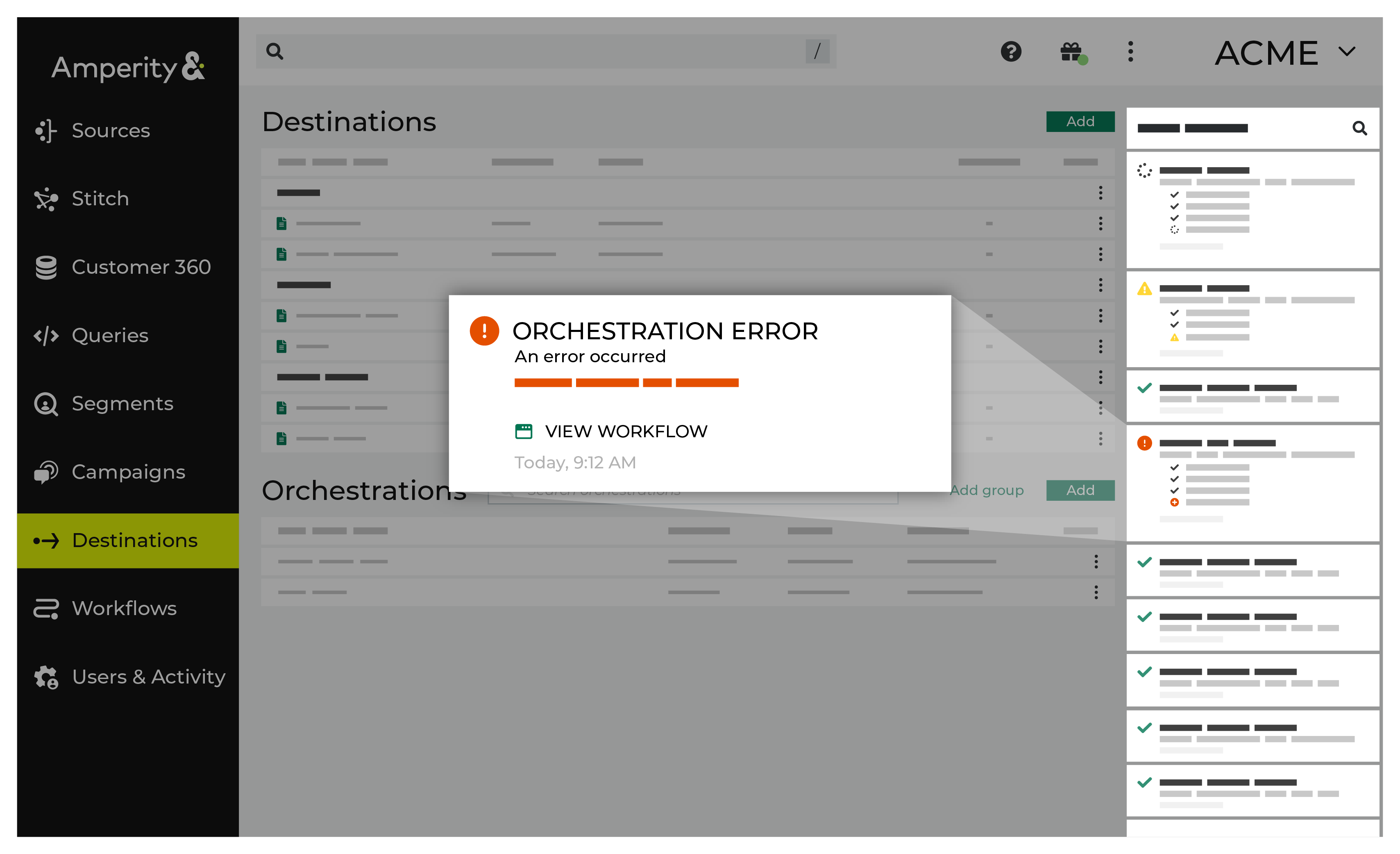
If you receive a notification error, review the details, and then click the Workflow job link to open this notification error in the Workflows page. |
|
|
On the Workflows page, review the individual steps to determine which steps have errors that require your attention, and then click Show Resolutions to review the list of workflow actions generated for this error. 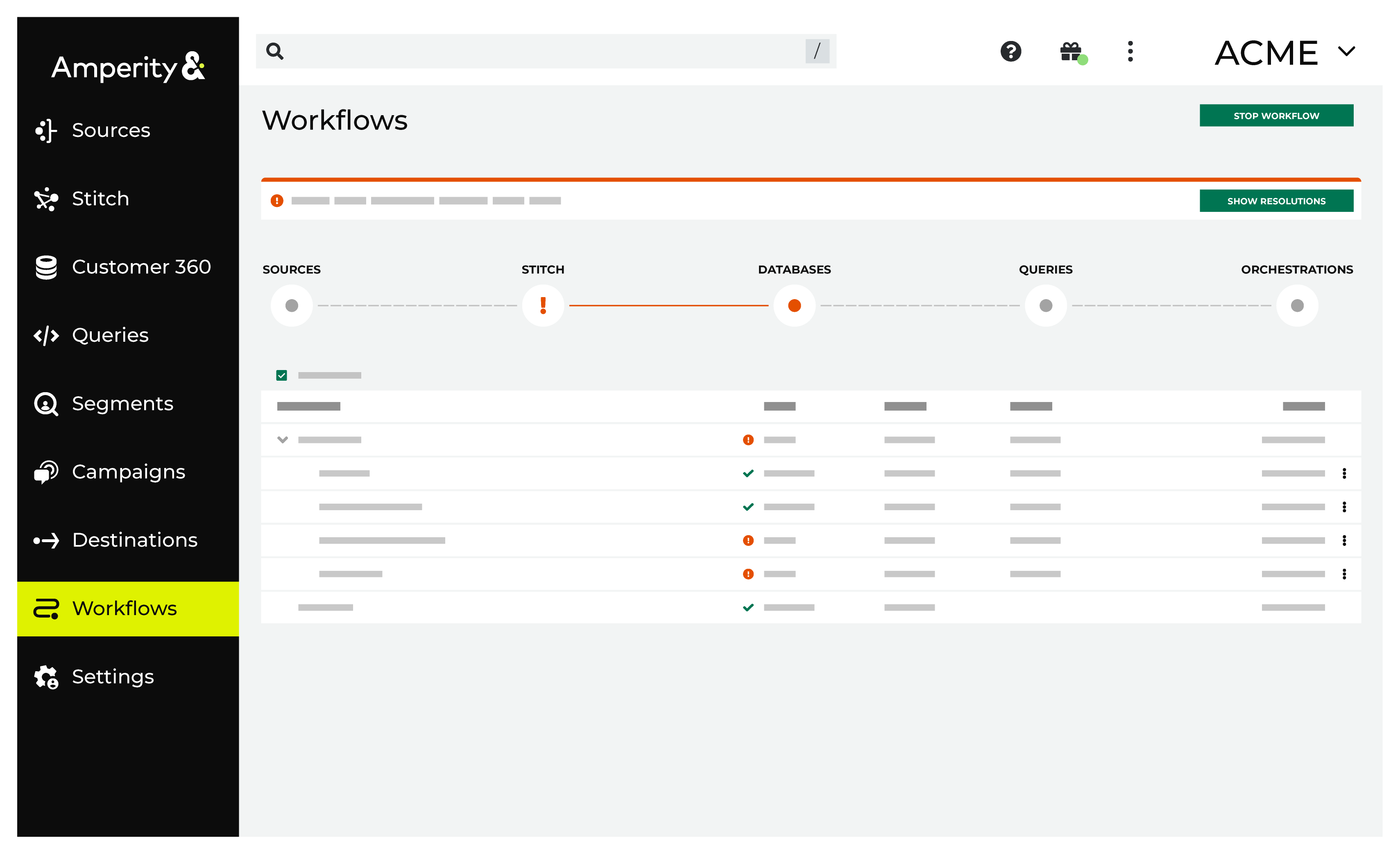
|
|
|
A list of individual workflow actions are shown. Review the list to identify which action you should take. Some workflow actions are common across workflows and will often be available, such as retrying a specific task within a workflow or restarting a workflow. These types of actions can often resolve an error. In certain cases, actions are specific and are shown when certain conditions exist in your tenant. These types of actions typically must be resolved and may require steps that must be done upstream or downstream from your Amperity workflow. |
|
|
Select a workflow action from the list of actions, and then review the steps for resolving that error. After you have completed the steps in the workflow action, click Continue to rerun the workflow. |
Note
Connection problems are caught when the destination is saved: Amperity submits a single test conversion to Google in a validate-only mode that writes nothing. If Google rejects the connected account, reconnect the destination to refresh the Google authorization. If Google accepts the sign-in but refuses the destination, check the Google Ads customer ID and Conversion action ID. During an orchestration, per-conversion failures are recorded as failed rows with Google’s own explanation in the error log.
Google Data Manager API reference
Amperity sends conversions to Google Enhanced Conversions (GDM) using the Google Data Manager API
. Conversions are submitted through the events:ingest method. Amperity normalizes and hashes identifiers according to Google’s identifier formatting guide
.