
 Operators Guide



Configure events for Microsoft Advertising
Microsoft Advertising offline conversions let your brand send conversions that happen away from your website — such as in-store purchases, phone orders, or qualified leads — to Microsoft Advertising. Microsoft Advertising uses these conversions to measure campaign performance, build audiences, and optimize bidding toward the outcomes that matter to your business. Amperity identifies each conversion by a Microsoft click ID (msclkid) or a hashed email address or phone number.
Send offline conversions to Microsoft Advertising to measure campaign performance, build audiences, and optimize bidding toward outcomes that happen away from your website — such as in-store purchases, phone orders, or qualified leads. Each row returned by your query is sent as a single offline conversion, matched to a Microsoft click ID or a hashed customer identifier.
Amperity hashes email and phone identifiers with SHA-256 before sending them; raw identifier values never leave Amperity. See the ApplyOfflineConversions reference for more information.
Beta
The Microsoft Advertising offline conversions connector is currently in beta. Contact your Amperity representative to learn more.
Caution
The values for email and phone sent to Microsoft Advertising are SHA-256 hashed automatically by Amperity before sending. Do not use the TO_HEX() function with the email and phone fields for queries that return results for Microsoft Advertising.
Get details
Review the following details before configuring credentials for Microsoft Advertising and before configuring Amperity to send offline conversions to Microsoft Advertising.

|
Credential settings Refresh token
|
|
|
Microsoft Advertising settings Operation mode
Customer Account ID
Customer ID
|
|
|
Request properties
|
Configure credentials
Configure credentials for Microsoft Advertising before adding a destination.
An individual with access to Microsoft Advertising should use SnapPass to securely share “refresh token” details with the individual who configures Amperity.
To configure credentials for Microsoft Ads Offline Events

|
From the Settings page, select the Credentials tab, and then click the Add credential button. |
|
In the Credentials settings dialog box, do the following: From the Plugin dropdown, select Microsoft Ads Offline Events. Note Amperity provides two Microsoft Advertising connectors. Select Microsoft Ads Offline Events to send offline conversions. Microsoft Ads is a separate connector that sends customer profiles for audience targeting. Assign the credential a name and description that ensures other users of Amperity can recognize when to use this destination. |

|
The settings that are available for a credential vary by credential type. For the “microsoft-ads-offline-conversions” credential type, configure settings, and then click Save. Refresh token
|
Add destination
Use a sandbox to configure a destination for Microsoft Advertising. Before promoting your changes, send a sample audience, and then verify the results in Microsoft Advertising. After verifying the end-to-end workflow, push the destination from the sandbox to production.
To add a destination
|
|
Open the Destinations tab to configure a destination for Microsoft Advertising. Click the Add Destination button to open the Destination dialog box. Enter the name of the destination and a description. For example: “Microsoft Advertising offline conversions” and “Send offline conversions to Microsoft Advertising.”. |
|
|
Credentials allow Amperity to connect to Microsoft Advertising. The credential type is set automatically. You may use an existing credential or you may add a new one. Select an existing credential from the Credential dropdown. – or – Select Create a new credential from the Credential dropdown. This opens the Credential dialog box. |
|
|
In the “Destination settings” dialog box, assign the destination a name and description that ensures other users of Amperity can recognize when to use this destination. Configure business user access By default a destination is available to all users who have permission to view personally identifiable information (PII). Enable the Admin only checkbox to restrict access to only users assigned to the Datagrid Operator and Datagrid Administrator policies. Enable the PII setting checkbox to allow limited access to PII for this destination. Use the Restrict PII access policy option to prevent users from viewing data marked as PII anywhere in Amperity and from sending data to downstream workflows. |

|
Configure the following settings, and then click “Save”. Operation mode
Customer Account ID
Customer ID
|

|
After configuring this destination users may use orchestrations to send query results Microsoft Advertising. |

|
Validate the audience with Microsoft Advertising by using a sample audience with a very small membership. For example: 10 or 100 members or the minimum audience size recommended by Microsoft Advertising. Send the sample audience to Microsoft Advertising and verify the sample audience is correct in Microsoft Advertising. Make adjustments if necessary. Only send full audiences after validation is complete. |
Build a query
Use a query to build a combination of data — typically from the Unified Transactions and Customer 360 tables — that returns one row per offline conversion to send to Microsoft Advertising. Each row must include a conversion goal name, a conversion timestamp, and at least one identifier: a Microsoft click ID, an email address, or a phone number. You can also include an order ID, a conversion value, and a currency code, which Amperity sends with each conversion.
Review the Offline conversion fields section for the columns your query must and may return, and the Operation modes section for how send-conversions and adjust-conversions queries differ.
Note
Microsoft Advertising does not deduplicate offline conversions. Bound your query to new conversions — or use a unique-count conversion goal — so the same conversion is not sent, and counted, more than once.
Bound the query to recent conversions — Microsoft Advertising accepts conversions up to 90 days old — so each orchestration sends new conversions instead of re-sending history. A query that returns a collection of recent purchase conversions for use in Microsoft Advertising is similar to:
 1SELECT
 2  'In-store purchase' AS conversion_name
 3  ,ut.order_datetime AS conversion_time
 4  ,c360.email AS email
 5  ,c360.phone AS phone
 6  ,ut.order_id AS order_id
 7  ,ut.order_revenue AS conversion_value
 8  ,ut.currency AS currency_code
 9FROM Unified_Transactions ut
10LEFT JOIN Customer_360 c360 ON ut.amperity_id = c360.amperity_id
11WHERE ut.order_datetime > (CURRENT_DATE - interval '7' day)
12AND (c360.email IS NOT NULL OR c360.phone IS NOT NULL)
Operation modes
A destination sends data in one of two operation modes, set by the Operation mode setting:
send-conversions uploads new offline conversions to Microsoft Advertising.
adjust-conversions restates or retracts conversions that were uploaded previously. A
Restateadjustment updates a conversion’s value; aRetractadjustment voids it.
A destination uses a single mode. To both upload and adjust conversions, configure a separate destination for each mode. In adjust-conversions mode, each row must also identify the original conversion with conversion_name, conversion_time, and one of msclkid, email, or phone.
Set up a conversion goal
Before you send offline conversions, create an offline conversion goal in Microsoft Advertising and note its name. The conversion_name column returned by your query must match the goal name exactly, including capitalization.
A new conversion goal can take up to two hours to become available. Until it does, Microsoft Advertising rejects conversions sent to that goal.
Data validation
Amperity validates each row before sending and drops rows that Microsoft Advertising would reject, so that one invalid row does not cause an entire batch of conversions to be rejected. Dropped rows are reported as failed with the reason. A row is dropped when:
conversion_name or conversion_time is missing.
None of msclkid, email, or phone is present.
conversion_time cannot be parsed as an ISO 8601 instant with a UTC offset (for example,
2026-07-10T12:00:00Z), or is more than 90 days in the past.In
adjust-conversionsmode: adjustment_type is notRestateorRetract, adjustment_time is missing or is not later than conversion_time, or aRestateis missing adjustment_value or adjustment_currency_code.
An individual identifier that cannot be used — an email without an @, or a phone number that cannot be normalized — is dropped from that row; the rest of the conversion is still sent when another identifier remains. A non-numeric conversion_value (and its currency_code) is dropped the same way.
Offline conversion fields
The following table describes each column Amperity sends to Microsoft Advertising. A query must return columns with the same name as listed in the “Amperity name” column; Amperity maps them to the Microsoft Advertising field names automatically.
Important
A query must return conversion_name and conversion_time, plus at least one of msclkid, email, or phone to identify the conversion. All other columns are optional; currency_code is sent only when conversion_value is present. In adjust-conversions mode, a query must also return adjustment_type and adjustment_time; Restate adjustments also require adjustment_value and adjustment_currency_code.
Amperity name |
Microsoft Advertising field |
Description |
|---|---|---|
conversion_name |
ConversionName |
Required The name of the offline conversion goal. Case-sensitive — must match the goal in Microsoft Advertising exactly. See Set up a conversion goal. |
conversion_time |
ConversionTime |
Required When the conversion occurred, as an ISO 8601 instant with a UTC offset (for example, |
msclkid |
MicrosoftClickId |
Optional The Microsoft click ID captured from the ad click. One of msclkid, email, or phone is required. |
HashedEmailAddress |
Optional An email address. Amperity applies SHA-256 hashing before sending. One of msclkid, email, or phone is required. |
|
phone |
HashedPhoneNumber |
Optional A phone number. Amperity normalizes the number to E.164 format using the US region and applies SHA-256 hashing before sending. One of msclkid, email, or phone is required. |
order_id |
ClientId |
Optional Your identifier for the conversion. Include it so the conversion can be restated or retracted later in |
conversion_value |
ConversionValue |
Optional A numeric value for the conversion. |
currency_code |
ConversionCurrencyCode |
Optional A three-character ISO 4217 currency code for conversion_value. Sent only when conversion_value is present. |
In adjust-conversions mode, a query returns the same identifying columns, plus the following:
Amperity name |
Microsoft Advertising field |
Description |
|---|---|---|
adjustment_type |
AdjustmentType |
Required
|
adjustment_time |
AdjustmentTime |
Required When the adjustment occurred, as an ISO 8601 instant. Must be later than conversion_time. |
adjustment_value |
AdjustmentValue |
Required for Restate The new conversion value. |
adjustment_currency_code |
AdjustmentCurrencyCode |
Required for Restate A three-character ISO 4217 currency code for adjustment_value. |
Workflow actions
A workflow will occasionally show an error that describes what prevented a workflow from completing successfully. These first appear as alerts in the notifications pane. The alert describes the error, and then links to the Workflows tab.
Open the Workflows page to review a list of workflow actions, choose an action to resolve the workflow error, and then follow the steps that are shown.
|
|
You may receive a notifications error for a configured Microsoft Advertising destination. This appears as an alert in the notifications pane on the Destinations tab. 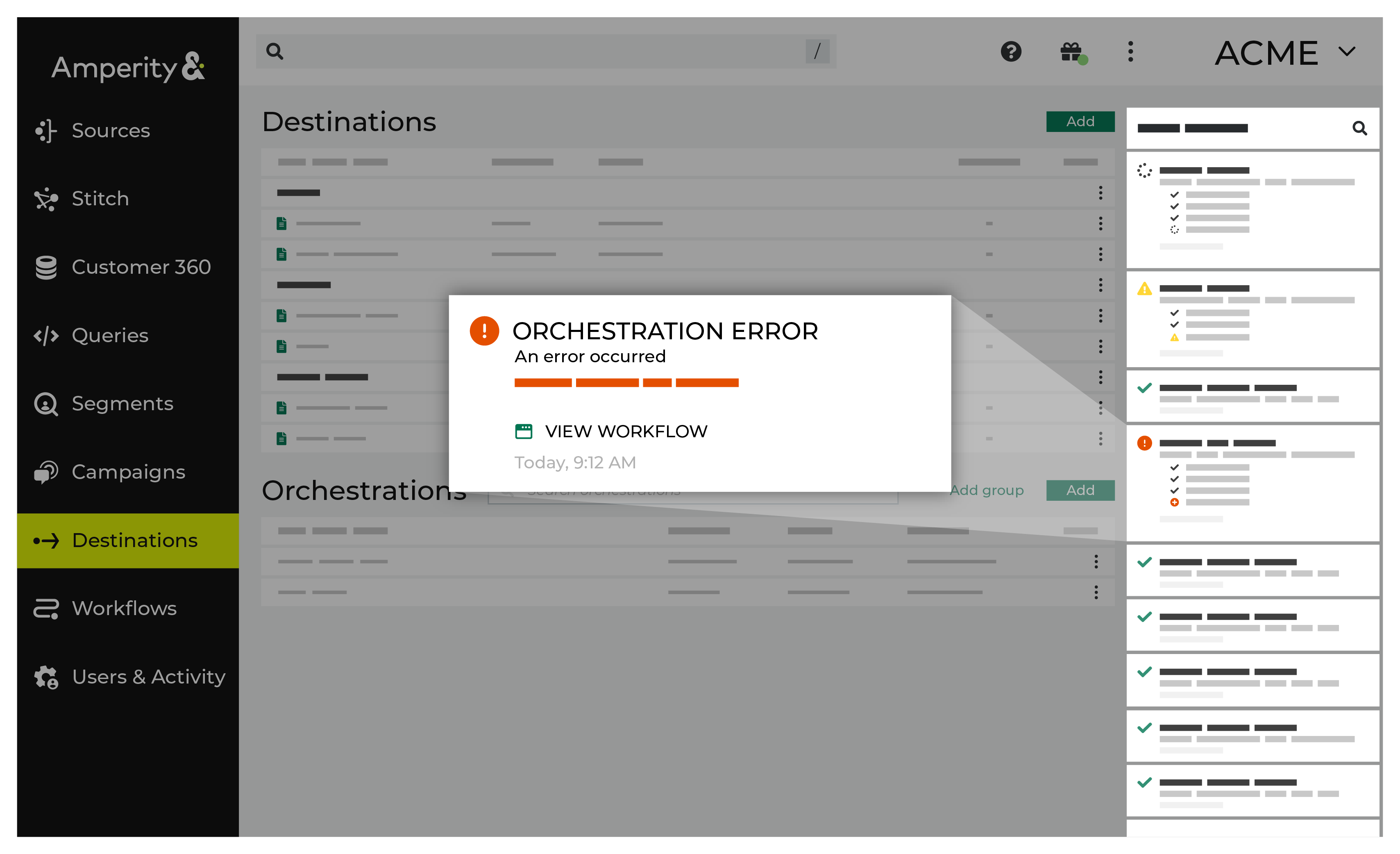
If you receive a notification error, review the details, and then click the View Workflow link to open this notification error in the Workflows page. |
|
|
On the Workflows page, review the individual steps to determine which steps have errors that require your attention, and then click Show Resolutions to review the list of workflow actions generated for this error. 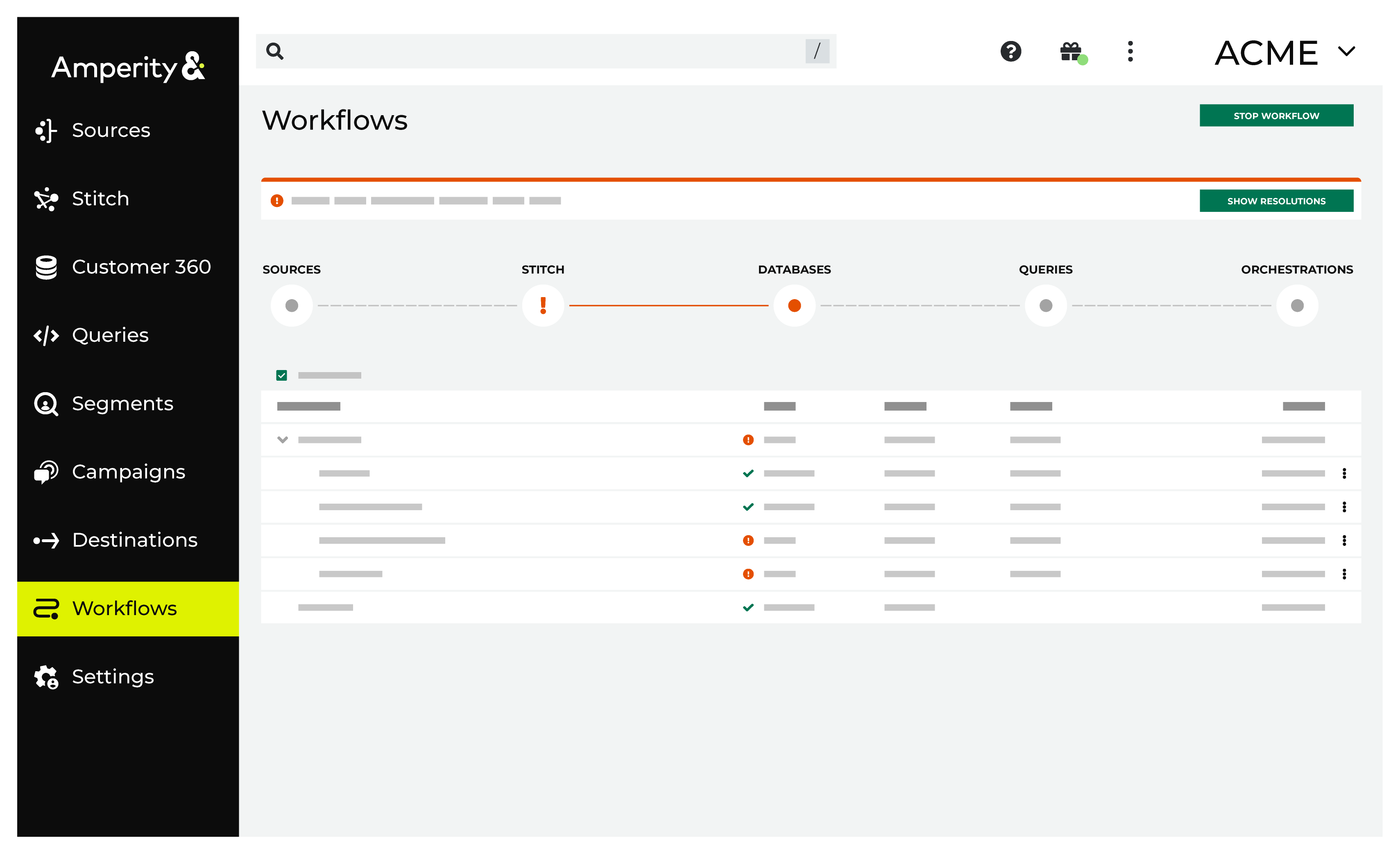
|
|
|
A list of individual workflow actions are shown. Review the list to identify which action you should take. Some workflow actions are common across workflows and will often be available, such as retrying a specific task within a workflow or restarting a workflow. These types of actions can often resolve an error. In certain cases, actions are specific and are shown when certain conditions exist in your tenant. These types of actions typically must be resolved and may require steps that must be done upstream or downstream from your Amperity workflow. Amperity provides a series of workflow actions that can help resolve specific issues that may arise with Microsoft Advertising, including: |
|
|
Select a workflow action from the list of actions, and then review the steps for resolving that error. After you have completed the steps in the workflow action, click Continue to rerun the workflow. |
Note
If Microsoft Advertising rejects a batch of conversions, the workflow reports the error with Microsoft’s field-level detail. A common cause is a conversion_name that does not match a conversion goal exactly, or a goal that has not finished propagating — see Set up a conversion goal. If sends are rate limited, Amperity retries automatically.
Invalid credentials
The credentials that are defined in Amperity are invalid.
To resolve this error, verify that the credentials required by this workflow are valid.
Open the Credentials page.
Review the details for the credentials used with this workflow. Update the credentials for Microsoft Advertising if required.
Return to the workflow action, and then click Resolve to retry this workflow.