
 Reference



Working with the AI Assistant
The AI Assistant helps marketers move from intent to action. Through natural language conversation, users can create segments, build journeys, and explore customer data without navigating manual configuration.
The AI Assistant is designed as a starting point: describe what you want to accomplish, and it generates a working draft that you can review, refine, and save. Think of it as a collaborative tool that handles the initial setup work, allowing you to focus on strategic refinement.
Access the AI Assistant
Your Amperity hosting region determines which experience is available from the AI Assistant button. Tenant settings and user permissions may also affect access.
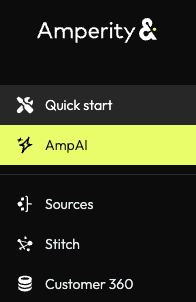
If the AI Assistant is available for your tenant, access it by clicking the AI Assistant button in the UI sidebar.
Note
If the AI Assistant is not enabled for your tenant, contact your DataGrid Operator to request access.
Tip
When you click the AI Assistant button, you will see a dialog box guiding you to customize the AI Assistant by writing a custom prompt.
Creating a custom prompt tailored to your business needs will help the AI Assistant and the tool-specific AI Assistants provide more effective assistance.
The Canvas
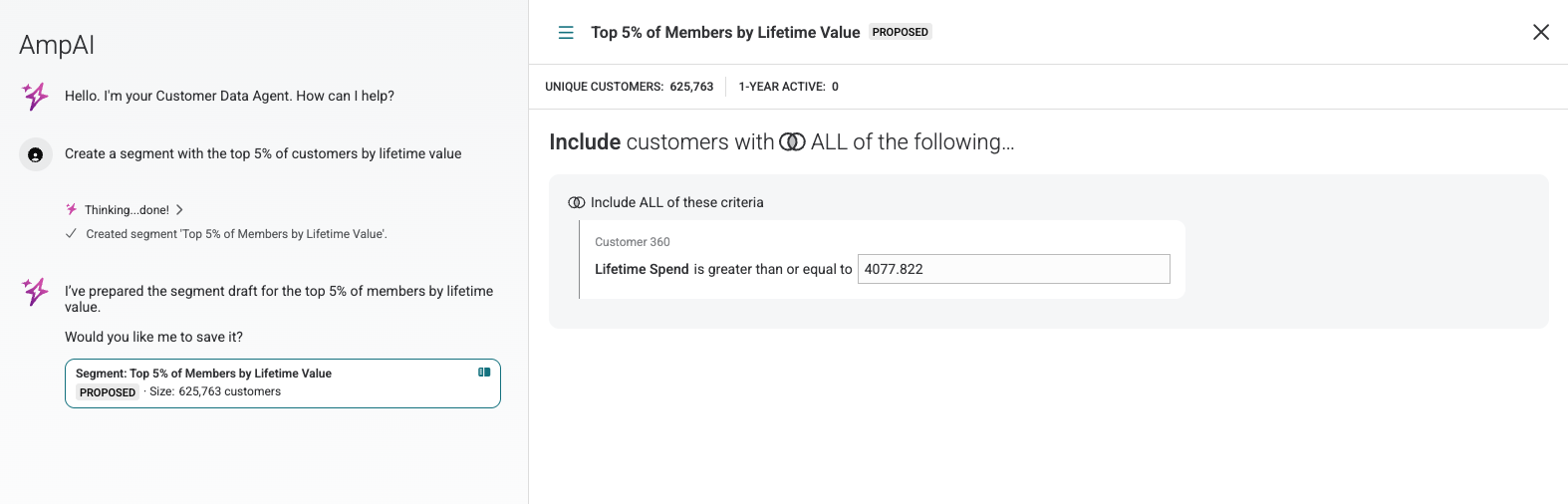
When the AI Assistant creates drafts of segments or journeys, it displays them in the Canvas, a dedicated area within the AI Assistant interface that renders interactive components you can evaluate before using.
To access the Canvas, click into any draft that has a split-screen icon on the right-hand side.

Use the Canvas to:
View proposed segments with customer counts and filter criteria
Preview journey structures with their entry segments and channel configurations
Switch between many drafts, using the hamburger icon in the top left of the Canvas to select from recent work.
Access manual editing options to make fine-grained adjustments, using the Manual edit button in the top right of the Canvas.
Note
Selecting Manual edit will take you to the relevant area of Amperity. For example, if you have a draft journey and you select Manual edit, you will be taken to the Journeys editor where you can proceed with edits.
Proposed state and drafting
The AI Assistant operates in a drafting model for segments: when you ask it to create or modify a segment, it generates a proposed version rather than saving directly to your tenant.
This drafting approach provides several benefits:
Review before saving Inspect the draft before saving. Check segment filters, customer count, and structure.
Iterative refinement Ask the AI Assistant to modify the proposal and see the updated version before saving. For example: “Actually, change the time frame to the last two months”.
Compare versions Click between proposed drafts in the AI Assistant chat history to compare different iterations side-by-side.
Safe exploration Experiment with different segment definitions or journey flows without affecting your production data.
Once satisfied with a proposal, explicitly ask the AI Assistant to save it. After saving, use the Manual edit button in the Canvas to open the full segment or journey editor for additional refinement.
Note
You cannot build a journey based on a proposed segment. You must save a proposed segment before creating a journey using that segment.
Important
While segments use draft proposals and need to be saved, journeys created with the AI Assistant are automatically saved to your tenant. You can still use the AI Assistant to edit them further, but you do not need to take the step to save them.
The Undo button
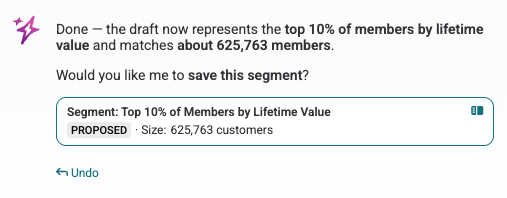
After editing a segment or journey through conversational prompting, the chat dialog will show an Undo button that reverts the last change.
Note
The Undo action reverts the last modification to the proposed state, not the last text prompt in the conversation.
Multi-step planning
When you ask the AI Assistant to perform many related actions, it automatically generates a plan, which is a task list to coordinate the work.
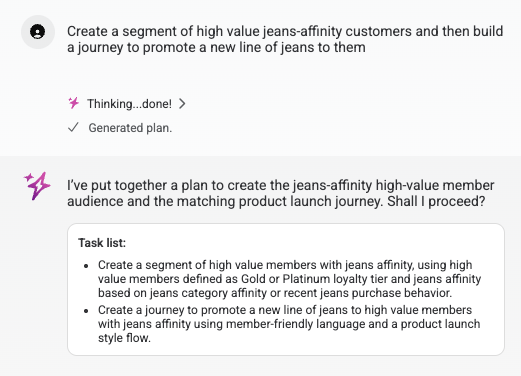
For example, if you ask: “Create a segment of high-value members and build a journey to promote a new product to them,” the AI Assistant will:
Display a plan with two tasks: create the segment, then create the journey
Execute each task in sequence
Track progress through the plan, showing completed and pending items
You can interrupt a plan to ask questions about a draft mid-process without losing its place. For example, after the AI Assistant creates a segment but before it builds the journey, you can ask “What is the preferred marketing channel for this segment?” It then answers and continues with the journey creation.
Note
The AI Assistant automatically decides when to build a plan based on the complexity of your request. You do not need to use a special keyword like “plan”—simply describe what you want to accomplish, and it structures the work appropriately.
Downstream dependency protection
When you ask the AI Assistant to edit an existing segment that is used in one or more active journeys, it triggers a safety confirmation flow.
Before saving the modified segment, a dialog appears showing:
The list of journeys that use this segment
A warning that changes to the segment will affect these journeys
You must explicitly click Edit Segment to proceed with the save. Clicking Cancel aborts the save and preserves the current segment definition.
Capabilities
The AI Assistant excels at tasks involving your customer data:
Capability |
Description |
|---|---|
Create segments |
Describe your target audience in natural language, and the AI Assistant builds a segment with the appropriate filters. |
Create journeys |
Ask for a marketing campaign or journey, and the AI Assistant generates the journey structure, including entry segments and channel configurations. (Asking for a “campaign” will typically result in a journey.) |
Modify existing segments |
Request changes to existing segments, such as adding filters or adjusting date ranges. |
Answer customer data questions |
Ask questions about your customer base, such as purchase patterns, demographics, or segment overlap. |
Build marketing personas |
Describe a customer archetype, and the AI Assistant can construct a persona profile based on your data. |
Limitations
The AI Assistant is optimized for customer data operations. It cannot:
Answer configuration questions. Questions like “What journeys do I have?” or “What destinations can I send to?” are not supported. The AI Assistant operates on customer data, not tenant configuration metadata.
Perform troubleshooting or error recovery. If you encounter an error message and ask “What should I do?”, the AI Assistant cannot diagnose the issue.
Modify destinations, orchestrations, or other non-segment/journey configurations. Its scope is limited to segments and journeys.
Getting good results with the AI Assistant
Treat the AI Assistant as a tool, not a magic answer machine. Like any tool, it performs best when you provide clear direction and iterate based on results.
Write a clear prompt
Start with your vision
Before prompting, have a clear picture of what you want to accomplish. “I want a segment of high-value customers who have not purchased in 90 days” is more effective than “Find me some customers to target.”
Understand the question’s scope
Define the scope of your question to avoid ambiguous results. For example, specify the timeframe, customer segments, or metrics you are analyzing.
Avoid overloading with questions
Focus on one primary question per prompt to ensure clarity and to avoid confusing results.
For example, instead of asking how the demographics of omnichannel customers compare to single-channel customers, ask a question first about omnichannel customer demographics, and then ask a second question about single-channel customer demographics.
This applies to questions, not to actions. A single prompt may ask for several related actions—create a segment, and then build a journey that uses it—and the AI Assistant plans and sequences that work for you. See multi-step planning.
Use consistent terminology
Stick to terminology used in your schema and business logic to align with how the AI Assistant understands your data.
Describe the customer you want to reach
Some Amperity users have found success using the AI Assistant to build marketing personas for their segments. Describe the type of customer you are trying to reach, and the AI Assistant can construct a detailed persona profile based on your actual customer data. This helps bridge the gap between abstract marketing concepts and data-driven segment definitions.
Refine your results
Iterate and refine
If the first result is not correct, coach the AI Assistant with specific feedback:
“The date range should be last year, not this year”
“Add a filter for customers in the Gold loyalty tier”
“Remove the first name filter”
Reframe the question
If you are not getting the results you expect, try asking the same question in a different way. The framing of your question can affect the response.
Ask the AI Assistant to explore
When results are unexpected (like a segment returning zero customers), ask it to investigate:
“Can you look into my data to see when there is purchase data around Valentine’s Day?”
“What date range has the most transaction data?”
The AI Assistant can query your data to find valid parameters, helping you build effective segments even when you are unsure of the exact values.
Let the AI Assistant find existing segments
When creating a journey, the AI Assistant may identify an existing segment that matches your needs. It will ask: “I found a segment called High Value Customers that looks like it could work. Would you like to use that, or should I create a new one?” This helps avoid duplicate segments and makes good use of work already done.
Iterative refinement example
Consider this scenario:
Initial request “Create a segment of customers who made Valentine’s Day purchases.”
Result The AI Assistant creates a segment for Valentine’s Day 2026, but it only returns 5 customers.
Refinement “Actually, can you make it the three weeks leading up to Valentine’s Day?”
Result The AI Assistant updates the segment to the new time frame, returning a larger segment, but still fewer than the desired size of at least 100.
Investigation “Can you look into the data for the past few years to see when there are enough purchases around Valentine’s Day to create a segment larger than 100 customers?”
Result The AI Assistant explores the data and finds that Valentine’s Day 2024 has substantial purchase data, then proposes a segment that includes Valentine’s Day customers from the past three years.
This example illustrates how iterative prompting and asking the AI Assistant to explore your data leads to successful outcomes, even when initial assumptions are incorrect.
Use your custom prompt
Update the custom prompt often
The custom prompt is a powerful tool. Update the custom prompt whenever you get a result that does not align with the way your business views the world.
Use your tenant-specific terminology
Set your custom prompt, and then use your tenant-specific terminology. The AI Assistant understands common marketing and business concepts (like ROAS, loyalty tiers, and churn), but it performs best when you use terminology consistent with rules you have laid out. For example, if you have defined “high-value” in your custom prompt as “lifetime revenue > $1,500”, you can use the term “high-value” for consistent results.
Relationship to tool-specific AI Assistants
The AI Assistant has capabilities that overlap with the tool-specific AI Assistants (Segments AI Assistant, Journeys AI Assistant, and Queries AI Assistant). However, they serve complementary purposes.
Amperity offers conversational AI at each stage of your workflow. The AI Assistant is a conversational starting point: describe what you want to accomplish and it generates segments or journeys from scratch. The tool-specific AI Assistants are embedded in individual editors for segments, journeys, and queries, where they help with detailed refinements, while Amp Insights helps you understand how you are using Amps.
A typical workflow might start with using the AI Assistant to create a segment and journey, and then using the Manual edit option to open the specialized editors where the tool-specific AI Assistants can help with detailed adjustments.
Note
Custom prompts and company context apply to the AI Assistant and to all tool-specific AI Assistants.
Tool |
Best for |
Access point |
|---|---|---|
AI Assistant |
Starting from intent, creating segments and journeys from scratch, multi-step workflows |
AI Assistant button in sidebar |
Segments AI Assistant |
Fine-tuning existing segments, making precise adjustments within the segment editor |
Within the Segments page |
Journeys AI Assistant |
Refining journey logic, adjusting channel configurations within the journey editor |
Within the Journeys page |
Queries AI Assistant |
Writing and debugging SQL queries, data exploration |
Within the Queries page |
Amp Insights |
Monitoring Amps consumption |
Within the Amps page |
Learn more about tool-specific AI Assistants.
Availability varies by region and tool. Review AI Assistant regional availability and tool-specific AI Assistant regional availability.