
 Reference



About Signal
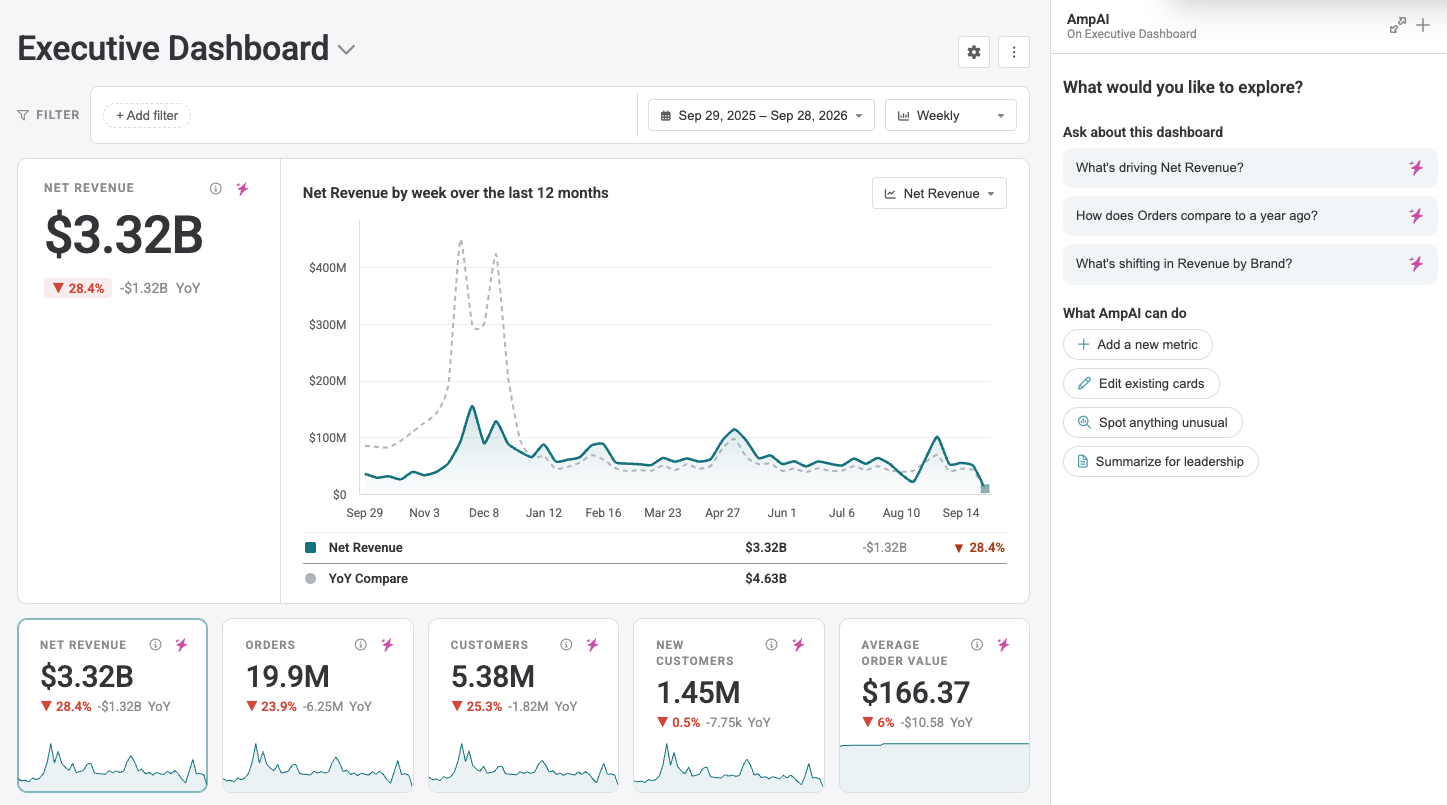
Signal is the AI-powered dashboarding surface in Amperity. It uses your unified data foundation to visualize the KPIs driving your business, and lets you interact naturally with them to gather actionable insights.
With a conversational AmpAI interface beside the dashboard, Signal helps you understand both what happened and why without having to toggle to a separate query editor or a reporting tool.
Key concepts
Boards and cards
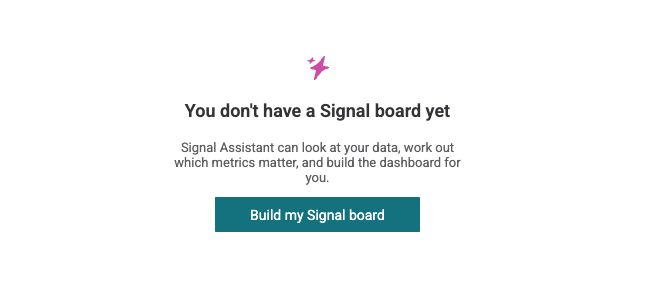
A board is one view of the business: a set of related charts covering a single period of time. You land on your board when you open Signal. If you don’t have one set up, you will be prompted to do so.
Your tenant can have several boards. One board usually covers the business overall, and others narrow to whatever you look at separately—a brand, a region, a channel, a loyalty program.
A card is one chart on a board. Each one answers a single question about your customers. It says what to measure and where to measure it, and Amperity works out the number each time you look. Change the period you are reading, and every card on the board answers again for that period.
Cards come in two shapes, and between them they cover the two things you usually want to know:
How big is the number, and which way is it going? A card of this kind reports one number—revenue, orders, customers, average order value—and plots it across the designated time period, so you can see the level and the trend at once.
What is it made of, and what is shifting? A card of this kind takes the same kind of number and splits it into bands: revenue by brand, orders by channel, customers by type. It shows which bands are largest, and separately which ones moved the most, so a small band gaining fast does not disappear behind a large one standing still.
Every card, of either kind, reports its time period against the same span one year earlier. That comparison is always there and is the same on every card, so a board can be read for what changed without setting a baseline first.
The cards on a board are ordered so the page reads top to bottom: the headline metric first, the metrics that support it beneath, and the breakdowns last. Everything on the page is measured over the same period and the same filters, so the numbers are directly comparable.
Note
Where your tenant has more than one board, the board title at the top of the page becomes a switcher listing all of them, and Signal shows one board at a time. Opening Signal without naming a board shows the default board, and any board can be set as the default.
Runs via AmpAI chat
A Signal board is operated by conversation. An AmpAI chat sits beside the board, and it is the best way to interact with the board.
Ask it what a metric means, or why one moved, and it answers from that card’s own definition and the numbers currently on screen. Ask it to add a card, remove one, retitle or reorder the cards, change what a card measures, or build a new board, and it writes those changes to the board and the page reloads itself.
You do not have to provide additional context when asking a question. The chat is already grounded in the board, its cards, the values on screen, and the filters you have applied, so a question about why a given metric is up or down knows what to look for.
A few things are handled in the user interface instead of the AmpAI chat: renaming a board, setting which board opens by default, duplicating or deleting one, and saving filters. Everything that changes what a board measures should be a request to AmpAI. .. signal-runs-via-ampai-end
Setup
Select Signal in the left navigation. A board opens with its own address, so a link to a board can be shared with anyone in your tenant.
Note
If Signal is not available in your tenant, contact your DataGrid Operator to request access.
Prerequisites
For Signal to show anything, three things must be in place:
A database containing the table the cards query.
Data loaded into that table. A table that reports no load date gives the board no window to measure, and every card on it reports that its window cannot be resolved.
A board with at least one card on it. Until then, Signal shows an empty page offering to build one with AmpAI.
Setup is most direct on a tenant with Unified Transactions, because that is what AmpAI builds the analytics table from. A tenant without it can still use Signal, provided it has a transactional table with dates, but the card catalog AmpAI builds from is written for retail order data. On a tenant whose data describes tickets, stays, or other non-order events, AmpAI reports that gap rather than forcing the retail shape onto it.
Access and permissions
What you can do in Signal depends on the actions your policy allows. Signal checks the following.
To do this |
Signal checks for this action |
|---|---|
View the boards and cards in your tenant |
|
Load a card’s numbers |
|
Create, change, or delete a board or a card |
|
Each of these comes from the policy assigned to you. To change what someone can do in Signal, change their policy or its options. See Policies.
Signal configuration is tenant-wide rather than scoped to a resource group, but running a card is additionally authorized against the resource group of the database that card queries. A user who can open a board may still be unable to load a card that reads a database they do not have access to.
Using AI to write a board
Boards are built by AmpAI. You can start a build from the Signal page in Amperity, or from the Amperity MCP server—the same instructions drive both, so a board built one way is a board you can read and change the other way.
A build has two steps, and the first one only runs on a tenant that does not already have the analytics table.
Setting up the table. AmpAI checks for UT_Analytics and creates it, or adds the columns a card needs to an existing one. It asks you before it touches a table, because a table is used outside the dashboard, and it confirms the names of the database and the table with you first. It changes no other table. A new or repaired table has no rows until the database runs, so AmpAI also asks before running it and tells you that the run rebuilds every table in that database, not only this one. The fastest mode takes 5 to 15 minutes and continues after the chat turn ends. Reload the page when it finishes.
Building the board. AmpAI reads your data, proposes the metrics worth tracking, and writes the cards. A build runs over several turns and stops for your confirmation at each point that needs it.
Before it writes anything, AmpAI reads the custom prompt and the company context documents set for your tenant, so that card titles and metric definitions follow your own business rules and vocabulary rather than generic defaults. Where your own definition of a metric differs from the default, yours wins.
Working with AmpAI
Signal has an AmpAI chat docked beside the board. It is one ongoing conversation: pointing it at a card does not start a separate one.
Investigating a card or a board
Each card carries an Ask AmpAI control. Selecting it re-grounds the docked chat in that card: its compiled SQL, the values currently on screen, the filters currently applied, and—if you have dragged across a run of buckets on the trend chart—the range you highlighted. It loads a question into the input box for you to edit or send. It does not send one for you.
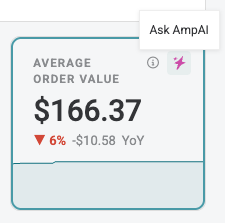
With no card selected, the chat is grounded in the board as a whole: its title, and every card’s kind, position, title, table, and measure.
AmpAI answers by querying the table the card reads rather than speculating.
When the conversation is empty, it offers a few questions to start from, and suggests follow-ups after each answer, drawn from what it just found.
Editing the board
Ask AmpAI to add, remove, retitle, or reorder cards, to change what a card measures, or to point the board at a fiscal calendar, and it writes those changes to the board’s configuration. The page reloads itself when the run ends.
Several safeguards sit around those writes:
It validates before it writes. AmpAI checks a card against the table it will read, and reads a column’s real values rather than guessing their spelling or case. If it cannot validate a card—the table is missing, or has no rows yet—it does not write the card, and tells you what blocked the check.
It confirms before it deletes. Deleting a board deletes every card on it, so AmpAI lists those cards before it asks.
It confirms before it changes a table. Table changes and database runs are separate confirmations from card changes, and AmpAI touches only the analytics table the dashboard reads.
Every change is versioned. Boards and cards are recorded in your tenant’s configuration history alongside your other configuration, as Signal board, Signal metric viz, and Signal stacked bar viz, and a change can be reverted there.
A card belongs to the board it was created on. To move one to another board, ask AmpAI to delete it and create it on the other board.
The user interface handles a smaller set of changes directly: renaming a board and its description, setting the chart scale and fiscal view, saving filters, setting the default board, and duplicating or deleting a board. Adding a card, removing one, or changing what one measures is a request to AmpAI.
Tip
When Signal cannot do something you need—a chart type, a granularity, or a control it does not offer—say so in the Signal chat. AmpAI can file the request with Amperity’s product team on your behalf, after you confirm.
How data is grounded
Card definitions
Every card carries a definition control that shows how its number is calculated.
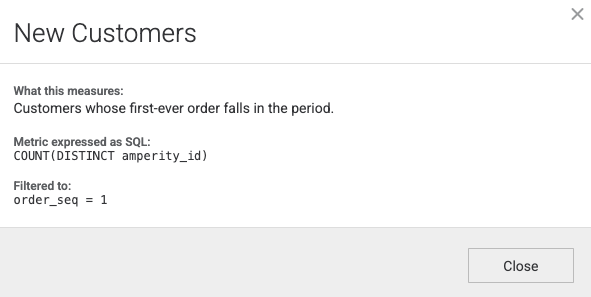
A card whose author wrote a description shows that description in plain language on hover, with a View SQL link beneath it. A card with no description opens straight to the SQL instead. Opening the definition shows a dialog titled with the card name, containing whichever of these parts apply:
What this measures—the card’s description, in the language of your business.
Metric expressed as SQL—the aggregate the card measures.
Filtered to—the rows the card restricts itself to, where it sets its own restriction.
SQL—the statement Amperity compiled and ran for the values on screen.
That last part is the statement itself, not a description of one: the same period, granularity, and filters you are looking at, as they reached the query engine. A number that looks wrong can be checked by reading it, or run elsewhere to reproduce it.
Note
A card’s description is written when the card is authored. A card that has none shows its raw aggregate in place of a plain-language explanation. When you ask AmpAI to change what a card measures, ask it to rewrite the description in the same change.
Your definitions, not generic ones
AmpAI reads the custom prompt and the company context documents set for your tenant before it authors or changes a card. Where those define a metric, name something, or set a business rule, they take precedence over the defaults AmpAI would otherwise use. A board therefore reports your own definition of a metric under your own name for it, rather than a generic one that has to be translated every time someone reads it.
If AmpAI cannot read one of them, it says so in its reply and continues from the defaults, so you know when your own definitions were not applied.
Limitations
How a board measures
The year-over-year comparison is fixed. It cannot be changed to another baseline.
A period cannot be longer than a year.
Windows are measured back from the date your data is loaded through, not from today.
What it reads
Signal measures data already in Amperity. Bringing outside data in is a separate exercise.
Every card on a board must read from the same database.
The card catalog AmpAI builds from is written for retail order data. On a tenant whose data describes tickets, stays, or other non-order events, AmpAI reports that gap rather than forcing the retail shape onto it.
Filtering
The filter bar offers columns on the table a card reads, not the Amperity attributes used elsewhere in the platform.
An attribute is offered only when it is a text column with more than one and no more than 50 distinct values. Identifier columns are excluded, and numeric and date columns cannot be filtered.
Important
Anyone who can open a board can drop the filters it carries and read it unfiltered. A board scoped to one brand or one region is a convenience for the people who read it, not a control over what they can see.
Authoring
Adding a card, removing one, or changing what one measures is done by asking AmpAI.
A card cannot be moved between boards. It must be re-created on the other board.
The page does not passively refresh. AmpAI reloads the board after a change it made, but a change made from anywhere else is not visible until you reload the page or complete a change through the AmpAI chat.