
 Operators Guide



Configure campaigns for Tulip
Tulip is a store experience platform that helps your brand connect with your customers by using personalized retail experiences, access to online and in-store products, and seamless omnichannel checkout and fulfillment.
Use the Tulip File Importer tool to send CSV files to Tulip using SFTP, after which the files are automatically uploaded to Tulip by the Bulk API.
Important
Tulip replaces the contents of its database with the data in the CSV file, including removing and adding column values depending on what is in the CSV file. To maintain the full record in Tulip send the full record each time.
Note
Tulip supports the following entities: stores, employees, categories, products, variants, prices, inventory, customers, and order history. Review the file naming conventions for each entity, review the sample files , and make sure your output has the correct file formatting .
Configure Amperity to send CSV files to Tulip.
Get details
Review the following details before configuring credentials for Tulip and before configuring Amperity to send CSV files to Tulip.

|
Credential settings Credentials for Tulip require a “username” and “passphrase”. Set the host name to your brand’s hostname, which is similar to “sftp-tulip-staging.tulipretail.com””. Note The name of the SFTP site, SSH key, and remote folder are provided by Tulip support after the File Importer is activated in the Tulip Admin Console. |
|
|
Required configuration settings File formatting Review considerations for performance and formatting for Tulip file formatting requirements.
|
Configure credentials
Configure credentials for Tulip before adding a destination.
An individual with access to Tulip should use SnapPass to securely share “username”, “passphrase”, and “hostname” details with the individual who configures Amperity.
To configure credentials for Tulip

|
From the Settings page, select the Credentials tab, and then click the Add credential button. |

|
In the Create credential dialog box, do the following:
|

|
The settings that are available for a credential vary by credential type. For the “tulip” credential type, configure settings, and then click Save. Host public key
Hostname
Passphrase
Port
Username
|
Add destination
Use a sandbox to configure a destination for Tulip. Before promoting your changes, send a sample audience, and then verify the results in Tulip. After verifying the end-to-end workflow, push the destination from the sandbox to production.
To add a destination for Tulip
|
|
Open the Destinations page, select the New destinations button, and then select Campaign. 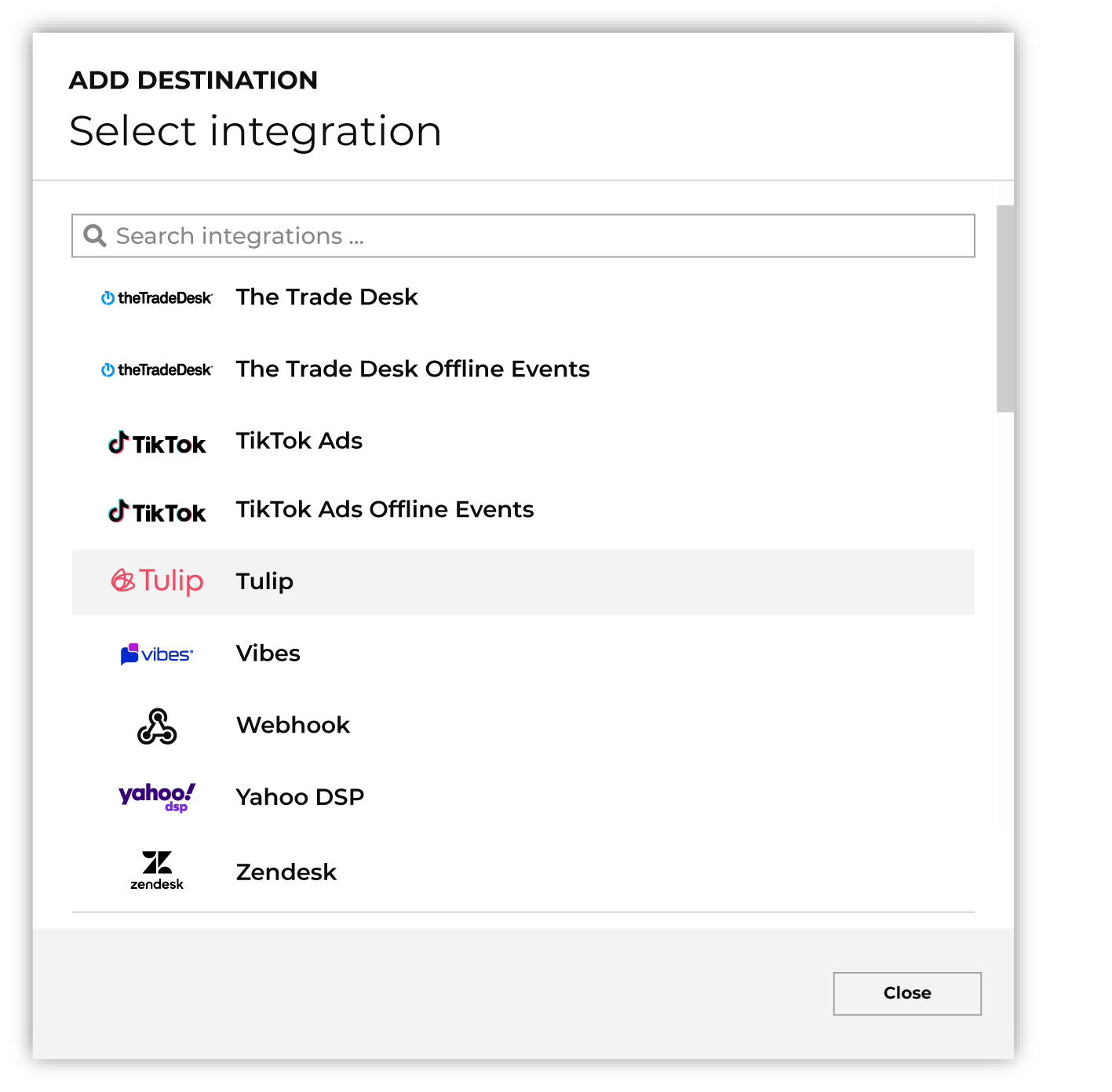
To configure a campaign for Tulip, do one of the following:
|
|
|
Select the credential for Tulip from the Credential dropdown, and then click Continue. Tip Amperity validates the connection when the destination is saved. If the connection cannot be validated, an error is shown and the destination is not saved. |
|
|
In the “Destination settings” dialog box, assign the destination a name and description that ensures other users of Amperity can recognize when to use this destination. Configure business user access By default a destination is available to all users who have permission to view personally identifiable information (PII). Enable the Admin only checkbox to restrict access to only users assigned to the Datagrid Operator and Datagrid Administrator policies. Enable the PII setting checkbox to allow limited access to PII for this destination. Use the Restrict PII access policy option to prevent users from viewing data marked as PII anywhere in Amperity and from sending data to downstream workflows. |

|
Configure the following settings, and then click “Save”. File formatting Review considerations for performance and formatting for Tulip file formatting requirements.
|

|
After configuring this destination users may send campaigns to Tulip. |

|
Validate the audience with Tulip by using a sample audience with a very small membership. For example: 10 or 100 members or the minimum audience size recommended by Tulip. Send the sample audience to Tulip and verify the sample audience is correct in Tulip. Make adjustments if necessary. Only send full audiences after validation is complete. |
Workflow actions
A workflow will occasionally show an error that describes what prevented a workflow from completing successfully. These first appear as alerts in the notifications pane. The alert describes the error, and then links to the Workflows tab.
Open the Workflows page to review a list of workflow actions, choose an action to resolve the workflow error, and then follow the steps that are shown.
|
|
You may receive a notifications error for a configured Tulip destination. This appears as an alert in the notifications pane on the Destinations tab. 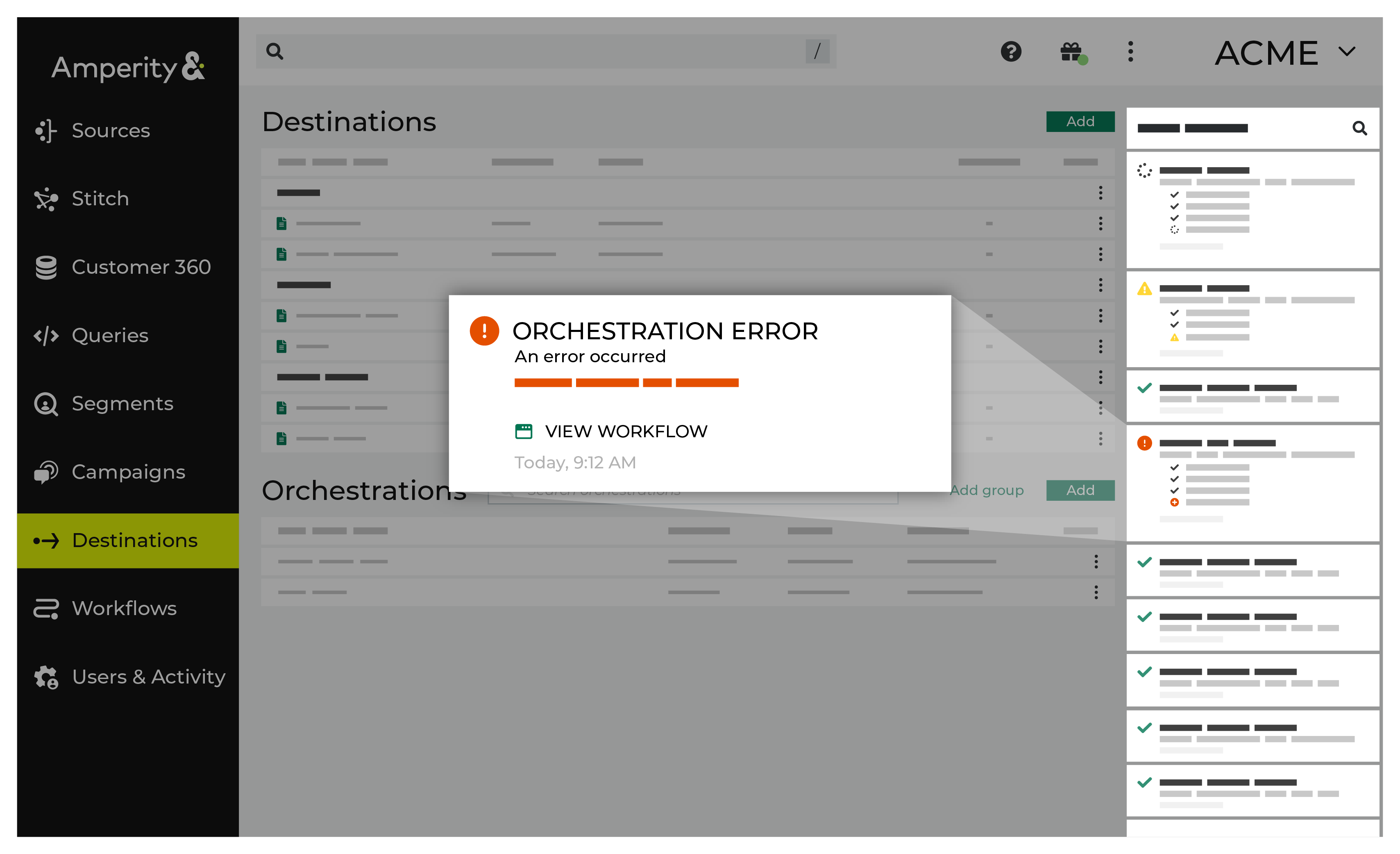
If you receive a notification error, review the details, and then click the Workflow job link to open this notification error in the Workflows page. |
|
|
On the Workflows page, review the individual steps to determine which steps have errors that require your attention, and then click Show Resolutions to review the list of workflow actions generated for this error. 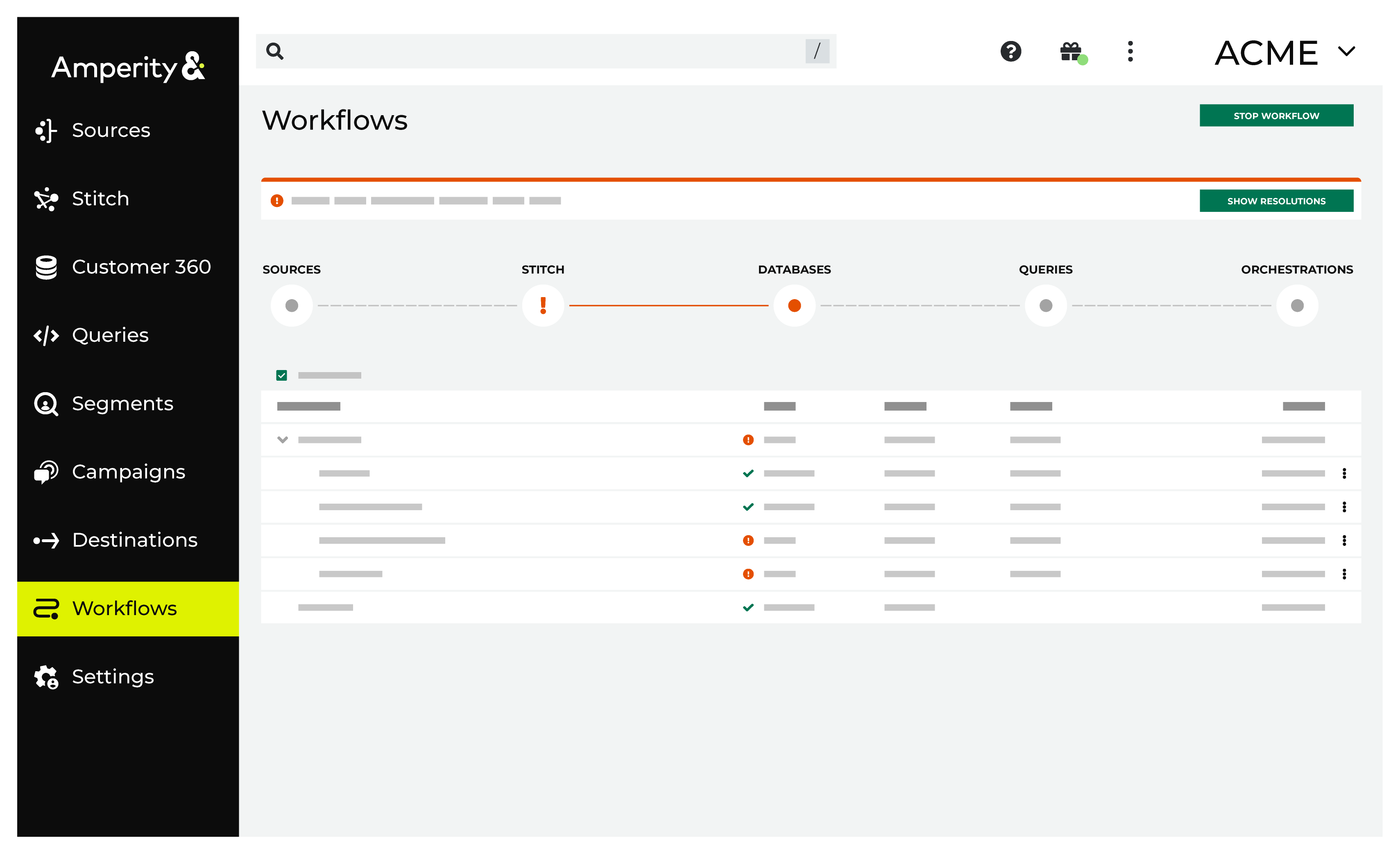
|
|
|
A list of individual workflow actions are shown. Review the list to identify which action you should take. 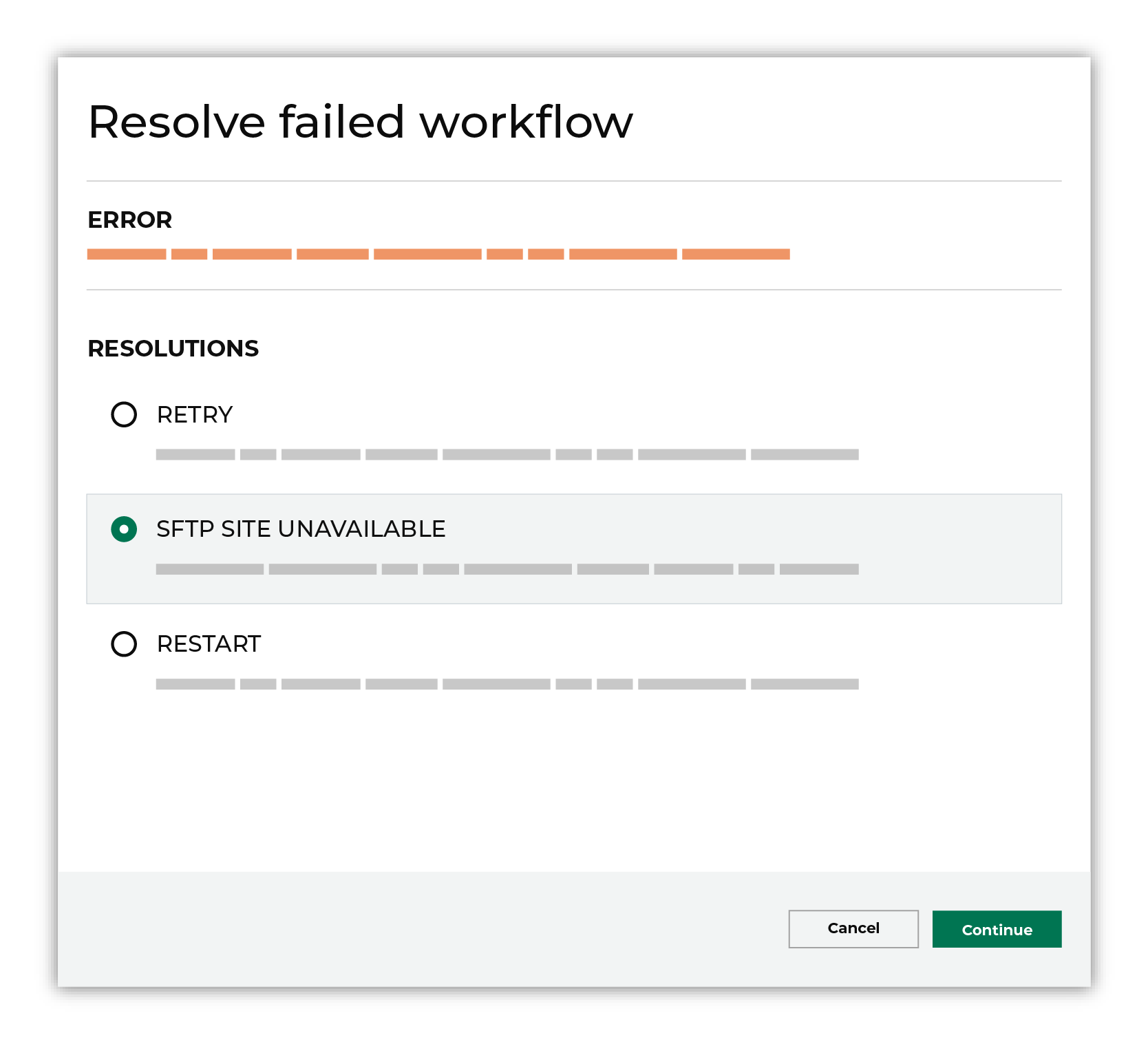
Some workflow actions are common across workflows and will often be available, such as retrying a specific task within a workflow or restarting a workflow. These types of actions can often resolve an error. In certain cases, actions are specific and are shown when certain conditions exist in your tenant. These types of actions typically must be resolved and may require steps that must be done upstream or downstream from your Amperity workflow. Amperity provides a series of workflow actions that can help resolve specific issues that may arise with Tulip, including: |
|
|
Select a workflow action from the list of actions, and then review the steps for resolving that error. 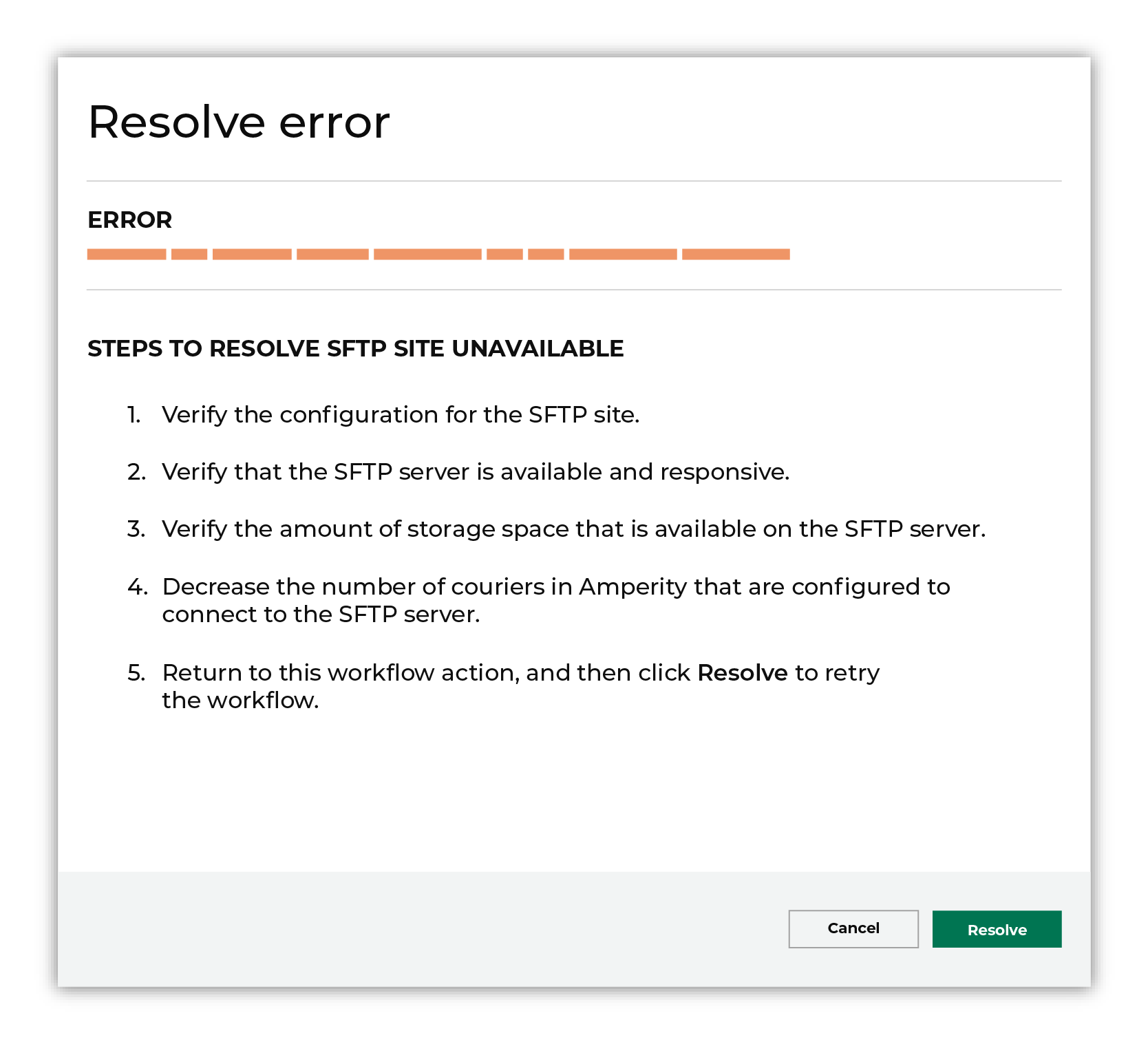
After you have completed the steps in the workflow action, click Continue to rerun the workflow. |
Invalid credentials
The credentials that are defined in Amperity are invalid.
To resolve this error, verify that the credentials required by this workflow are valid.
Open the Credentials page.
Review the details for the credentials used with this workflow. Update the credentials for Tulip if required.
Return to the workflow action, and then click Resolve to retry this workflow.