
 Operators Guide



Configure campaigns for Vozzi
Vozzi is a text messaging (SMS) platform for sports and entertainment brands. Brands use Vozzi to send mass text messages and one-to-one text messages to the contacts on their Vozzi lists.
Use Amperity to send campaign audiences to Vozzi. Build a campaign in Amperity to define the audience, and then send it to Vozzi, where Amperity keeps the members of a Vozzi list in sync with that audience.
Use Amperity to keep the members of a Vozzi list in sync with an audience. Build a query or a segment that returns a phone_number field, and then send it to Vozzi from an orchestration or a campaign. Your team then sends text messages to the list from Vozzi.
Amperity adds and removes contacts on a named Vozzi list, matching contacts by phone number. The first run adds every phone number in the audience to the list. Amperity removes contacts before it adds contacts. Removing a contact from the list does not delete the contact from Vozzi.
Each run sends every audience change that Amperity has not yet committed: phone numbers that joined the audience are added to the list, and phone numbers that left it are removed. Amperity commits a change only after a run succeeds more than 3 days after the change, so a change is sent again on every run until then. A run that fails commits nothing, so the next run sends every uncommitted change again, including the contacts that the failed run already added or removed.
When Amperity adds a phone number that already belongs to a Vozzi contact, Vozzi adds that contact to the list. Otherwise Vozzi creates a contact for the phone number.
Amperity sends only the phone number for each contact. The destination accepts first_name, last_name, email_address, home_street, home_postal, business_street, and business_postal fields, but their values are not sent to Vozzi.
Note
This destination uses the Vozzi API.
Beta
The Vozzi connector is in beta. Contact your Amperity representative to learn more.
Important
Amperity converts each phone number to E.164 format, and then removes the leading plus sign, which is the format Vozzi uses. For example, (206) 555-1234 is sent as 12065551234. You can return phone numbers with spaces, dashes, or parentheses.
A phone number without a country code is treated as a United States number. Include the country code, such as +44, for every phone number outside the United States. A phone number that Amperity cannot read is not sent and is counted as failed.
Amperity compares phone numbers as your query returns them, before it converts them. Return each phone number in one consistent format. When the same number appears in two formats and one of them leaves the audience, Amperity removes the contact from the list, even though the number is still in the audience in its other format.
Important
Amperity does not send consent or opt-in status to Vozzi. Send only phone numbers that have consented to receive text messages from your brand.
For example, bring SMS subscriber status to Amperity as a data source, and then use the SMS Opt Status table to return only phone numbers that are opted in.
Note
Vozzi accepts one contact in each request, so Amperity sends one request for each phone number that it adds or removes. Amperity sends about five requests per second, which is about 18,000 phone numbers an hour. This pace is an Amperity default, not a limit published by Vozzi. The first run for a list adds every phone number in the audience and takes longer than later runs.
Important
A Vozzi list holds up to 1,000 contacts. Amperity does not check how many contacts a list holds before it adds more. Keep the total for each list at 1,000 phone numbers or fewer, including contacts that are already on the list.
Get details
Review the following details before configuring credentials for Vozzi and before configuring Amperity to send phone numbers to a Vozzi list.

|
Credential settings Api Key
Api Token
To find the Api Key and the Api Token, log in to Vozzi and open Settings, and then API Tokens. Vozzi uses these names for the two values, and Amperity uses the same names. |
|
|
Required configuration settings Audience primary key
List name (Required at orchestration)
|
|
|
A campaign that is configured to use the sub-audience editor or one-time campaign that is configured to use a query or segment. The campaign must send a phone_number attribute. |
Configure credentials
Configure credentials for Vozzi before adding a destination.
An individual with access to Vozzi should use SnapPass to securely share “Api Key” and “Api Token” details with the individual who configures Amperity.
To configure credentials for Vozzi

|
From the Settings page, select the Credentials tab, and then click the Add credential button. |
|
In the Create credential dialog box, do the following:
|

|
The settings that are available for a credential vary by credential type. For the “vozzi” credential type, configure settings, and then click Save. Api Key
Api Token
|
Add destination
Use a sandbox to configure a destination for Vozzi. Before promoting your changes, send a sample audience, and then verify the results in Vozzi. After verifying the end-to-end workflow, push the destination from the sandbox to production.
To add a destination for Vozzi
|
|
Open the Destinations page, select the New destinations button, and then select Campaign. 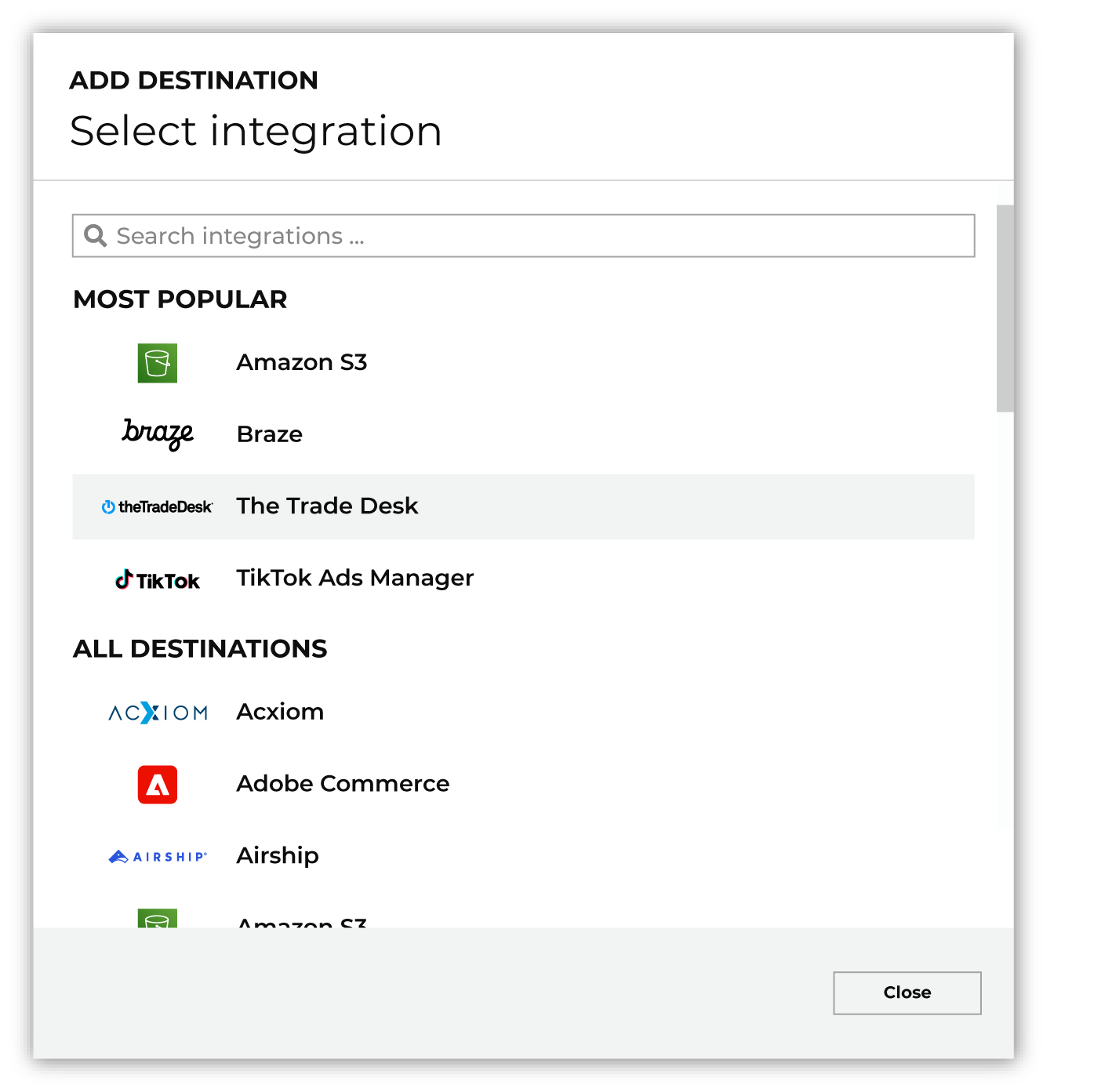
To configure a campaign for Vozzi, do one of the following:
|
|
|
Select the credential for Vozzi from the Credential dropdown, and then click Continue. Tip Amperity validates the connection when the destination is saved. If the connection cannot be validated, an error is shown and the destination is not saved. The connection test requests the lists in the Vozzi account, which confirms that Vozzi accepts the Api Key and Api Token. It does not check the list name. |
|
|
In the “Destination settings” dialog box, assign the destination a name and description that ensures other users of Amperity can recognize when to use this destination. Configure business user access By default a destination is available to all users who have permission to view personally identifiable information (PII). Enable the Admin only checkbox to restrict access to only users assigned to the Datagrid Operator and Datagrid Administrator policies. Enable the PII setting checkbox to allow limited access to PII for this destination. Use the Restrict PII access policy option to prevent users from viewing data marked as PII anywhere in Amperity and from sending data to downstream workflows. |

|
Configure the following settings, and then click “Save”. Audience primary key
List name (Required at orchestration)
Campaign file settings
|

|
After configuring this destination users may send campaigns to Vozzi. |

|
Validate the audience with Vozzi by using a sample audience with a very small membership. For example: 10 or 100 members or the minimum audience size recommended by Vozzi. Send the sample audience to Vozzi and verify the sample audience is correct in Vozzi. Make adjustments if necessary. Only send full audiences after validation is complete. |
Data validation
Amperity adds and removes every phone number in the uncommitted changes, except for the phone numbers it cannot send. Rows with an empty phone_number are skipped, and a phone number that the query returns more than once is sent once. A phone_number that holds only spaces is reported as failed, with the message “Missing phone_number”.
A phone number is reported as failed, and the run continues, when any of the following is true:
Amperity cannot read the phone number. The error message includes the value.
Vozzi rejects the request to add or remove that contact. The error message asks you to check the contact or list data that is sent.
Vozzi returns an internal server error for that contact. Amperity counts additions and removals separately: in one run, up to five internal server errors for additions and up to five for removals are reported as failed phone numbers. A sixth internal server error for additions, or a sixth for removals, stops the run.
Vozzi also returns an internal server error when Amperity removes a contact that is no longer on the list. After an internal server error for a removal, Amperity checks the list. When the contact is no longer on the list, the removal counts as succeeded and does not count toward the limit. When the contact is still on the list, or Amperity cannot confirm that it is gone, the phone number is reported as failed. This also applies to removals that Amperity sends again after a failed run.
Failed phone numbers are reported in the destination’s run details. A run shows at most 25 error messages; the failed count still reflects every failure, so a problem that affects many phone numbers does not bury the output in copies of one message.
Some conditions stop the entire run instead of failing individual phone numbers:
The query or segment does not return a phone_number field. This is caught before any data is sent.
Vozzi rejects the Api Key and Api Token. Check that both values are current and that they belong together.
Vozzi accepts the Api Key and Api Token, but rejects the request as forbidden. The credential does not have permission for this action in the Vozzi account. Check the account’s plan and permissions with Vozzi.
Vozzi rejects the request to find or create the list.
Vozzi returns a sixth internal server error for additions or for removals in one run, returns another kind of server error, or rate limits Amperity, after the retries that are described below.
When Vozzi reports a rate limit, a timeout, or a server error, Amperity waits and sends the same request again. Requests that remove a contact are sent again only after a rate limit or a timeout. When those retries do not succeed, the run stops, and Amperity retries the run. A run that stops for any other condition in this list is not retried.
Note
A run that stops partway has already added or removed the contacts it sent before the failure. Those changes stay in Vozzi, and the next run sends every uncommitted change again, including those.