
 Operators Guide


Configure campaigns for MoEngage Attributes
MoEngage is a cross-channel customer engagement platform built for marketers and product owners who value agility over complexity. Use real-time insights and personalized cross-channel communications and adapt to evolving customer expectations.
Use Amperity to send campaign audiences to MoEngage as user attributes. Build a campaign in Amperity to define the audience and the attributes that each treatment sends, and then send them to user profiles in a MoEngage workspace. MoEngage stores them as user attributes, which your MoEngage team uses to build segments and to personalize messages. To keep a MoEngage segment in step with an audience instead, use MoEngage Cohorts.
Each customer in the audience is one user. The customer_id campaign attribute supplies the user’s MoEngage customer ID, which MoEngage uses to find the user. Every other campaign attribute is sent as a user attribute under the attribute’s name. See Campaign attributes.
Amperity sends only the customers whose attributes changed since the last successful send, and reports the unchanged customers as sent from cache. MoEngage creates a user for each customer ID that it does not have, and updates the users that it does have. To update existing users only, select the Update existing users only? setting.
Note
This destination uses the MoEngage Data API , sending users with Bulk Import .
Beta
The MoEngage Attributes connector is in beta. Contact your Amperity representative to learn more.
Note
MoEngage accepts each request and processes it later. A successful run means that MoEngage accepted every request, not that it saved every user. MoEngage does not report back to Amperity on the users in a request, so check a few user profiles in the MoEngage dashboard after the first send.
Note
Amperity sends at most 500 users in each request, and at most one request each second. This limits a run to about 30,000 users each minute, or 1.8 million users each hour. MoEngage allows a workspace 60,000 users each minute across all of the workspace’s sources, so this leaves capacity for your other sources. Only changed rows are sent, so a run’s length depends on how many rows changed since the last run.
Campaign attributes
The attributes that a treatment sends to MoEngage are the user attributes that reach MoEngage.
customer_id is required. Include
customer_idin the attributes for every treatment that sends to MoEngage, and map it to the field that holds the ID your app or website uses for each user in MoEngage. A send that has nocustomer_idattribute fails before any data is sent, with a message that names the missing field and lists the fields that the send had. See Customer IDs.Every other attribute becomes a user attribute. The attribute’s name becomes the user attribute name, and its value becomes the user attribute value. To fill a standard MoEngage attribute, name the attribute with that attribute’s key, such as
u_emfor email oru_fnfor first name. An attribute with any other name creates or updates a custom attribute with that name.Each treatment sends its own attributes. A treatment that sends fewer attributes updates only those attributes for its customers, and leaves the user’s other attributes as they are.
Attribute values follow the same rules as an orchestration that sends to this destination: values are sent as Amperity has them, a null value clears the attribute, MoEngage does not accept id or _id as an attribute name, and the moe_ prefix is reserved. See User attributes for the full list of standard attribute keys and for how dates, null values, and attribute ownership work.
Customer IDs
The customer ID is the unique ID that MoEngage identifies a user by. It is usually the ID that your app or website passes to the MoEngage SDK when a user logs in, which is not necessarily the Amperity ID. Confirm which field in Amperity holds the same value before you send, and alias that field as customer_id in the query, for example SELECT loyalty_id AS customer_id.
Amperity sends each customer ID as text, after removing leading and trailing whitespace, and MoEngage matches it exactly. When the field holds a floating-point number, such as a DOUBLE, or a DECIMAL with digits after the decimal point, convert it in the query, for example CAST(CAST(loyalty_id AS BIGINT) AS VARCHAR) AS customer_id. Otherwise the ID 12345 is sent as 12345.0 or 12345.00 and does not match the user in MoEngage.
Return one row for each customer ID. Amperity does not send these rows:
A row whose customer ID is null or empty. Amperity skips the row without an error, and counts it with the rows sent from cache.
A row whose customer ID repeats another row’s customer ID. Amperity keeps one of the rows and skips the others without an error. Which row it keeps is not determined.
A row whose customer ID MoEngage does not accept. This is a customer ID that contains only whitespace, is one character long, or is a placeholder value such as
unknown,guest,null,none,n/a,0, or-1. These values are compared without regard to case. MoEngage lists the values it does not accept in its Data API overview . Amperity reports the row as failed instead of sending it.
Get details
Review the following details before configuring credentials for MoEngage and before configuring Amperity to send customer attributes to user profiles in a MoEngage workspace.
|
Credential settings Required All three credential fields are required. Workspace ID
API Key
Data Center
API Firewall
|
|
|
Required configuration settings Customer ID field
Optional configuration settings Update existing users only?
|
|
|
A campaign that is configured to use the sub-audience editor or one-time campaign that is configured to use a query or segment. Each treatment that sends to MoEngage must include a |
Configure credentials
Configure credentials for MoEngage before adding a destination.
An individual with access to MoEngage should use SnapPass to securely share “Workspace ID”, “API Key”, and “Data Center” details with the individual who configures Amperity.
The MoEngage Attributes and MoEngage Cohorts destinations use the same credential type. A credential that you configure for one of them can be selected for the other.
To configure credentials for MoEngage
|
From the Settings page, select the Credentials tab, and then click the Add credential button. |
|
In the Create credential dialog box, do the following:
|
|
The settings that are available for a credential vary by credential type. For the “moengage-api” credential type, configure settings, and then click Save. Required Workspace ID
API Key
Data Center
|
Add destination
Use a sandbox to configure a destination for MoEngage. Before promoting your changes, send a sample audience, and then verify the results in MoEngage. After verifying the end-to-end workflow, push the destination from the sandbox to production.
To add a destination for MoEngage Attributes
|
|
Open the Destinations page, select the New destinations button, and then select Campaign. 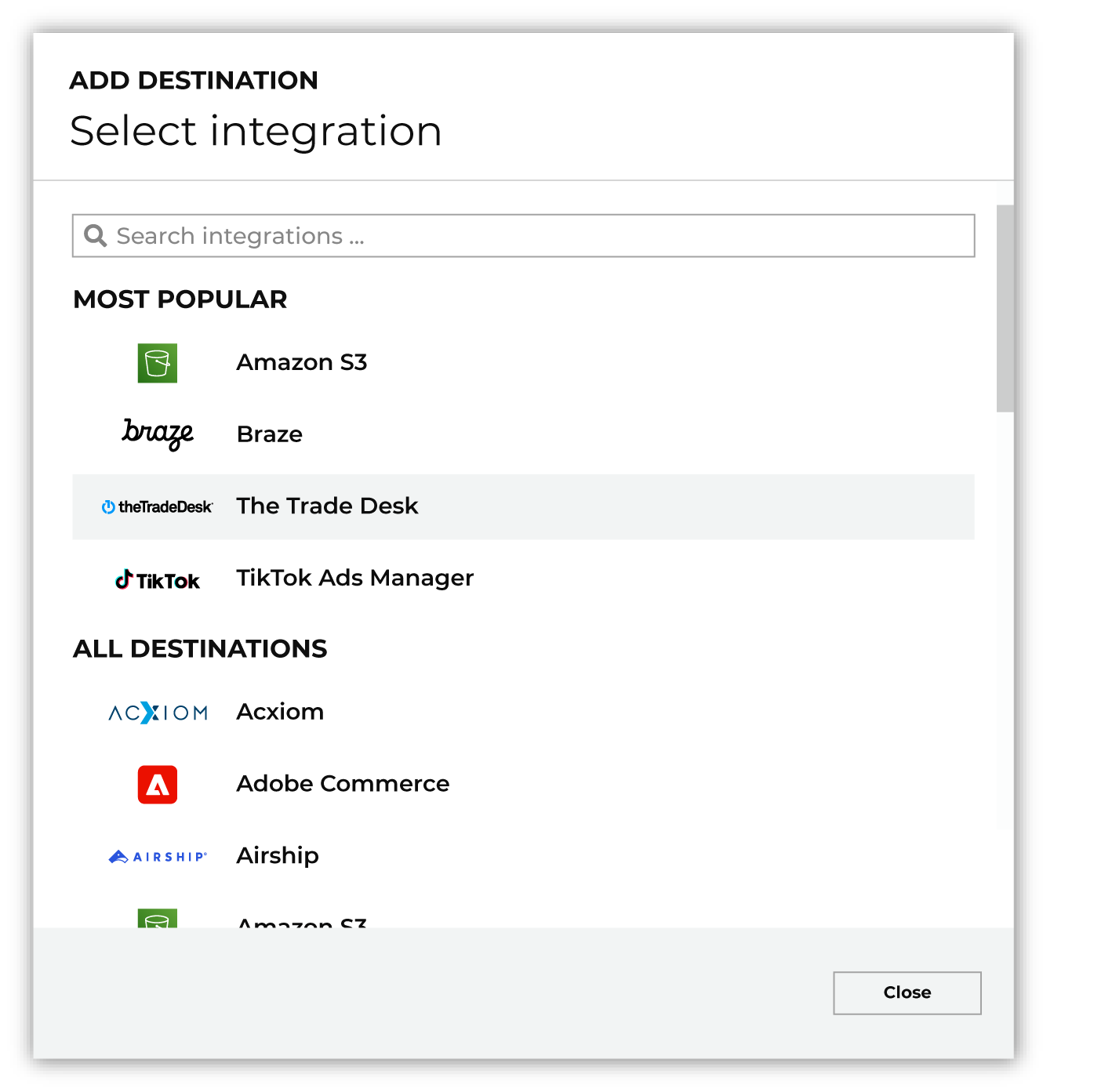
To configure a campaign for MoEngage, do one of the following:
|
|
|
Select the credential for MoEngage from the Credential dropdown, and then click Continue. Tip Amperity validates the connection when the destination is saved. If the connection cannot be validated, an error is shown and the destination is not saved. The connection test asks MoEngage to check the Workspace ID, the API key, and the data center together. The test fails when MoEngage does not accept all three, with a message saying that MoEngage did not accept the credential. |
|
|
In the “Destination settings” dialog box, assign the destination a name and description that ensures other users of Amperity can recognize when to use this destination. Configure business user access By default a destination is available to all users who have permission to view personally identifiable information (PII). Enable the Admin only checkbox to restrict access to only users assigned to the Datagrid Operator and Datagrid Administrator policies. Enable the PII setting checkbox to allow limited access to PII for this destination. Use the Restrict PII access policy option to prevent users from viewing data marked as PII anywhere in Amperity and from sending data to downstream workflows. |
|
Configure the following settings, and then click “Save”. Customer ID field
Update existing users only?
Campaign file settings
|

|
After configuring this destination users may send campaigns to MoEngage. |

|
Validate the audience with MoEngage by using a sample audience with a very small membership. For example: 10 or 100 members or the minimum audience size recommended by MoEngage. Send the sample audience to MoEngage and verify the sample audience is correct in MoEngage. Make adjustments if necessary. Only send full audiences after validation is complete. |
Data validation
Amperity sends every changed row, except for rows that it cannot send to MoEngage. A row is reported as failed, and the run continues, when either of the following is true:
The row’s customer ID contains only whitespace, is one character long, or is a placeholder value that MoEngage does not accept. A row whose customer ID is null or empty, or repeats another row’s customer ID, is skipped without an error instead. See Customer IDs.
The row’s attributes are larger than the 100 KB that MoEngage accepts in one request. Send fewer or shorter attributes.
Failed rows are reported in the destination’s run details. A run shows at most 25 error messages. The failed-row count still includes every failure, so a problem that affects many rows does not bury the output in copies of one message.
Some conditions stop the entire run instead of failing individual rows. Two of them are caught before any data is sent:
The query results have no
customer_idcolumn.The query results have a column named
idor_id, or a column with an empty name.
The others are MoEngage responses to a request. Each one applies to the whole request, so Amperity stops the run rather than sending the rest of the query results:
MoEngage rejected the credential. Check the Workspace ID, the API key, and the data center. Confirm that the key was not regenerated, and that it has access to the Data APIs.
MoEngage refused the request. MoEngage refuses requests from a suspended workspace, and requests that an API Firewall rule blocks. Confirm that the workspace is active, and that the API Firewall allows the Amperity IP addresses.
MoEngage rejected the data as malformed. MoEngage rejected a request because of the attributes in it, such as an attribute name or a value type that it does not accept. Check the columns in the query results.
MoEngage rejected the request for another reason. The message includes the HTTP status code. Sending the same request again does not change the result.
Note
A run that stops partway has already sent the requests before the one that failed. The users in those requests are updated in MoEngage, and the rest are not.
Rate-limit responses and server errors from MoEngage are retried automatically with backoff. When they persist after the retries, the run fails. For rate limits, avoid overlapping runs and schedule large sends outside peak hours, because every source that writes to the workspace shares its limit. For server errors, run the destination again after MoEngage recovers. When Amperity cannot reach MoEngage at all, the run fails with a message that starts with “Could not reach MoEngage”.