
 Operators Guide



Configure campaigns for Eagle Eye Audiences
Eagle Eye is a loyalty and promotions platform. Its AIR platform manages loyalty wallets that track each customer’s earning and spending activity in a loyalty program.
Use Amperity to send campaign audiences to Eagle Eye. Build a campaign in Amperity to define the audience, and then send it to an audience of loyalty wallets in the Eagle Eye AIR platform.
The Eagle Eye Audiences connector syncs an Amperity audience to an audience in the Eagle Eye AIR platform. AIR campaigns can then include or exclude the audience’s members, for example to target an offer at a segment or to keep it away from one.
Eagle Eye audience members are wallets, so every member must already have an Eagle Eye wallet, for example one created by the Eagle Eye connector. The query or segment sent to this destination must return a column named exactly identity_value, in lower case, that holds each person’s Eagle Eye loyalty identity, such as a loyalty card number. Unlike the Eagle Eye connector, this destination matches the column name exactly, including capitalization. Return the column as a string: cast a card number stored as a number, for example CAST(loyalty_card_number AS VARCHAR) AS identity_value. Amperity looks up the wallet that holds each identity value and adds the wallet to the audience. The lookup needs no identity type: the value alone finds the wallet.
Membership is updated incrementally. Each run sends the people who joined or left the audience recently: people who left are removed first, then people who joined are added. A change is sent again on later runs for a few days, which has no effect in Eagle Eye because adding or removing a wallet twice changes nothing. People whose membership did not change are not sent, and are counted as succeeded (unchanged) in the run details.
Eagle Eye Audiences uses the same credential as the Eagle Eye connector, so a tenant that already has an Eagle Eye credential needs no new one.
Note
This destination uses the Eagle Eye AIR Audiences API, which is part of the Eagle Eye Resource API , and looks up wallets with the Eagle Eye AIR Wallet API .
Beta
The Eagle Eye Audiences connector is in beta, and Eagle Eye labels the AIR Audiences API as beta. Contact your Amperity representative to learn more.
Important
Eagle Eye provisions your API credentials and configures each company unit. Before you configure the destination, get the Client ID, Client secret, and regional API URL from your Eagle Eye account manager, and confirm that the people you sync already have Eagle Eye wallets.
Note
Amperity looks up one wallet for each person who joins or leaves the audience, at about five requests per second, with up to five lookups at a time. Amperity sets this rate, and it can’t be changed for a tenant; it is not a limit published by Eagle Eye. The first run of a large audience can take a long time (about 18,000 people an hour). Because each change is sent again for a few days, runs in the first few days after a first send take about as long as the first run. After that, runs look up only recent changes.
Note
The connection test makes two read-only requests: an audience search on the Eagle Eye Resource API and a wallet lookup on the Eagle Eye Wallet API. If Eagle Eye rejects the Client ID or Client secret, the test reports a credential error that names the API that rejected it; check the credential’s Client ID and Client secret with your Eagle Eye account manager. Any other failure is reported as a settings error; check that the credential’s API URL matches your Eagle Eye region and environment.
Audience names and renames
An Eagle Eye audience has a name, which is shown in Eagle Eye AIR, and a reference, which Amperity uses to find the audience again on every run. The Audience name setting is the reference. The Audience display name setting is the name, and defaults to the Audience name.
To rename an audience in place, change the Audience display name. Amperity updates the name on the next run, and the audience keeps its members and its links to AIR campaigns.
Changing the Audience name starts a new audience, and Amperity sends every member to it. The old audience stays in Eagle Eye AIR with its members, and AIR campaigns that use it keep pointing at it. If the Audience display name is set, the new audience would get the same name as the old one, which Eagle Eye does not allow: change or clear the display name at the same time, or rename or delete the old audience in Eagle Eye AIR first.
Eagle Eye requires audience names to be unique in the company unit. A run that would create or rename an audience with a name another audience already has stops with a message saying so, before any member is sent.
If an audience in the company unit already has the Audience name as its reference, Amperity uses that audience rather than creating one. It renames it to the display name, sets any dates that are configured, and adds members, but it cannot read the audience’s existing members, so people already in it stay unless Amperity later removes them. Two orchestrations, or two Amperity tenants on the same Eagle Eye company unit, that use the same Audience name share one Eagle Eye audience.
Amperity updates the audience only when its name or dates differ from what Eagle Eye holds, so an unchanged audience is not rewritten on every run. The fields Amperity manages are the name and any date whose setting is set: a change made to them in Eagle Eye AIR is replaced on the next run. A date whose setting is empty is kept, including when Amperity renames the audience.
Audience actions
The Audience action setting selects what a run does with the audience. You choose it when you configure the orchestration that sends to this destination.
Action |
What it does |
|---|---|
upsert |
Creates the audience if it does not exist, updates its name and dates if they changed, and then removes the people who left and adds the people who joined. This is the default. |
delete |
Permanently deletes the audience and all its memberships in Eagle Eye. It sends no members, looks up no wallets, and reports no rows. Running it again when the audience is already gone succeeds. |
Caution
Eagle Eye deletes an audience even when an active AIR campaign includes or excludes it. The campaign stays active and still lists the deleted audience, so review the campaigns that use an audience before deleting it.
Run delete once, rather than on a schedule, and remove or change any other orchestration that upserts the same Audience name; otherwise the two recreate and delete the audience in turn. Switching an orchestration back to upsert creates a new audience under the same Audience name and sends every member again.
If an audience is deleted in Eagle Eye AIR, the next upsert run creates it again under the same Audience name and sends every member again.
Amperity never deletes an audience on its own, including when you change the Audience name, when the segment is empty, or when you delete the orchestration or destination.
Start and end dates
The optional Audience start date and Audience end date settings store a start and end date on the Eagle Eye AIR audience. Enter each as an ISO-8601 timestamp with Z or an explicit offset and no fractions of a second, for example 2026-11-01T00:00:00Z or 2026-11-01T09:00:00+11:00. A date without a time, or a time without an offset, is rejected.
Amperity sends the dates in UTC. Eagle Eye returns them in your company unit’s time zone, and Amperity compares them as moments in time, so the same date in another time zone is not a change.
Changing a date updates the audience on the next run. While a setting is set, Amperity also replaces a different date entered in Eagle Eye AIR.
Clearing a setting keeps the date already on the audience: Amperity never removes a date. To remove a date, clear the setting and then remove the date in Eagle Eye AIR.
The end date must be after the start date, including a start date already on the audience. An end date in the past is allowed.
Amperity adds and removes members whatever the dates.
Get details
Review the following details before configuring credentials for Eagle Eye AIR and before configuring Amperity to send audiences to audiences in the Eagle Eye AIR platform.

|
Credential settings Required All three credential fields are required. This is the same credential the Eagle Eye connector uses. Client ID
Client secret
API URL
|
|
|
Required configuration settings Primary key
Audience name (Required at orchestration)
|
|
|
Optional campaign settings Audience display name
Audience start date
Audience end date
Audience action
|
|
|
A campaign that is configured to use the sub-audience editor or one-time campaign that is configured to use a query or segment. The campaign must send an |
Configure credentials
Configure credentials for Eagle Eye AIR before adding a destination.
An individual with access to Eagle Eye AIR should use SnapPass to securely share “Client ID”, “Client secret”, and “API URL” details with the individual who configures Amperity.
If your tenant already has a credential for the Eagle Eye connector, select it when you add this destination instead of creating another.
To configure credentials for Eagle Eye Audiences

|
From the Settings page, select the Credentials tab, and then click the Add credential button. |
|
In the Create credential dialog box, do the following:
|

|
The settings that are available for a credential vary by credential type. For the “eagle-eye” credential type, configure settings, and then click Save. Required All three credential fields are required. Client ID
Client secret
API URL
|
Add destination
Use a sandbox to configure a destination for Eagle Eye AIR. Before promoting your changes, send a sample audience, and then verify the results in Eagle Eye AIR. After verifying the end-to-end workflow, push the destination from the sandbox to production.
To add a destination for Eagle Eye Audiences
|
|
Open the Destinations page, select the New destinations button, and then select Campaign. 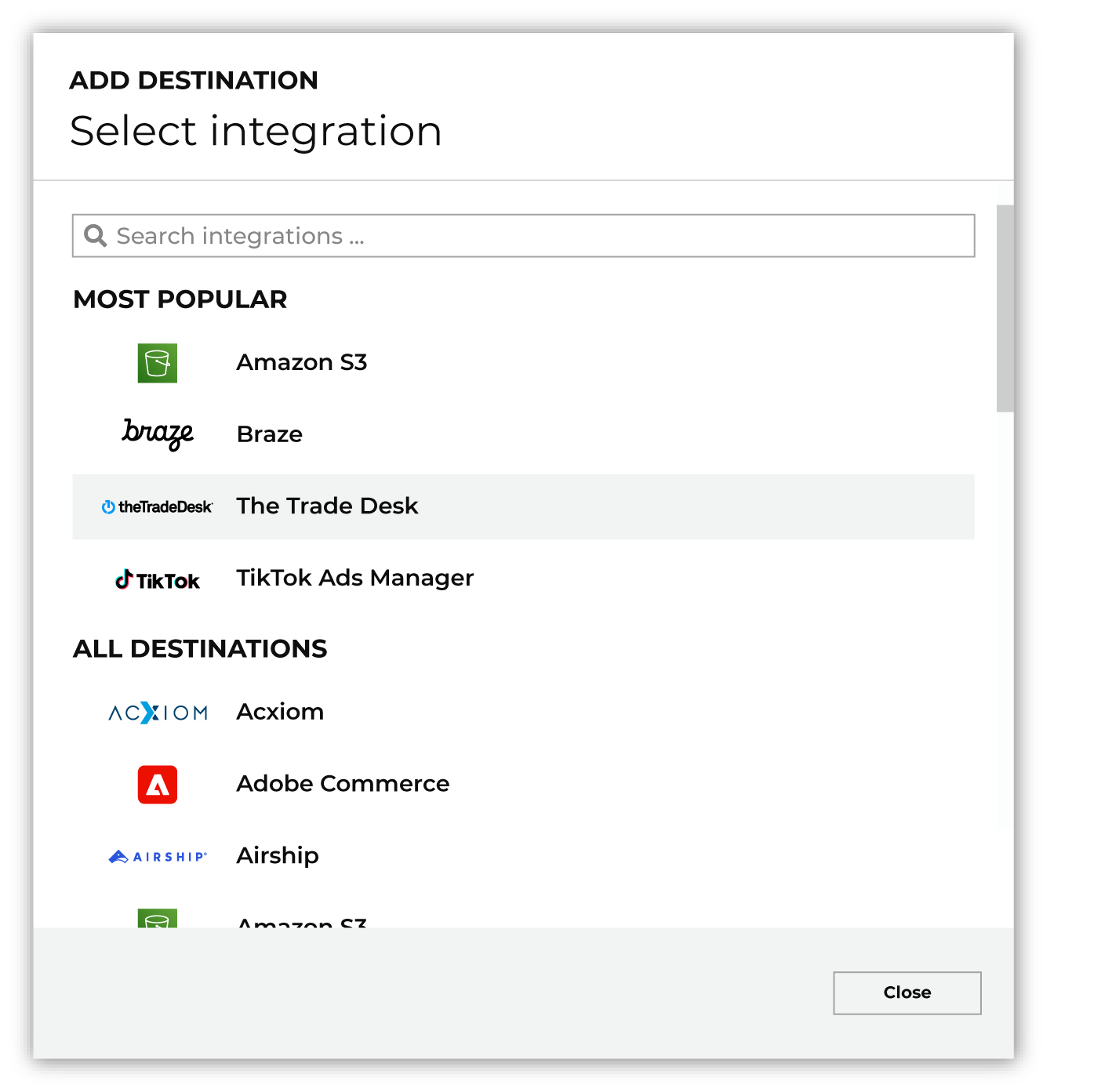
To configure a campaign for Eagle Eye AIR, do one of the following:
|
|
|
Select the credential for Eagle Eye AIR from the Credential dropdown, and then click Continue. Tip Amperity validates the connection when the destination is saved. If the connection cannot be validated, an error is shown and the destination is not saved. |
|
|
In the “Destination settings” dialog box, assign the destination a name and description that ensures other users of Amperity can recognize when to use this destination. Configure business user access By default a destination is available to all users who have permission to view personally identifiable information (PII). Enable the Admin only checkbox to restrict access to only users assigned to the Datagrid Operator and Datagrid Administrator policies. Enable the PII setting checkbox to allow limited access to PII for this destination. Use the Restrict PII access policy option to prevent users from viewing data marked as PII anywhere in Amperity and from sending data to downstream workflows. |

|
Configure the following settings, and then click “Save”. Primary key
Audience name (Required at orchestration)
Audience display name
Audience start date
Audience end date
Audience action
Campaign file settings
|

|
After configuring this destination users may send campaigns to Eagle Eye AIR. |

|
Validate the audience with Eagle Eye AIR by using a sample audience with a very small membership. For example: 10 or 100 members or the minimum audience size recommended by Eagle Eye AIR. Send the sample audience to Eagle Eye AIR and verify the sample audience is correct in Eagle Eye AIR. Make adjustments if necessary. Only send full audiences after validation is complete. |
Data validation
A person is reported as a failed row, and the run continues, when any of the following is true:
The
identity_valuevalue contains only spaces.Eagle Eye rejects the person’s identity value when Amperity looks up their wallet.
The person joined the audience but no Eagle Eye wallet holds their identity value. Amperity tries the person again on later runs for a few days. After that, it does not offer them again until they leave and rejoin the segment, or until Amperity sends every member to a new audience, so create the wallet first.
Rows with an empty identity_value are skipped and are not sent to Eagle Eye. Skipped rows, and people whose membership did not change, count as succeeded.
A person who left the audience but has no wallet is already not a member, so the removal counts as done.
If every row in the query results fails, the run fails with “Exceeded error limit of 100%”, and Amperity sends the same changes again on the next run. Because unchanged people count as succeeded, this happens only when every person is sent, most often on a first run before the people in the audience have wallets.
Some conditions stop the entire run instead of failing individual people, all before any member is sent: query results with no identity_value column; an audience name (the Audience display name, or the Audience name when the display name is empty) that another audience in the company unit already has; a malformed Audience start date or Audience end date; and an end date that is not after the start date. A rejected credential also stops the run.
When Eagle Eye limits requests, returns a server error, or cannot be reached, Amperity first sends the request again a few times after a short pause. If it keeps failing, Amperity retries the run every 10 minutes for up to an hour, and each retry starts the run again from the beginning. An audience deleted in Eagle Eye AIR during a run is recreated on the retry, and every member is sent again.
When a request that adds or removes wallets fails, every person in that request is reported as failed and that attempt stops. Requests that succeeded earlier in the run stay applied in Eagle Eye. A rate limit or server error is retried as described above; any other rejection stops the run without a retry.