
 Operators Guide



Configure destinations for Eagle Eye
Eagle Eye is a loyalty and promotions platform. Its AIR platform manages loyalty wallets that track each customer’s earning and spending activity in a loyalty program.
The Eagle Eye connector sends loyalty identities from Amperity into loyalty wallets in the Eagle Eye AIR platform, performing one wallet operation for each person on every run.
Each row in the query results is one wallet operation, addressed by the person’s loyalty identity. There is no audience or list concept: Amperity does not keep a list in sync on the Eagle Eye side, it performs the configured operation for each person each time it runs. Amperity sends every row in the query results on each run; there is no incremental sync.
Two columns are sent, and the query that feeds the orchestration must produce them by name. The identity_value column (required) carries the person’s loyalty identity in Eagle Eye — a loyalty card number, email, or whatever identity type your company unit is configured for — and is the value every operation is addressed by. The friendly_name column (optional) is a human-readable label for the wallet: the create operation applies it to a new wallet when it is present, and the update operation exists to change it and requires it. Column names are matched without regard to capitalization.
The create operation can also attach other identities to each wallet and enroll each person in loyalty schemes, using more columns named after the Additional identity types and Loyalty scheme IDs settings. See Additional identities and loyalty schemes.
Every value is sent to Eagle Eye as text. An integer column, such as a card number stored as a number, is sent as its digits. Floating-point columns are not supported for identity values, because large numbers are written in scientific notation (for example 1.0E10) rather than as the card number. Cast such columns to a string or an integer in the query.
Important
The connector reads the loyalty identity from a column named identity_value — not from the Identity type setting. These are two different things and are easy to confuse:
The Identity type setting names the Eagle Eye identity type your company unit uses (for example
CUSTOMER_ID). You set it once on the destination.The
identity_valuecolumn carries the identity values, one per row. The query results must include a column with this exact name (capitalization does not matter).
If your query outputs the values under a different column name, alias it to identity_value — for example SELECT loyalty_card_number AS identity_value. A send whose query results have no identity_value column fails before any wallet is sent, with a message naming the missing column.
Note
This destination uses the Eagle Eye AIR Wallet API .
Beta
The Eagle Eye connector is in beta. Contact your Amperity representative to learn more.
Important
Eagle Eye provisions your API credentials and configures each company unit. Before you configure the destination, get the Client ID, Client secret, and regional API URL from your Eagle Eye account manager, and confirm the Identity type name your unit uses and the behavioral state values your unit accepts for wallets and for identities — these are separate value sets that need not overlap. A state value your unit does not recognize is rejected. If you attach more identity types or enroll people in loyalty schemes, also confirm those identity type names, your unit’s loyalty scheme IDs, and the state values it accepts for scheme accounts, which are a third, separate value set.
Note
Wallet state and identity state were previously a single setting. If you set a state value on this destination before they were separated, that value now applies to New wallet state only. If it is an identity-namespace value — and your create sends were failing as a result — move it to New identity state.
Note
The Eagle Eye Wallet API has no bulk endpoint, so Amperity sends one request per person. Amperity paces requests at about five requests per second — an Amperity-side default, not a limit published by Eagle Eye — so a large send can take a long time (for example, a send of 100,000 people runs for several hours).
Wallet operations
The Wallet operation setting selects what each row does, and a send performs a single operation for the entire run. You choose the operation, and the state used by state-change, when you configure the orchestration that sends to this destination.
Operation |
What it does |
|---|---|
create |
Provisions a wallet for each person and attaches their loyalty identity. This is the default. If the |
update |
Changes a wallet’s friendly name. Requires the |
state-change |
Changes a wallet’s behavioral state. Requires the Wallet state setting. |
suspend |
Temporarily halts a wallet’s activity. Reversible with activate. |
activate |
Returns a suspended or inactive wallet to service. |
terminate |
Permanently closes a wallet. It cannot be undone, and Eagle Eye rejects any later change to a terminated wallet. It is the recommended operation for a consent-driven hard opt-out. |
delete |
A soft delete on Eagle Eye’s side: removes the wallet from active use but does not erase it. Intended for cleaning up test data, not for consent or data-subject requests — use terminate for those. |
Every operation other than create first looks up the person’s existing wallet by their identity value. A person with no wallet yet is reported as a failed row and the run continues.
Additional identities and loyalty schemes
The create operation can attach more than one identity to each wallet, such as a customer ID, a loyalty card, and an email address, and can enroll each person in one or more loyalty schemes. Two optional destination settings list what to attach, and the query results carry one column for each listed item:
Column |
Required |
What it holds |
|---|---|---|
|
Yes, for create, one for each type in Additional identity types |
The person’s identity value of that type, for example |
|
No |
The state for that identity, from your unit’s identity-state values. A blank value lets Eagle Eye apply that identity type’s default state. |
|
Yes, for create, one for each ID in Loyalty scheme IDs |
The person’s account state in that loyalty scheme, for example |
The identity type or scheme ID is written in lower case in the column name, and column names are matched without regard to capitalization. The columns must be present in the query results for the create operation, but individual values may be blank. Every other operation ignores them.
For example, with Identity type set to CUSTOMER_ID, Additional identity types set to CARD,EMAIL, and Loyalty scheme IDs set to 1234567, where points_scheme_state holds each person’s scheme-account state:
1SELECT
2  customer_id AS identity_value
3  ,loyalty_card_number AS identity_value_card
4  ,email AS identity_value_email
5  ,points_scheme_state AS scheme_state_1234567
6FROM Customer_360
How each send behaves
New people. Amperity creates the wallet with all of the person’s identities and scheme accounts in a single request.
People who already have a wallet. Amperity attaches the identities and scheme accounts the wallet is missing, and leaves the ones it already has. To add identities or schemes to existing wallets, add the columns and send with the create operation again.
Changed states. When a person already has a scheme account or an identity, and the query results give it a different state, Amperity changes the state in Eagle Eye. A blank value never changes anything, so a blank scheme column never removes a person from a scheme. The state of the main identity comes from the New identity state setting and applies to new wallets only.
Identity values. Eagle Eye compares identity values without regard to capitalization, and so does Amperity. A value repeated across a person’s identity columns is sent once.
When Eagle Eye rejects part of a person’s wallet
If Eagle Eye saves the wallet but will not attach one of the person’s identities (for example, because the value already belongs to another wallet, or the identity type is not configured for your unit), will not enroll them in a scheme (for example, because the scheme ID is unknown or the state is not accepted), or will not change a state, the row still counts as succeeded. The reason is listed in the error log for the run, naming the identity type or scheme ID, and never the identity value. Correct the setting or the values, and then send again with the create operation to attach what is still missing.
Note
Eagle Eye keeps the identity values of a deleted wallet reserved, so a person whose wallet was deleted cannot receive a new wallet with the same identity value. When Amperity confirms this, the row fails with a message saying that the identity belongs to a deleted wallet and cannot be reused.
Note
Sending to people who already have a wallet takes a few more requests per person than creating new wallets, because Amperity checks what each wallet already has before attaching anything.
Get details
Review the following details before configuring credentials for Eagle Eye and before configuring Amperity to send loyalty identities to loyalty wallets in the Eagle Eye AIR platform.

|
Credential settings Required All three credential fields are required. No call can be made without them. Client ID
Client secret
API URL
|
|
|
Required configuration setting Identity type
|
|
|
Optional destination settings Wallet type
New wallet state
New identity state
Additional identity types
Loyalty scheme IDs
|
|
|
Orchestration settings These are chosen for each orchestration that sends to this destination, not on the destination itself. Wallet operation
Wallet state
|
Configure credentials
Configure credentials for Eagle Eye before adding a destination.
An individual with access to Eagle Eye should use SnapPass to securely share “Client ID”, “Client secret”, and “API URL” details with the individual who configures Amperity.
To configure credentials for Eagle Eye

|
From the Settings page, select the Credentials tab, and then click the Add credential button. |
|
In the Create credential dialog box, do the following:
|
|
The settings that are available for a credential vary by credential type. For the “eagle-eye” credential type, configure settings, and then click Save. Required All three credential fields are required. Client ID
Client secret
API URL
|
Add destination
Use a sandbox to configure a destination for Eagle Eye. Before promoting your changes, send a sample audience, and then verify the results in Eagle Eye. After verifying the end-to-end workflow, push the destination from the sandbox to production.
To add a destination for Eagle Eye
|
|
Open the Destinations page, select the New destinations button, and then select Orchestration. 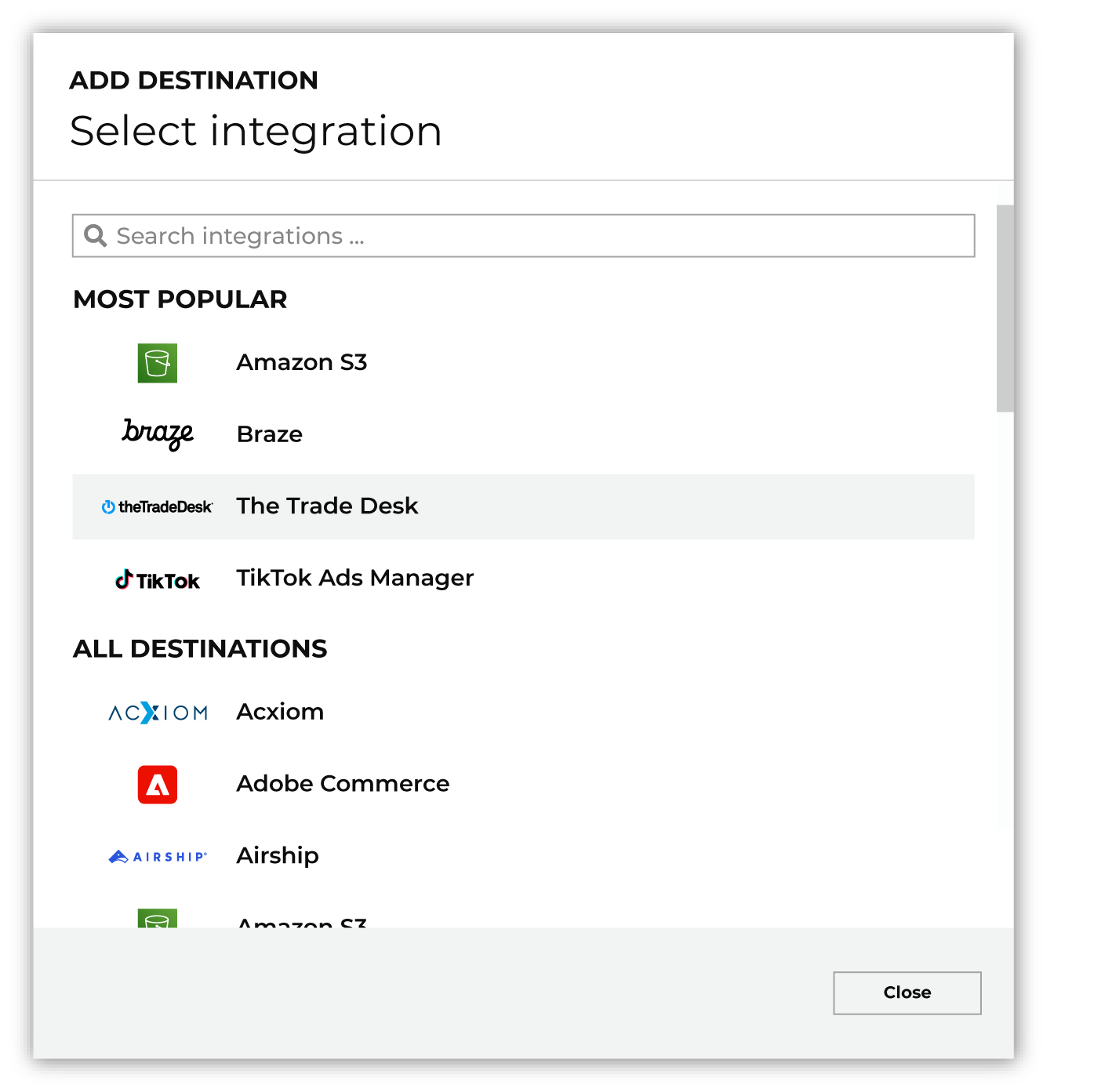
To configure a destination for Eagle Eye, do one of the following:
|
|
|
Select the credential for Eagle Eye from the Credential dropdown, and then click Continue. Tip Amperity validates the connection when the destination is saved. If the connection cannot be validated, an error is shown and the destination is not saved. |
|
|
In the “Destination settings” dialog box, assign the destination a name and description that ensures other users of Amperity can recognize when to use this destination. Configure business user access By default a destination is available to all users who have permission to view personally identifiable information (PII). Enable the Admin only checkbox to restrict access to only users assigned to the Datagrid Operator and Datagrid Administrator policies. Enable the PII setting checkbox to allow limited access to PII for this destination. Use the Restrict PII access policy option to prevent users from viewing data marked as PII anywhere in Amperity and from sending data to downstream workflows. |
|
Configure the following settings, and then click “Save”. Identity type
Wallet type
New wallet state
New identity state
Additional identity types
Loyalty scheme IDs
|

|
After configuring this destination users may use orchestrations to send query results Eagle Eye. |

|
Validate the audience with Eagle Eye by using a sample audience with a very small membership. For example: 10 or 100 members or the minimum audience size recommended by Eagle Eye. Send the sample audience to Eagle Eye and verify the sample audience is correct in Eagle Eye. Make adjustments if necessary. Only send full audiences after validation is complete. |
Data validation
Amperity performs the configured operation for every row in the query results, except for rows it cannot process. A row is reported as failed, and the run continues, when any of the following is true:
The
identity_valuecolumn is empty for that row.The operation is update and the
friendly_namecolumn is empty for that row.The operation is anything other than create and Eagle Eye has no wallet for that row’s identity value.
Eagle Eye rejects that row’s wallet payload, or the row targets a wallet that has already been terminated.
Eagle Eye reports a conflict, or a locked wallet, for that row’s operation.
The operation is create and the person’s wallet was deleted, so their identity value cannot be reused.
Failed rows are reported in the destination’s run details. A row whose wallet is saved but whose additional identity, scheme account, or state change Eagle Eye rejects counts as succeeded, and the reason is listed in the error log for the run. See Additional identities and loyalty schemes.
Some conditions stop the entire run instead of failing individual rows: query results with no identity_value column (or no friendly_name column when the operation is update), query results missing an identity_value_<type> or scheme_state_<id> column for a type or scheme listed in the settings when the operation is create, an Additional identity types setting that repeats the Identity type, an unknown wallet operation, or a state-change send with no Wallet state set (all caught before any data is sent), and a rejected credential or Eagle Eye being unavailable. Campaigns report a missing column, or an Additional identity types setting that repeats the Identity type, while you edit the campaign.