
 User Guides



Send audiences to Amazon S3
Amazon Simple Storage Service, more commonly referred to as Amazon S3, stores customer data files of any size in any file formats.
The steps required to configure campaigns to send email address, phone numbers, and other profile attributes to Amazon S3.
Note
Ask your DataGrid Operator or your Amperity representative for help configuring Amazon S3 as a destination to which you can send campaigns for customer activation.
Caution
This destination is available for sending campaign audiences to Amazon S3 after it is configured by a Datagrid Operator or your Amperity representative.
If this destination cannot be selected from the campaigns editor or activations canvas ask your Datagrid Operator or Amperity representative to configure a destination for sending campaign audiences to Amazon S3.
Build a segment
Use the Segment Editor to build any audience using a series of drop-downs and picklists.
As you define the attribute profile for an audience be sure to refresh segment insights to view audience size and to see the value it brings to your business.
When the segment is ready, activate it, and then use it use it in a campaign to send to your preferred destinations for customer activation.
Which attributes should you use?
You can use any attribute that is in your customer 360 database to define your audience.
When sending the list of customers who belong to this audience to Amazon S3 as part of a campaign you must choose specific attributes to send.
Amazon S3 supports the following attributes: email address, phone numbers, and other profile attributes.
Important
Validate the audience with Amazon S3 by using a sample audience with a very small membership. For example: 10 or 100 members or the minimum audience size recommended by Amazon S3. Send the sample audience to Amazon S3 and verify the sample audience is correct in Amazon S3. Make adjustments if necessary. Only send full audiences after validation is complete.
Add to a campaign
Use the campaign editor to configure Amperity to send data to Amazon S3. Add a segment, define exclusions and sub-audiences, and then define each audience sent to Amazon S3.
About paid media campaigns
Amperity provides the right set of data to support your brand’s paid media advertising with Amazon S3.
Merged Customers vs. Unified Paid Media
The Merged Customers table has each of your customers’ best profiles, such as their best email address, best phone number, and best physical address.
The Unified Paid Media table has all your customer’s known profile data, including all known email addresses, all known phone numbers, and all known physical addresses.
You may configure campaigns to use Merged Customers, Unified Paid Media, or both, depending on your downstream use cases.
Use a consistent naming pattern to label when profiles are from the Merged Customers or Unified Paid Media tables. For example: “Best profile” or “Full profile”.
Configure default attributes for each destination.
Use the default attributes component on the Campaigns page to configure which attributes are associated with each destination, including the table from which those attributes are pulled.
The selected table will affect your brand’s downstream match rates and overall customer matches within your paid media campaigns. The decision behind which table to use depends on your brand’s downstream use case and the type and amount of customer profile data your brand wants to use to match customers.
You should expect to see higher match rates when sending audiences from the Merged Customers table, but a higher number of matched customer profiles when sending audiences from the Unified Paid Media table. Use A/B testing to compare the results from each table, after which you can use the audience that works best for your campaigns.
To add Amazon S3 to a campaign

|
Open the Campaign Editor. This is available from the Campaigns page. Click the Create campaign button in the top right corner of the page. |

|
Assign Amazon S3 as a destination for at least one treatment group. 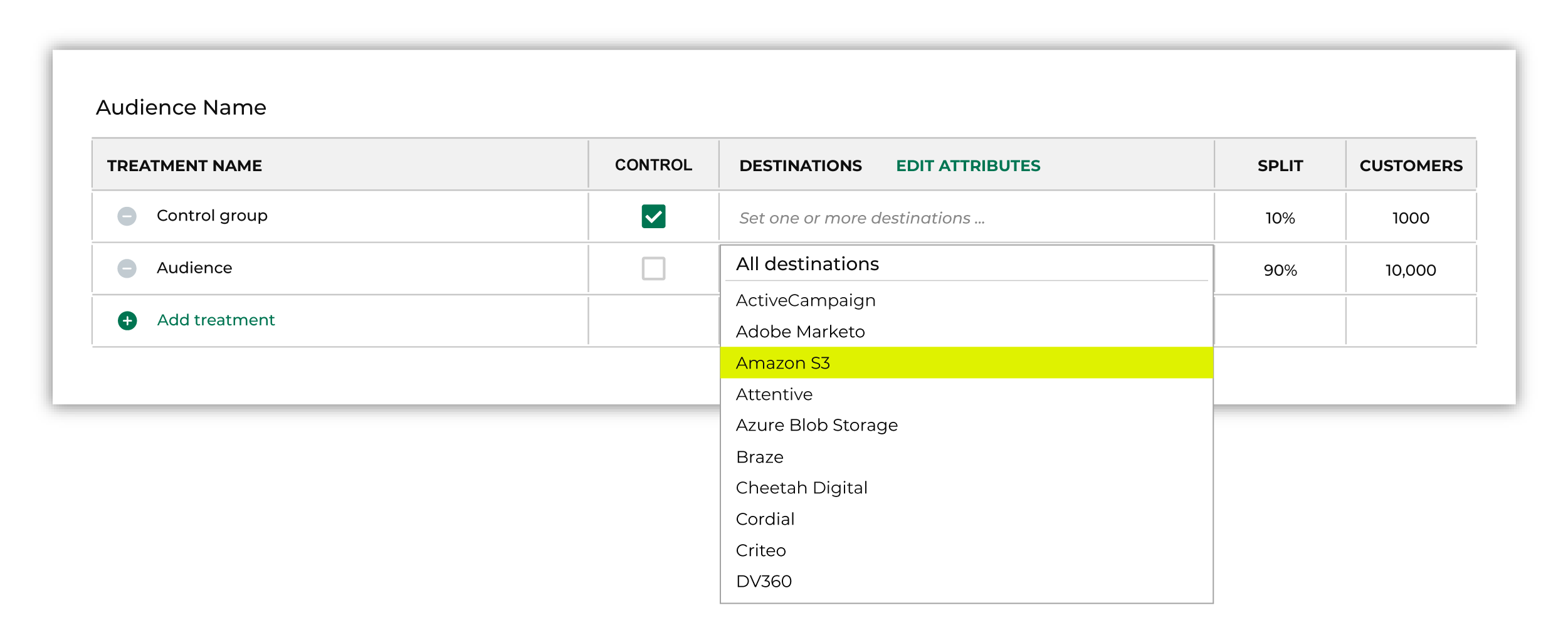
Note You may need to edit the attributes for the sub-audience to ensure Amperity is sending the right data to Amazon S3. |

|
Click Edit attributes to review the attributes that Amperity sends to Amazon S3. You must select the set of attributes that are sent to Amazon S3. Review your downstream requirements, open the Edits attributes page, and then select the attributes you want to send to Amazon S3 for this campaign. Amperity pre-selects the list of attributes sent to Amazon S3. The Edit attributes page for Amazon S3 is similar to: 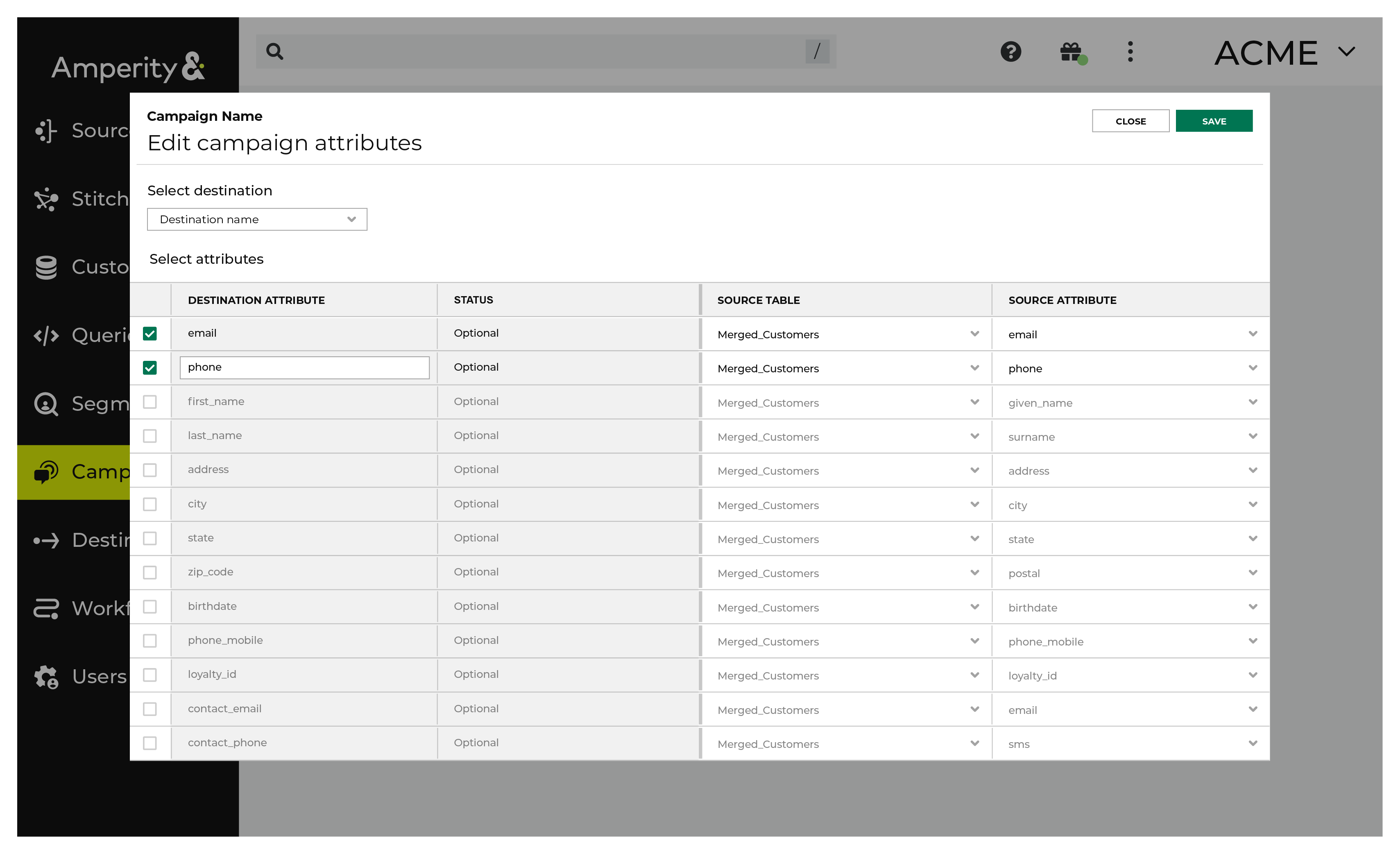
Note The Merged Customers table is the default table for sending data to Amazon S3, even though segments are often built against the Customer 360 table. This is by design. The Merged Customers table is the underlying table for customer profile data and is the source for all customer profile data that exists within the Customer 360 table. |
Configure default attributes
Each unique destination configured to send treatment group audiences to Amazon S3 has a set of default attributes.
Configure default attributes by clicking the Default attributes link next to the Create campaign button on the Campaigns page.
The source table defaults to the Merged Customers table for most attributes. This is configurable.
Amazon S3 has the following requirements for attributes.
Source attribute |
Destination attribute |
|---|---|
amperity_id |
amperity_id |
given_name |
given_name |
surname |
surname |
address |
address |
address2 |
address2 |
state |
state |
city |
city |
postal |
postal |
country |
country |