
 Operators Guide



Configure destinations for Oracle Opera (Outbound)
Oracle OPERA is a property management solution that consolidates reservations, loyalty, sales and catering systems, and guest services into a single platform.
The Oracle Opera (Outbound) connector sends guest profiles from Amperity into a property’s Oracle OPERA profile database, so property staff see unified names and contact details for each guest.
Each guest is identified by their Amperity ID alone, which Amperity writes into Oracle OPERA as an external reference under the property’s external system code. Guests are not matched on name, email, or phone. Because Oracle OPERA has no upsert operation, each guest is first looked up by their Amperity ID: a guest the property already holds is updated in place, and a guest it does not hold yet is created and stamped with the Amperity ID so that later runs find them again.
Amperity sends only the guests whose mapped fields changed since the last run.
The Amperity ID and surname fields are required; given name, birth date, email, and phone are optional. No other data is sent.
Note
This destination uses the Oracle Hospitality Integration Platform (OHIP) CRM API .
Beta
The Oracle Opera (Outbound) connector is currently in beta. Contact your Amperity representative to learn more.
Important
Before Amperity can write any guest, the property must register Amperity as an external system and provide its code as the External System Code setting. In Oracle OPERA Cloud, create the entry under Administration > Interfaces > Business Events > External Systems, link it to the property under Toolbox > System Setup > External Databases, and confirm that it is active. Amperity verifies this once per run and stops before the first write when the code is missing or inactive. The external system code is the connector’s only notion of guest identity.
Note
Oracle OPERA adds a changed email or phone number alongside the value it already holds rather than replacing it, so a previous value can remain on the profile. Clearing a field in Amperity does not remove it from Oracle OPERA. This ensures Amperity never overwrites contact details that property staff entered directly in Oracle OPERA.
Get details
Review the following details before configuring credentials for Oracle OPERA and before configuring Amperity to send guest profiles to a property’s Oracle OPERA profile database.

|
Credential settings Client ID
Client Secret
Environment tier
|
|
|
Required configuration settings Gateway URL
Enterprise ID
Hotel ID
External System Code
Profile type
Primary key
|
Configure credentials
Configure credentials for Oracle OPERA before adding a destination.
An individual with access to Oracle OPERA should use SnapPass to securely share “Client ID” and “Client Secret” details with the individual who configures Amperity.
To configure credentials for Oracle Opera (Outbound)

|
From the Settings page, select the Credentials tab, and then click the Add credential button. |

|
In the Credentials settings dialog box, do the following: From the Plugin dropdown, select Oracle OPERA. Assign the credential a name and description that ensures other users of Amperity can recognize when to use this destination. |

|
The settings that are available for a credential vary by credential type. For the “oracle-opera-outbound” credential type, configure settings, and then click Save. Client ID
Client Secret
Environment tier
|
Add destination
Use a sandbox to configure a destination for Oracle OPERA. Before promoting your changes, send a sample audience, and then verify the results in Oracle OPERA. After verifying the end-to-end workflow, push the destination from the sandbox to production.
To add a destination for Oracle Opera (Outbound)
|
|
Open the Destinations page, select the New destinations button, and then select Orchestration. 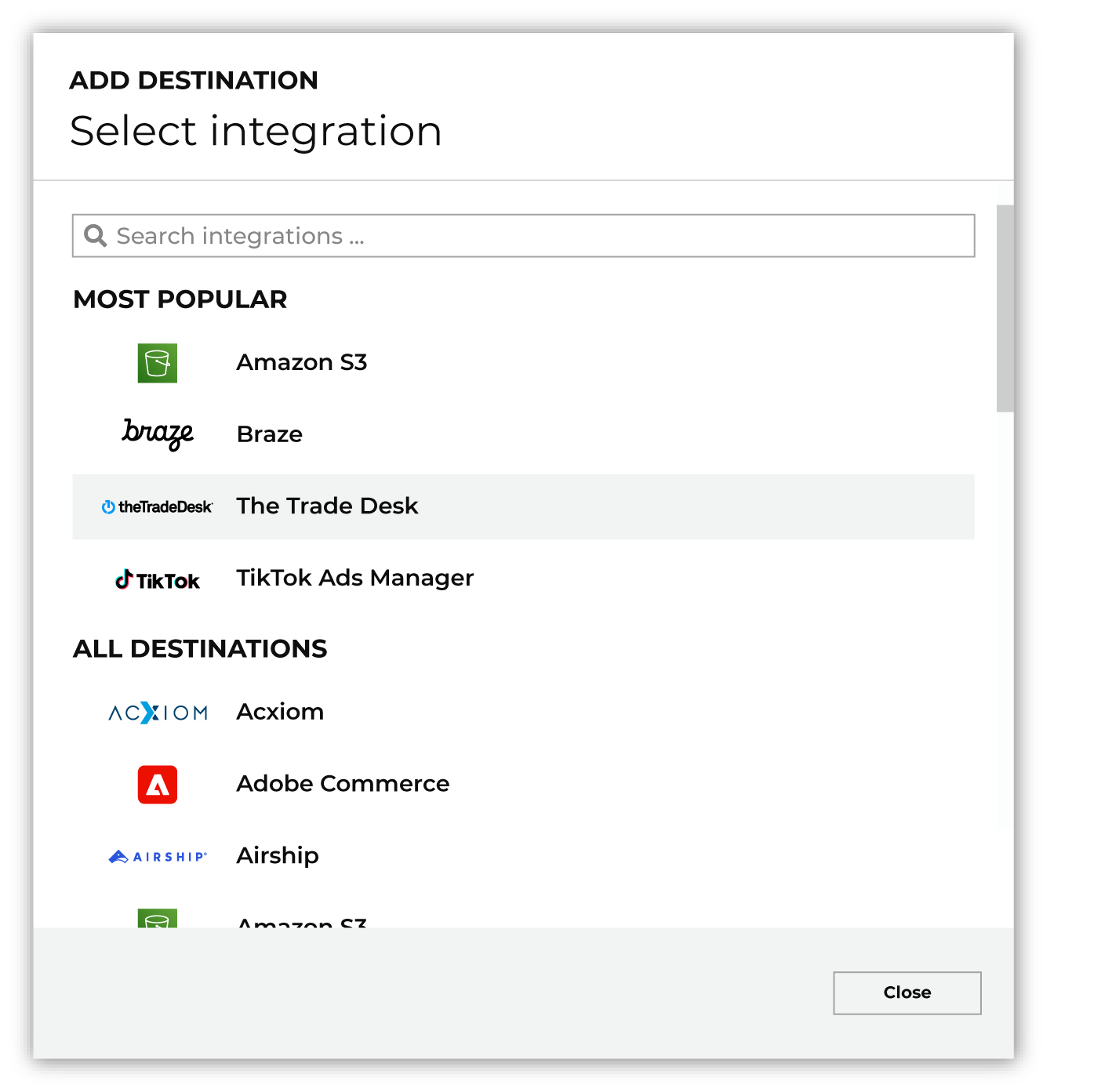
To configure a destination for Oracle OPERA, do one of the following:
|
|
|
Select the credential for Oracle OPERA from the Credential dropdown, and then click Continue. Tip Amperity validates the connection when the destination is saved. If the connection cannot be validated, an error is shown and the destination is not saved. |
|
|
In the “Destination settings” dialog box, assign the destination a name and description that ensures other users of Amperity can recognize when to use this destination. Configure business user access By default a destination is available to all users who have permission to view personally identifiable information (PII). Enable the Admin only checkbox to restrict access to only users assigned to the Datagrid Operator and Datagrid Administrator policies. Enable the PII setting checkbox to allow limited access to PII for this destination. Use the Restrict PII access policy option to prevent users from viewing data marked as PII anywhere in Amperity and from sending data to downstream workflows. |

|
Configure the following settings, and then click “Save”. Gateway URL
Enterprise ID
Hotel ID
External System Code
Profile type
Primary key
|

|
After configuring this destination users may use orchestrations to send query results Oracle OPERA. |

|
Validate the audience with Oracle OPERA by using a sample audience with a very small membership. For example: 10 or 100 members or the minimum audience size recommended by Oracle OPERA. Send the sample audience to Oracle OPERA and verify the sample audience is correct in Oracle OPERA. Make adjustments if necessary. Only send full audiences after validation is complete. |