
 Operators Guide



Configure destinations for Pinterest
Pinterest is a visual discovery engine on which your brand can engage with your customers. Send a list of products that are in your product catalog to Pinterest to enable pins, and then send a list of customers with whom your brand wants to engage.
Caution
The values for email sent to Pinterest are SHA-256 hashed automatically by Amperity before sending. Do not use the TO_HEX() function with the email fields for queries that return results for Pinterest.
Note
Invalid email addresses are automatically filtered out before data is sent to Pinterest. The count of removed rows is reported in the workflow run log.
You can configure Amperity to maintain a list of SHA-256 hashed email addresses as a customer list in Pinterest using the Pinterest API. (Amperity automatically applies SHA-256 hashing to all email addresses before sending them to Pinterest.)
A customer list is associated with an audience in Pinterest, after which your brand may use that audience to advertise on Pinterest.
Amperity creates the customer list if it does not already exist, and then adds email addresses to that customer list. Amperity updates the customer list incrementally if it already exists, adding email addresses for new audience members and removing email addresses for members who have left the audience. If more than one customer list exists with the same name Amperity uses the most recent customer list.
Note
An existing customer list should be empty the first time Amperity sends a list of email addresses.
When a customer list is not associated with an audience in Pinterest, Amperity creates an audience using the same name as the list name that was used in Amperity, and then attach the customer list that is managed by Amperity to that audience list.
Note
A customer list must have at least 100 email addresses associated with a Pinterest account before a list is associated with an audience.
About Pinterest API endpoints
Amperity uses a combination of endpoints in the Pinterest API:
The create audience endpoint to create an audience that can be used to reach specific groups of users in Pinterest. This converts a customer list into the CUSTOMER_LIST audience type.
The create customer list endpoint to create a customer list from a list of SHA-256 hashed email addresses sent to Pinterest from Amperity.
The update customer list endpoint to manage the list of email addresses in a customer list.
Pinterest applies standard access rate limits . Amperity can read from existing customer lists at up to 1000 calls per minute and can write to customer lists at up to 400 calls per minute.
Changes to audiences are not immediately available in Pinterest. Allow for up to 48 hours after the point at which Amperity has finished sending audience updates for them to be available.
Get details
Review the following details before configuring credentials for Pinterest and before configuring Amperity to send email lists to Pinterest.

|
Credential settings Refresh token
|
|
|
Required configuration settings Ad account ID
|
|
|
Customer list name The customer list name to which the Pinterest connector sends a list of SHA-256 hashed email addresses. If the customer list does not exist, Amperity creates the list using the configured list name, and then add the list of email addresses that are sent from Amperity. If the customer list already exists, Amperity updates the list to match the list of email addresses that are sent from Amperity. |
|
|
Authorize Amperity to send data to the customer’s Pinterest account. All Pinterest API endpoints may only be accessed by an authenticated Pinterest user . Pinterest identifies this user based on the access token that is passed with each request. |
Configure credentials
Configure credentials for Pinterest before adding a destination.
An individual with access to Pinterest should use SnapPass to securely share “refresh token” details with the individual who configures Amperity.
To configure credentials for Pinterest

|
From the Settings page, select the Credentials tab, and then click the Add credential button. |
|
In the Credentials settings dialog box, do the following: From the Plugin dropdown, select Pinterest. Assign the credential a name and description that ensures other users of Amperity can recognize when to use this destination. |

|
The settings that are available for a credential vary by credential type. For the “pinterest” credential type, configure settings, and then click Save. Refresh token
|
Add destination
Use a sandbox to configure a destination for Pinterest. Before promoting your changes, send a sample audience, and then verify the results in Pinterest. After verifying the end-to-end workflow, push the destination from the sandbox to production.
To add a destination for Pinterest
|
|
Open the Destinations page, select the New destinations button, and then select Orchestration. 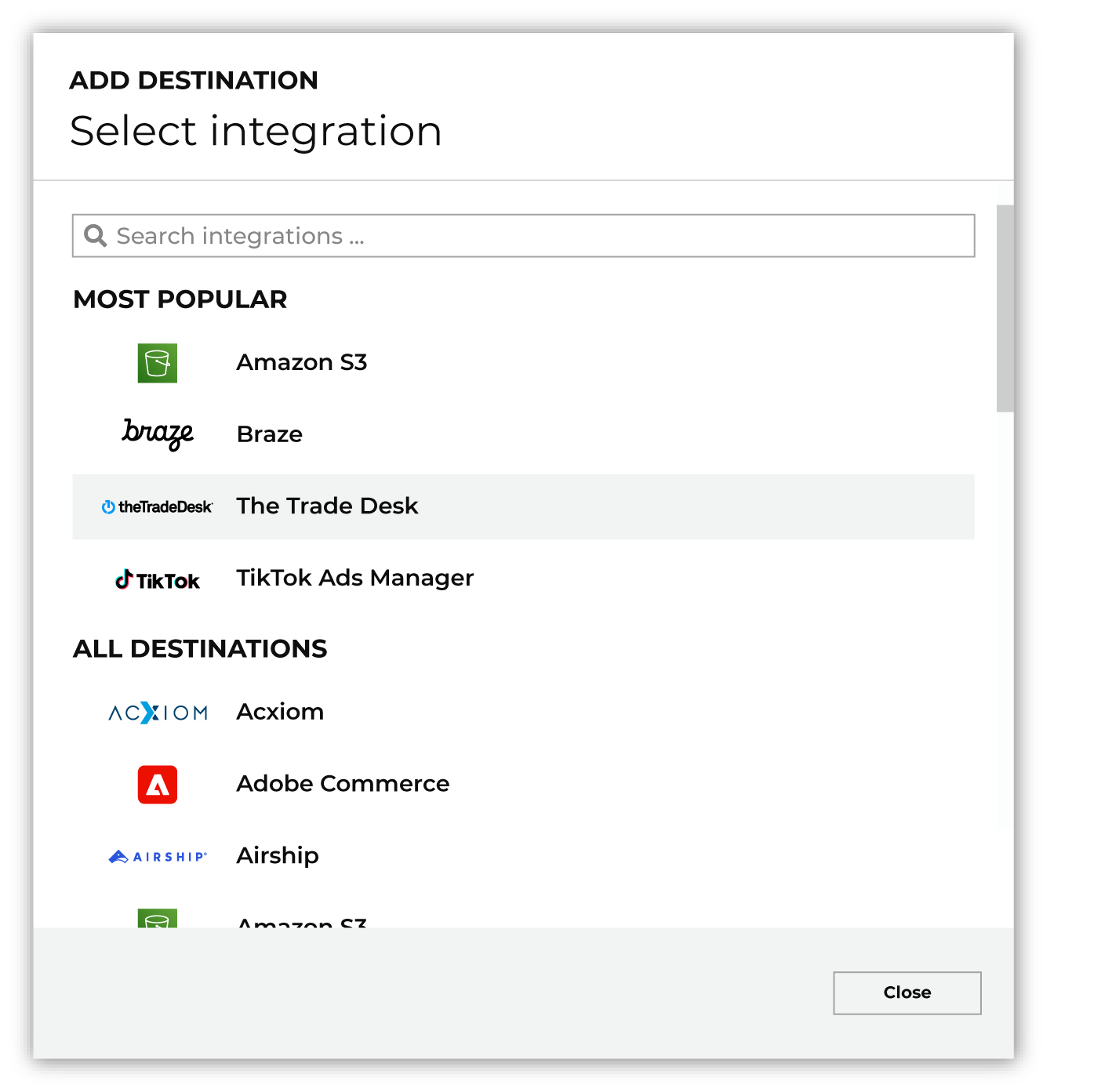
To configure a destination for Pinterest, do one of the following:
|
|
|
Select the credential for Pinterest from the Credential dropdown, and then click Continue. Tip Amperity validates the connection when the destination is saved. If the connection cannot be validated, an error is shown and the destination is not saved. |
|
|
In the “Destination settings” dialog box, assign the destination a name and description that ensures other users of Amperity can recognize when to use this destination. Configure business user access By default a destination is available to all users who have permission to view personally identifiable information (PII). Enable the Admin only checkbox to restrict access to only users assigned to the Datagrid Operator and Datagrid Administrator policies. Enable the PII setting checkbox to allow limited access to PII for this destination. Use the Restrict PII access policy option to prevent users from viewing data marked as PII anywhere in Amperity and from sending data to downstream workflows. |

|
Configure the following settings, and then click “Save”. Audience primary key
Ad account ID
List name (Required at orchestration)
|

|
After configuring this destination users may use:
|

|
Validate the audience with Pinterest by using a sample audience with a very small membership. For example: 10 or 100 members or the minimum audience size recommended by Pinterest. Send the sample audience to Pinterest and verify the sample audience is correct in Pinterest. Make adjustments if necessary. Only send full audiences after validation is complete. |
Workflow actions
A workflow will occasionally show an error that describes what prevented a workflow from completing successfully. These first appear as alerts in the notifications pane. The alert describes the error, and then links to the Workflows tab.
Open the Workflows page to review a list of workflow actions, choose an action to resolve the workflow error, and then follow the steps that are shown.
|
|
You may receive a notifications error for a configured Pinterest destination. This appears as an alert in the notifications pane on the Destinations tab. 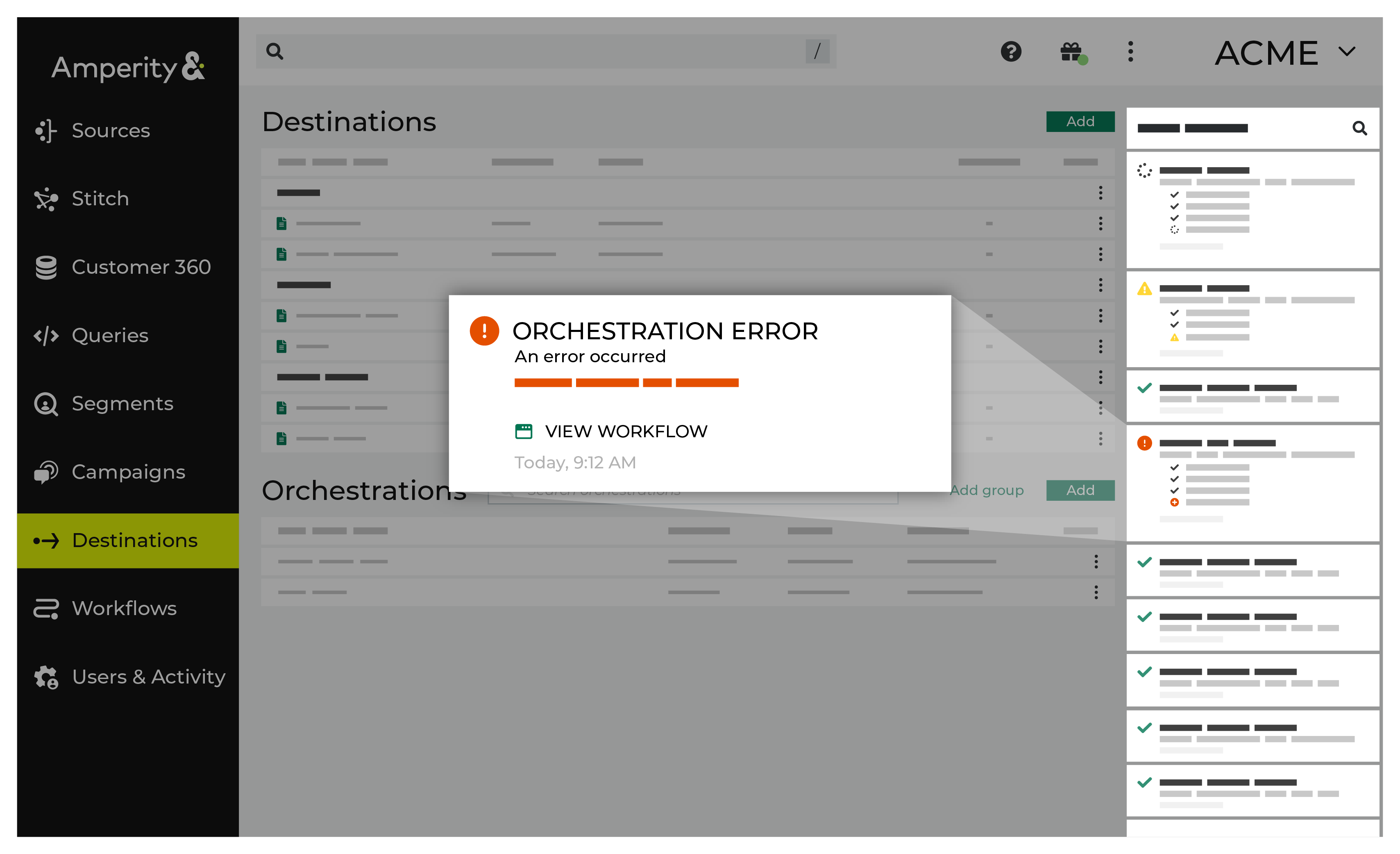
If you receive a notification error, review the details, and then click the View Workflow link to open this notification error in the Workflows page. |
|
|
On the Workflows page, review the individual steps to determine which steps have errors that require your attention, and then click Show Resolutions to review the list of workflow actions generated for this error. 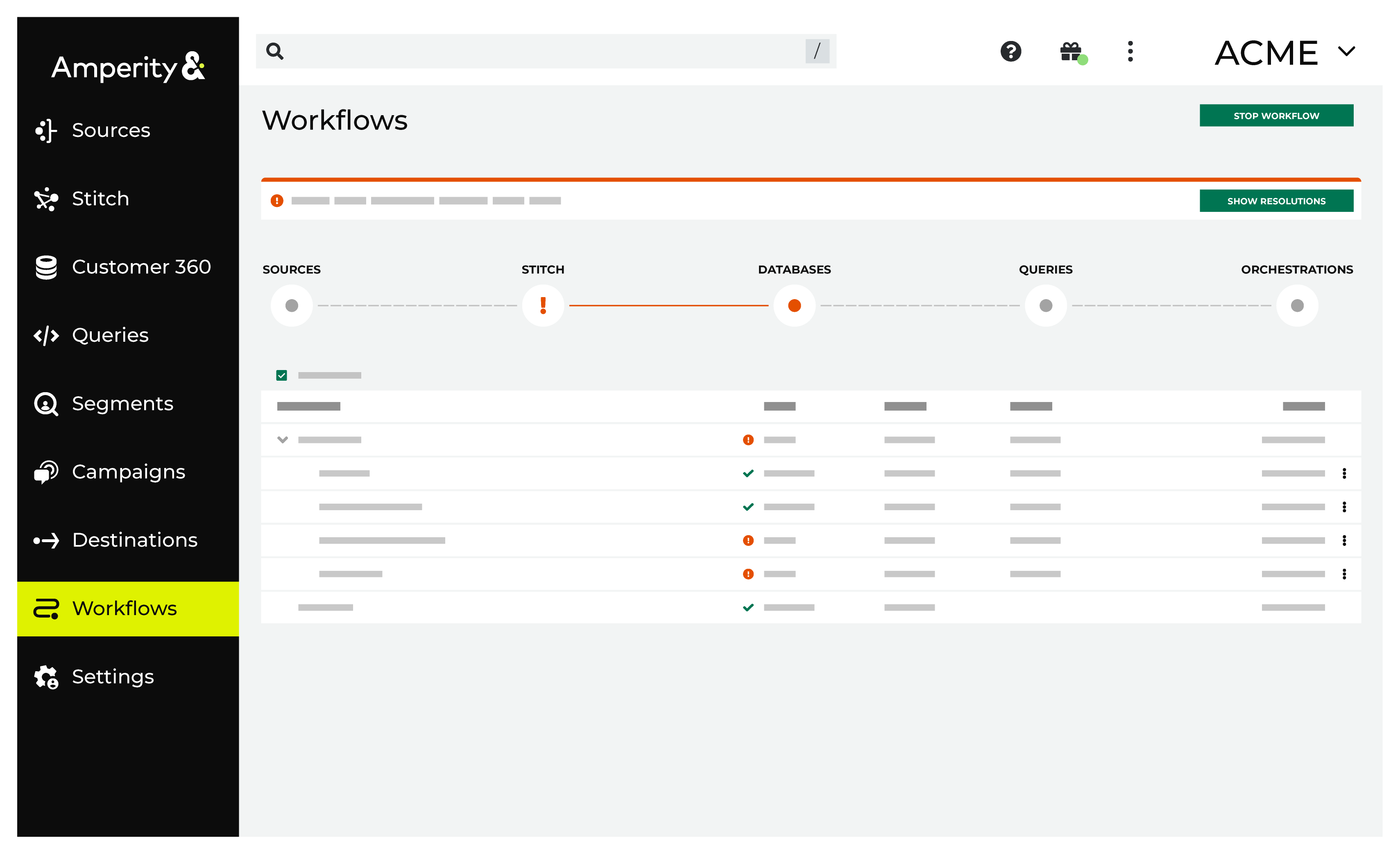
|
|
|
A list of individual workflow actions are shown. Review the list to identify which action you should take. Some workflow actions are common across workflows and will often be available, such as retrying a specific task within a workflow or restarting a workflow. These types of actions can often resolve an error. In certain cases, actions are specific and are shown when certain conditions exist in your tenant. These types of actions typically must be resolved and may require steps that must be done upstream or downstream from your Amperity workflow. Amperity provides a series of workflow actions that can help resolve specific issues that may arise with Pinterest, including: |
|
|
Select a workflow action from the list of actions, and then review the steps for resolving that error. After you have completed the steps in the workflow action, click Continue to rerun the workflow. |
Not enough records
Pinterest requires a customer list to contain a minimum of 100 records before the list can be associated with an audience.
To resolve this error, update the query or segment associated with this workflow to return at least 100 rows.
Open the Queries page and review the query associated with this workflow. Edit the query to return at least 100 rows, or select a different query to send.
Return to the workflow action, and then click Resolve to retry this workflow.
Insufficient permissions
The Pinterest user who authorized Amperity may no longer have access to all of the customer lists associated with the ad account. This can occur when permissions for that user are changed in Pinterest after the initial authorization.
To resolve this error, verify that the Pinterest user who authorized Amperity has the required permissions.
Log into Pinterest and verify that the authorizing user has access to all customer lists associated with the ad account configured in this workflow.
If permissions have changed, update them in Pinterest or reauthorize Amperity using a user with the correct permissions.
Return to the workflow action, and then click Resolve to retry this workflow.