
 Operators Guide



Configure destinations for Customer.io
Customer.io is a customer engagement platform for sending automated messages across email, SMS, push, and in-app channels, driven by customer data and behavior.
The Customer.io connector sends customer profile attributes from Amperity into a Customer.io workspace, keeping each person’s profile current so Customer.io can use unified customer data for messaging and segmentation.
Each row in the query results is one person profile. The field selected by the Person ID field setting supplies the person’s Customer.io identifier (the userId that Customer.io upserts each profile on); every other column is sent as a profile attribute (trait), using the column name and value as-is and preserving its type – string, number, or boolean. Customer.io accepts arbitrary attributes, so there is no fixed set of recognized attribute names.
Amperity syncs profiles incrementally: only the rows whose attributes changed since the last successful run are sent, and unchanged rows are reported as sent from cache. Each row is upserted – a new person is added, an existing person is updated.
Note
This destination uses the Customer.io Pipelines API
, sending each profile with POST /identify.
Beta
The Customer.io connector is currently in beta. Contact your Amperity representative to learn more.
Important
Get the Pipelines API key from your Customer.io workspace under Account Settings > API Credentials. This is the Pipelines API key, not the App API key – they are different credential types. Also confirm which region hosts the workspace (us or eu); Customer.io has no cross-region fallback, so the Region credential must match the workspace’s region.
Note
A successful connection test upserts a fixed synthetic profile named amperity-test-connection into the workspace. This is harmless and idempotent – repeated tests update the same profile rather than creating new ones – and is Customer.io’s own recommended way to validate credentials, because the Pipelines API has no dedicated health-check endpoint.
Note
Amperity sends one request per changed profile and paces the requests to stay well under Customer.io’s rate limit, so a large send takes proportionally longer.
Get details
Review the following details before configuring credentials for Customer.io and before configuring Amperity to send customer profile attributes to a Customer.io workspace.

|
Credential settings Required Both credential fields are required. No call can be made without them. API Key
Region
|
|
|
Required configuration setting Person ID field
|
Configure credentials
Configure credentials for Customer.io before adding a destination.
An individual with access to Customer.io should use SnapPass to securely share “API Key” and “Region” details with the individual who configures Amperity.
To configure credentials for Customer.io

|
From the Settings page, select the Credentials tab, and then click the Add credential button. |

|
In the Credentials settings dialog box, do the following: From the Plugin dropdown, select Customer.io. Assign the credential a name and description that ensures other users of Amperity can recognize when to use this destination. |

|
The settings that are available for a credential vary by credential type. For the “customerio” credential type, configure settings, and then click Save. Required Both credential fields are required. API Key
Region
|
Add destination
Use a sandbox to configure a destination for Customer.io. Before promoting your changes, send a sample audience, and then verify the results in Customer.io. After verifying the end-to-end workflow, push the destination from the sandbox to production.
To add a destination for Customer.io
|
|
Open the Destinations page, select the New destinations button, and then select Orchestration. 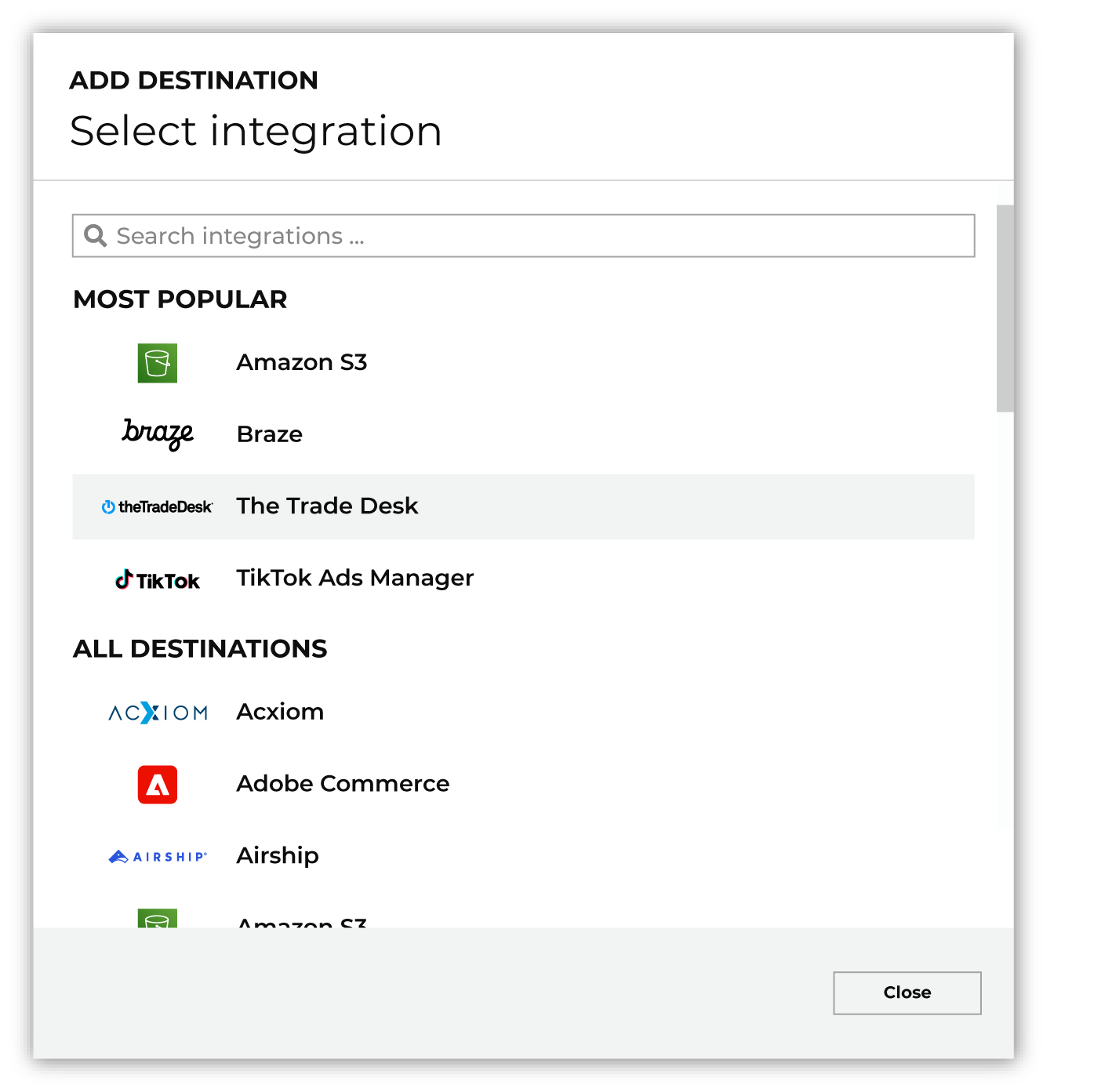
To configure a destination for Customer.io, do one of the following:
|
|
|
Select the credential for Customer.io from the Credential dropdown, and then click Continue. Tip Amperity validates the connection when the destination is saved. If the connection cannot be validated, an error is shown and the destination is not saved. |
|
|
In the “Destination settings” dialog box, assign the destination a name and description that ensures other users of Amperity can recognize when to use this destination. Configure business user access By default a destination is available to all users who have permission to view personally identifiable information (PII). Enable the Admin only checkbox to restrict access to only users assigned to the Datagrid Operator and Datagrid Administrator policies. Enable the PII setting checkbox to allow limited access to PII for this destination. Use the Restrict PII access policy option to prevent users from viewing data marked as PII anywhere in Amperity and from sending data to downstream workflows. |

|
Configure the following settings, and then click “Save”. Person ID field
|

|
After configuring this destination users may use orchestrations to send query results Customer.io. |

|
Validate the audience with Customer.io by using a sample audience with a very small membership. For example: 10 or 100 members or the minimum audience size recommended by Customer.io. Send the sample audience to Customer.io and verify the sample audience is correct in Customer.io. Make adjustments if necessary. Only send full audiences after validation is complete. |
Data validation
Amperity sends every changed row, except for rows it cannot build a valid request for. A row is reported as failed, and the run continues, when any of the following is true:
The field selected by the Person ID field setting is empty for that row, so the person cannot be addressed in Customer.io.
Customer.io rejects that row’s request as malformed – for example, the profile exceeds Customer.io’s per-request payload limit (32 KB) or its per-person attribute limits (attribute name up to 150 bytes, value up to 1000 bytes, up to 300 attributes per person). These limits are published by Customer.io and enforced on Customer.io’s side, not by Amperity.
Customer.io returns a rate-limit or temporary server error for that row.
Failed rows are reported in the destination’s run details. When a run produces many failures, only the first distinct error messages are shown; the failed-row count still reflects every failure.
Some conditions stop the entire run instead of failing individual rows:
The query results have no column mapped to the Person ID field – caught before any data is sent.
Customer.io rejects the API key. Because the same key is used for every request, the run stops immediately rather than failing every row in turn. Confirm the connected credential uses the Pipelines API key, from Account Settings > API Credentials, and not the App API key.