
 Operators Guide



Configure destinations for DV360
Display & Video 360 (DV360) enables advertising on connected TVs (CTVs), such as Android TV and Chromecast, online video platforms, such as YouTube, along with providing access to a variety of third-party partner exchanges.
What is Display & Video 360?
Display & Video 360 (DV360) is Google’s demand-side platform (DSP) for programmatic advertising. It enables brands and agencies to plan, buy, and measure digital media across display, video, TV, and audio channels–including YouTube and web placements–through a single platform.
DV360 supports two account types:
Display Video Advertiser An individual brand or business that runs programmatic campaigns directly within DV360.
Display Video Partner An agency, trading desk, or large advertiser that manages programmatic campaigns across many advertiser accounts under a single partner account.
Use Amperity to build high-value audience segments from first-party data, and then send those segments to DV360 to activate them in programmatic advertising campaigns.
Note
DV360 audiences are configured through the Google Customer Match plugin. For the Customer product, select Display Video Advertiser or Display Video Partner, depending on your DV360 account type. Then enter that account’s ID as the Customer ID.
Note
This destination uses the Google Audience Partner API .
Changes to audiences are not immediately available in DV360. Allow for up to 48 hours after the point at which Amperity has finished sending audience updates for them to be available.
Get details
Review the following details before configuring credentials for DV360 and before configuring Amperity to send customer profiles to DV360.

|
Credential settings Refresh token
|
|
|
DV360 configuration
What are advertisers? What are partners? Display & Video 360 Advertisers Display & Video 360 Advertisers represent individual businesses that run advertising campaigns. Use your Advertiser ID to identify the customer ID to which Amperity should send data. Display & Video 360 Partners Display & Video 360 Partners represent agencies, trading desks, and large individual advertisers. Multiple advertisers are often grouped under a single partner. Use your partner ID to identify the customer ID to which Amperity should send data. After choosing the type of advertising your brand runs on DV360, add your customer ID. |
|
|
Review user consent policy Review the user consent policy for the European Union (EU) and European Economic Area (EEA), and then add the required columns to your orchestration or campaign. |
|
|
Required configuration settings Customer product
Customer ID
Audience name (Required at orchestration)
Audience description (Required at orchestration)
Membership duration
Upload key type
Mobile app ID
|
Configure credentials
OAuth is an open standard for access delegation, commonly used to grant websites or applications access to information on other websites.
Use OAuth to configure Amperity to send customer profiles to DV360.
Important
OAuth for “Google Customer Match” must be completed within Google before configuring OAuth in Amperity.
To configure OAuth for DV360

|
Open the Destinations tab and click Add Destination. The Add Destination dialog box opens. Select “Google Customer Match” from the Plugin dropdown, and then from the Credential dropdown, select Create a new credential. This opens the Create New Credential dialog box. |
|
In the Create New Credential dialog box, click “Generate authorization URL”. Copy the URL, and then provide the URL to a user who has credentials that allow access to DV360. The user must log in and complete the steps required by the OAuth process for DV360. After this is completed, you will be redirected to the Credentials page in Amperity. Verify the credential is on the page, and then return to the Destinations tab. |

|
Open the Destinations tab and click Add Destination. The Add Destination dialog box opens. Select “Google Customer Match” from the Plugin dropdown, and then from the Credential dropdown, select the credential that is authorized to access DV360. Note The value for the Refresh Token setting is updated automatically after you select the credential. |
Add destination
Use a sandbox to configure a destination for DV360. Before promoting your changes, send a sample audience, and then verify the results in DV360. After verifying the end-to-end workflow, push the destination from the sandbox to production.
To add a destination for Display & Video 360
|
|
Open the Destinations page, select the New destinations button, and then select Orchestration. 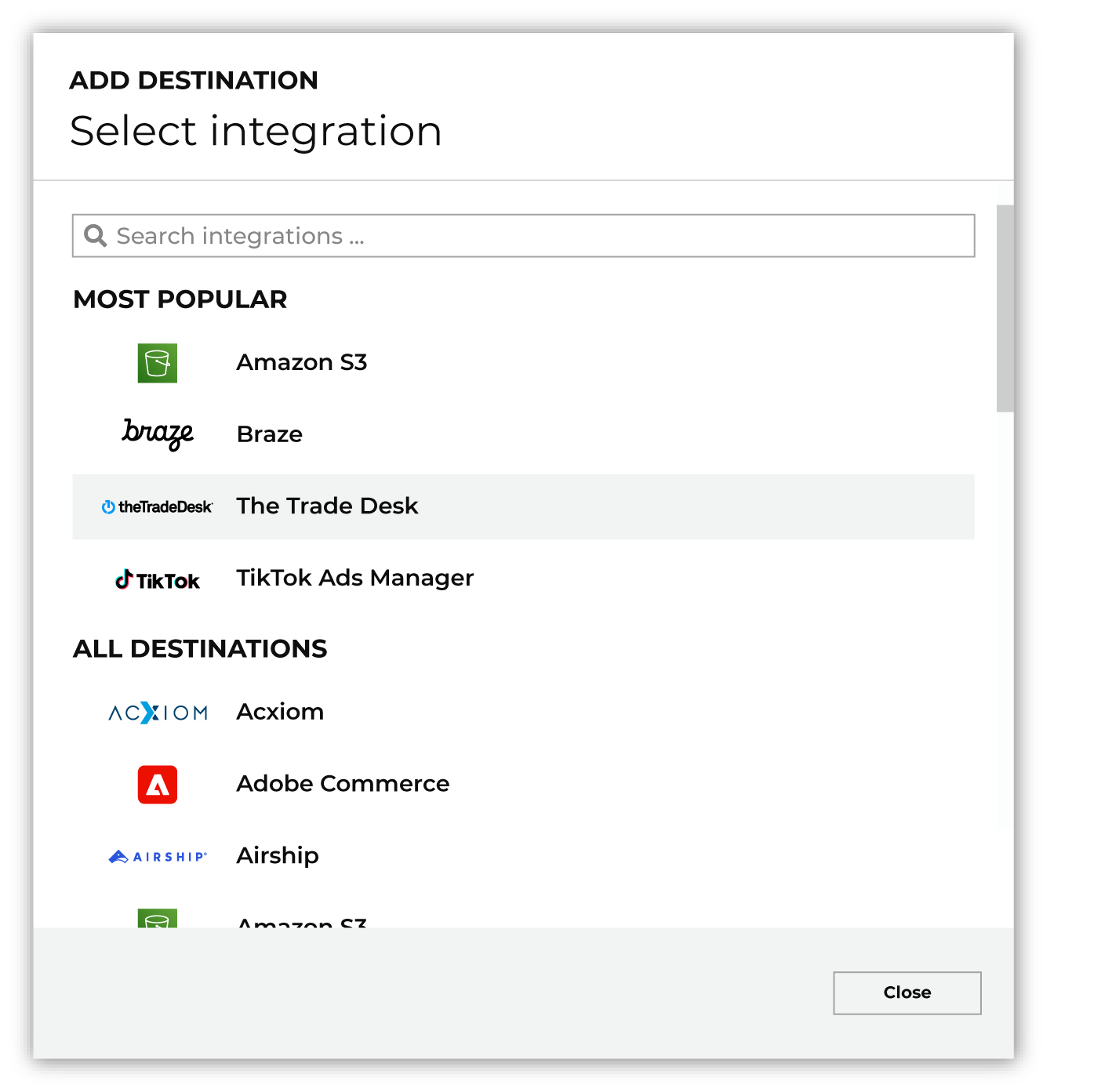
To configure a destination for DV360, do one of the following:
|
|
|
Select the credential for DV360 from the Credential dropdown, and then click Continue. Tip Amperity validates the connection when the destination is saved. If the connection cannot be validated, an error is shown and the destination is not saved. |
|
|
In the “Destination settings” dialog box, assign the destination a name and description that ensures other users of Amperity can recognize when to use this destination. Configure business user access By default a destination is available to all users who have permission to view personally identifiable information (PII). Enable the Admin only checkbox to restrict access to only users assigned to the Datagrid Operator and Datagrid Administrator policies. Enable the PII setting checkbox to allow limited access to PII for this destination. Use the Restrict PII access policy option to prevent users from viewing data marked as PII anywhere in Amperity and from sending data to downstream workflows. |

|
Configure the following settings, and then click “Save”. Customer product
Customer ID
Audience name (Required at orchestration)
Audience description (Required at orchestration)
Membership duration
Upload key type
Mobile app ID
|

|
After configuring this destination users may use:
|

|
Validate the audience with DV360 by using a sample audience with a very small membership. For example: 10 or 100 members or the minimum audience size recommended by DV360. Send the sample audience to DV360 and verify the sample audience is correct in DV360. Make adjustments if necessary. Only send full audiences after validation is complete. |
Google Audience Partner API Matching
DV360 matching can be done through the following list ID types:
Contact Info Matching
Personally identifiable information (PII) is any data that could identify a specific individual. PII data includes details like names, addresses, email addresses, and other profile attributes. PII data sometimes includes attributes like a loyalty number, customer relationship management (CRM) system identifiers, or foreign keys in customer data.
A list can be matched to contact information that has PII data. If a row has a NULL value, it will be automatically filtered out by the connector and is shown in the error logs. Each field should be matched to one of the following columns:
Amperity Column |
Google API Key |
Description |
|---|---|---|
Email Address |
For this key, the connector:
|
|
Phone Number |
phone |
Converts each phone number to E.164 format which represents a phone number as a number up to fifteen digits in length (without spaces) that starts with a + symbol. For example: +12061234567. For this key, the connector:
|
Last Name |
lastname |
For this key, the connector:
|
First Name |
firstname |
For this key, the connector:
|
ZIP Code |
zip |
For this key, the connector:
|
Country Code |
country |
A two-letter country code in ISO 3166-1 alpha-2 format. For this key, the connector:
|
European Union user consent
The Google Audience Partner API uses the Consent object to specify user consent signals for sending user data to Google for advertising purposes and for ad personalization.
Important
Customers must send the required user consent signals when uploading data for advertising to customers in the European Economic Area (EEA) and to adhere to the European Union (EU) user consent policy.
Required Column |
Description |
|
|---|---|---|
ad-personalization |
Sets consent for ad personalization. Possible values: GRANTED, UNSPECIFIED, or DENIED. Important This value must be set to GRANTED to indicate that your brand has received the required user consent. |
|
ad-user-data |
Sets consent for sending user data to Google for advertising purposes. Possible values: GRANTED, UNSPECIFIED, or DENIED. Important This value must be set to GRANTED to indicate that your brand has received the required user consent. |
Mobile Device ID Matching
A list can be matched to mobile device IDs. These may be identifier for advertising (IDFA) or Google advertising IDs (AAID) for mobile devices. If a row has a NULL value, it will be automatically filtered out by the connector and is shown in the error logs.
Amperity Column |
Google API Key |
Description |
|---|---|---|
Mobile Device ID |
mobile-id |
A list of mobile device IDs provided to Amperity by the customer. For this key, the connector:
|