
 Operators Guide


Configure destinations for The Trade Desk
The Trade Desk is a platform for wide internet advertising and enables the use of Universal ID 2.0 for first-party paid media advertising.
Amperity can manage audiences within The Trade Desk demand-side platform, from which your brand can reach those audiences throughout their entire digital journey and across every channel and device, including:
Display advertising on ABC, ESPN, the Wall Street Journal, live sporting events, such as Major League Baseball, and more.
Video advertising on over-the-top (OTT) and connected TV (CTV) apps and platforms, such as Disney+, Major League Baseball, Hulu, Fox, Vevo, Paramount+, and more.
Audio advertising in-between songs and during podcasts across Spotify, Pandora, SoundCloud, iHeart, and more.
What is UID 2.0?
Unified ID 2.0 is an open source identity framework that benefits consumers by allowing them to control over data sharing with publishers and advertisers.
The Trade Desk supports using UID 2.0 to help establish your customers’ identifies without using third-party data. UID 2.0 enables publisher websites, mobile apps, and Connected TV (CTV) apps to monetize through programmatic workflows, while offering user transparency and privacy controls that meet local market requirements.
Note
This destination uses the The Trade Desk API to manage audiences and send events.
Changes to audiences are not immediately available in The Trade Desk. Allow for up to 48 hours after the point at which Amperity has finished sending audience updates for them to be available.
Get details
Review the following details before configuring credentials for The Trade Desk and before configuring Amperity to send email addresses, phone numbers, EUID, or UID2 tokens to The Trade Desk.
|
A UID 2.0 agreement and / or a European Unified ID (EUID) agreement . |
|
|
Credential settings Amperity supports two credential types for The Trade Desk:
OAuth
Advertiser secret (legacy)
|
|
|
Required configuration settings Segment name (Required at orchestration)
|
Configure credentials
Configure credentials for The Trade Desk before adding a destination.
Amperity supports the following credential types for The Trade Desk:
To move a destination that uses an advertiser secret to OAuth, see Switch from an advertiser secret to OAuth.
OAuth
Before you add an OAuth credential, ask your account team at The Trade Desk to grant Amperity access to your advertiser, or to the partner that your advertiser belongs to. Amperity can send data only for an advertiser or partner that has granted Amperity access. Until The Trade Desk grants access, use an Advertiser secret (legacy) credential.
To configure credentials using OAuth

|
From the Settings page, select the Credentials tab, and then click the Add credential button. |
|
In the Create credential dialog box, do the following:
The Credential type dropdown selects OAuth by default. Keep it selected. |

|
Enter the advertiser ID, and then click Save. Enter a partner ID only when Amperity has access at the partner level. Advertiser ID
Partner ID
|
Advertiser secret (legacy)
An Advertiser secret (legacy) credential uses the advertiser ID and the advertiser secret for your advertiser. Use an OAuth credential for every new The Trade Desk credential once The Trade Desk has granted Amperity access.
An individual with access to The Trade Desk should use SnapPass to securely share “advertiser ID” and “advertiser secret” details with the individual who configures Amperity.
To configure credentials using an advertiser secret
|
|
From the Settings page, select the Credentials tab, and then click the Add credential button. |
|
|
In the Create credential dialog box, do the following:
From the Credential type dropdown, select Advertiser secret (legacy). |
|
|
Enter the advertiser ID and the advertiser secret, and then click Save. Advertiser ID
Advertiser secret
|
Switch from an advertiser secret to OAuth
A destination keeps its credential type until you change it. To move a destination from an Advertiser secret (legacy) credential to an OAuth credential:
Ask your account team at The Trade Desk to grant Amperity access to the advertiser, or to its partner.
Add an OAuth credential with the same advertiser ID.
Open the destination for editing. In the Credential section, click Edit. From the Credential type dropdown, select OAuth, select the credential you added, and then click Save.
Test the connection, and then save the destination.
OAuth error messages
Testing the connection or running a workflow with an OAuth credential returns one of the following messages when The Trade Desk does not accept the credential:
Message |
What to do |
|---|---|
The Trade Desk has not granted Amperity access to advertiser <ID>. Check the IDs in this credential, and ask your Trade Desk account team to grant Amperity access to them. |
Confirm that Advertiser ID and Partner ID are correct. If they are, ask your account team at The Trade Desk to grant Amperity access to the advertiser, or to its partner. When Partner ID is set, the message names the partner instead of the advertiser. |
The Trade Desk rejected Amperity’s access token for this advertiser. Check that The Trade Desk still grants Amperity access to the advertiser in this credential, then test the connection again. |
Ask your account team at The Trade Desk to confirm that Amperity still has access to the advertiser, and then test the connection again. |
The Trade Desk has not set up the advertiser in this credential to accept first-party data. Check the advertiser ID, and ask your Trade Desk account team to enable it. |
Applies to The Trade Desk destination. Confirm that Advertiser ID is correct, and then ask your account team at The Trade Desk to enable the advertiser to accept first-party data. |
Add destination
Use a sandbox to configure a destination for The Trade Desk. Before promoting your changes, send a sample audience, and then verify the results in The Trade Desk. After verifying the end-to-end workflow, push the destination from the sandbox to production.
To add a destination for The Trade Desk
|
|
Open the Destinations page, select the New destinations button, and then select Orchestration. 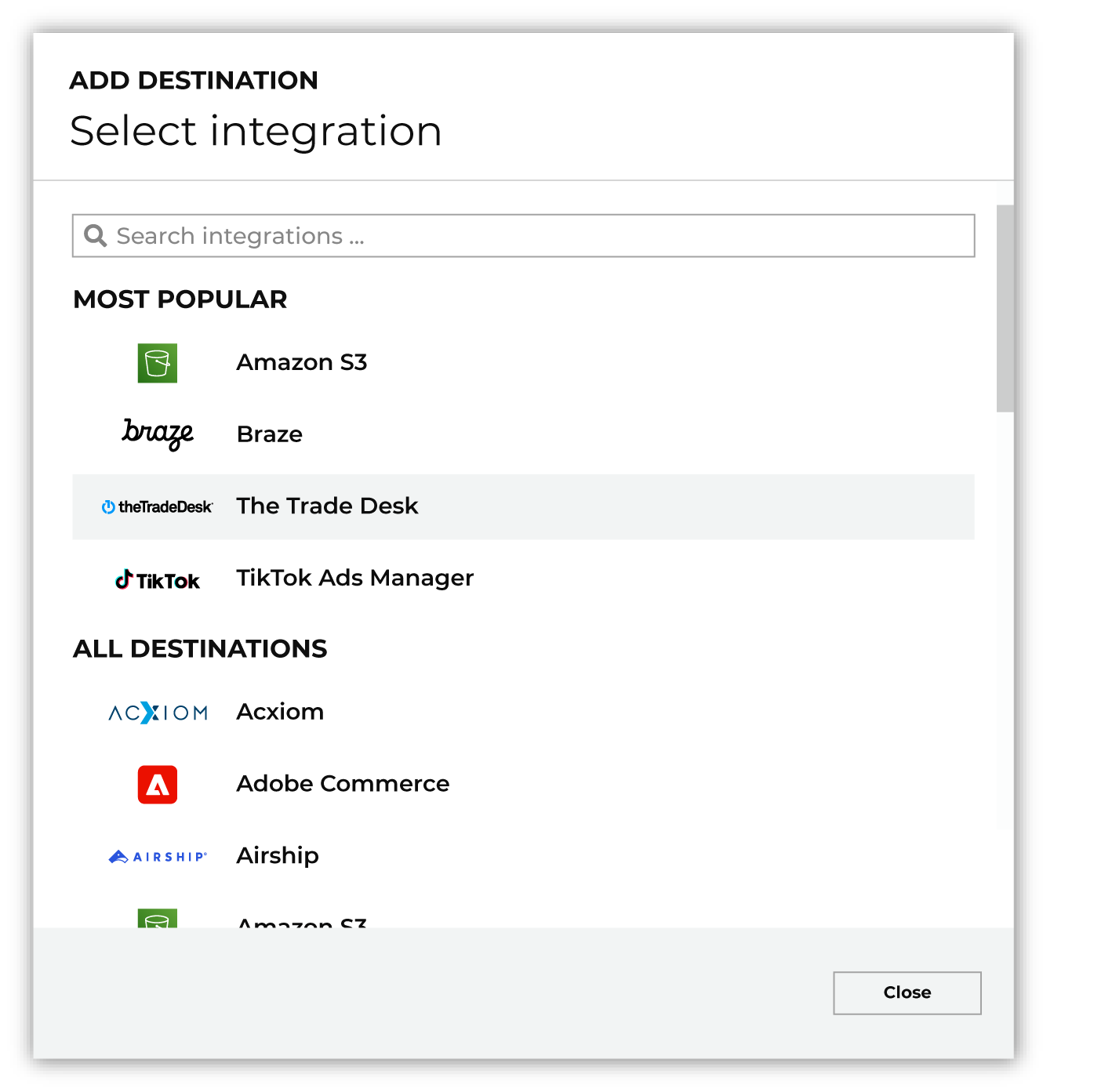
To configure a destination for The Trade Desk, do one of the following:
|
|
|
The Credential dropdown lists only credentials of the type selected in the Credential type dropdown, and OAuth is selected by default. Select the type of the credential you configured before you select the credential. Select the credential for The Trade Desk from the Credential dropdown, and then click Continue. Tip Amperity validates the connection when the destination is saved. If the connection cannot be validated, an error is shown and the destination is not saved. |
|
|
In the “Destination settings” dialog box, assign the destination a name and description that ensures other users of Amperity can recognize when to use this destination. Configure business user access By default a destination is available to all users who have permission to view personally identifiable information (PII). Enable the Admin only checkbox to restrict access to only users assigned to the Datagrid Operator and Datagrid Administrator policies. Enable the PII setting checkbox to allow limited access to PII for this destination. Use the Restrict PII access policy option to prevent users from viewing data marked as PII anywhere in Amperity and from sending data to downstream workflows. |

|
Configure the following settings, and then click “Save”. Segment name (Required at orchestration)
Membership duration
|

|
After configuring this destination users may use:
|

|
Validate the audience with The Trade Desk by using a sample audience with a very small membership. For example: 10 or 100 members or the minimum audience size recommended by The Trade Desk. Send the sample audience to The Trade Desk and verify the sample audience is correct in The Trade Desk. Make adjustments if necessary. Only send full audiences after validation is complete. |