
 Operators Guide



Configure destinations for Vibe Audiences
Vibe is a connected TV (CTV) advertising platform. Advertisers use Vibe to run ads on streaming TV and to target those ads to audiences built from their own customer data.
You can configure Amperity to send audiences of hashed email addresses to Vibe using the Vibe Developer Platform API. This destination sends audiences to the Vibe CTV advertising platform. It is not the Vibes destination, which sends files to the Vibes mobile marketing platform.
Amperity sends one field to Vibe: email. Before sending, Amperity trims leading and trailing whitespace from each email address, converts it to lowercase, and hashes it with SHA-256, which is the hashed email (HEM) format that Vibe matches against. Plaintext email addresses never leave Amperity. Rows without an email address are skipped and counted as failed. Amperity does not check the format of email addresses or remove duplicates: every email address that is not blank is hashed, sent, and counted as succeeded.
Each run replaces the members of the audience. Amperity creates the audience under the configured advertiser if it does not exist, and then uploads every email address in the run to Vibe in batches of up to 10,000. After Vibe processes the final batch, the audience contains exactly the email addresses sent in that run, and customers who are not in the run are removed from the audience. Audience counts in Vibe can take longer to reflect removed customers.
Note
This destination uses the Vibe Developer Platform API .
Caution
Send email addresses that are not hashed. Amperity hashes every email address, so an address that is already hashed is hashed a second time and does not match a Vibe profile. Vibe does not return an error for an email address that does not match. A run can succeed while the audience matches no one.
Important
Some runs leave the audience in Vibe unchanged:
A run with no email addresses. When a query or segment returns no rows, or no rows that have an email address, Amperity does not upload anything and the audience keeps its previous members. An audience in Vibe does not become empty when its segment does.
A run that fails before its final batch. Vibe applies the uploaded batches only after it receives the final one. When a run fails partway through an upload, Amperity cancels the upload, and the audience keeps the members from the last run that finished.
Run errors
When Vibe reports a rate limit or a server error, Amperity waits and sends the same request again. These retries add time to a run without failing it. If the retries do not succeed, or the connection to Vibe fails, Amperity retries the run, which uploads the whole audience again.
The following errors stop the run without a retry. Each one includes the error message that Vibe returns.
The authorization is rejected. Vibe does not accept the credential, or the Vibe user who authorized it does not have access to the advertiser. Reauthorize Amperity, using a Vibe user who has access to the advertiser.
The advertiser or audience cannot be found. Verify the Advertiser ID in the destination settings.
The request is rejected. Vibe rejects the request as invalid or for another reason. The error message describes the problem.
The audience conflicts with an existing audience. Vibe reports a conflict with the existing audience. Causes include:
An upload to the audience is still open. When a run fails and Amperity cannot cancel its upload, the upload stays open, and Vibe rejects the next run with this error. Wait 24 hours for the open upload to expire, and then run again.
An audience with this name exists with a different configuration. Use a different Audience name, or resolve the conflict in Vibe.
Get details
Review the following details before configuring credentials for Vibe and before configuring Amperity to send audiences to Vibe.

|
Credential settings Refresh token
|
|
|
Required configuration settings Advertiser ID
Audience name (Required at orchestration)
|
|
|
A query that returns an email field. Amperity sends only the email field to Vibe. |
Configure credentials
Configure credentials for Vibe before adding a destination.
An individual with access to Vibe should use SnapPass to securely share “refresh token” details with the individual who configures Amperity.
To configure credentials for Vibe Audiences

|
From the Settings page, select the Credentials tab, and then click the Add credential button. |
|
In the Create credential dialog box, do the following:
The person who completes the authorization must be a Vibe user with access to the advertiser that Amperity sends audiences to, and with permission to read and create audiences. The authorization allows Amperity to read and write audiences in Vibe. |

|
The authorization process sets the values for the “vibe-audiences” credential type. There are no settings to enter. Refresh token
|
Add destination
Use a sandbox to configure a destination for Vibe. Before promoting your changes, send a sample audience, and then verify the results in Vibe. After verifying the end-to-end workflow, push the destination from the sandbox to production.
To add a destination for Vibe Audiences
|
|
Open the Destinations page, select the New destinations button, and then select Orchestration. 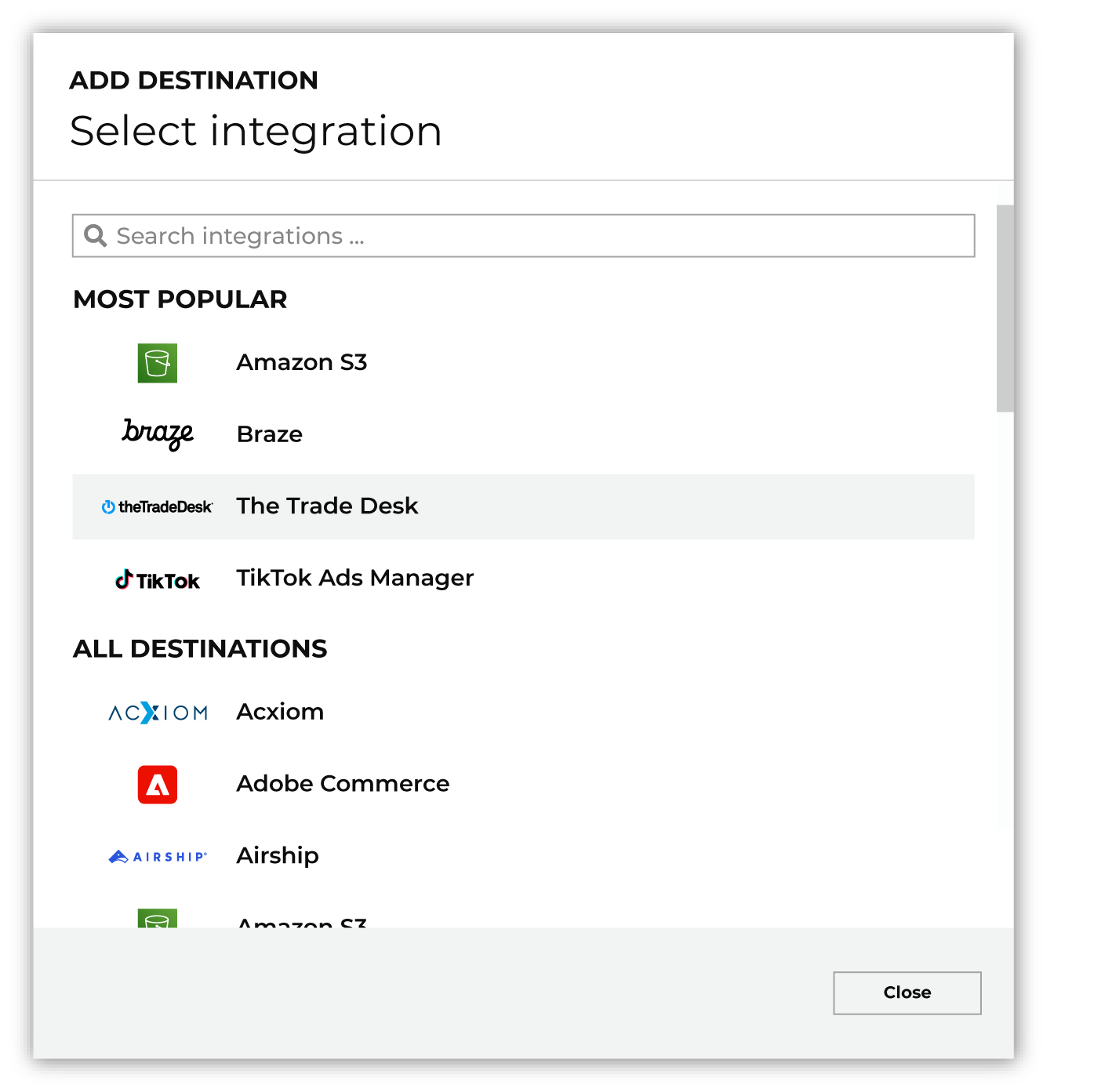
To configure a destination for Vibe, do one of the following:
|
|
|
Select the credential for Vibe from the Credential dropdown, and then click Continue. Tip Amperity validates the connection when the destination is saved. If the connection cannot be validated, an error is shown and the destination is not saved. The connection test lists the audiences under the advertiser, which confirms that the credential works and has access to the Advertiser ID. |
|
|
In the “Destination settings” dialog box, assign the destination a name and description that ensures other users of Amperity can recognize when to use this destination. Configure business user access By default a destination is available to all users who have permission to view personally identifiable information (PII). Enable the Admin only checkbox to restrict access to only users assigned to the Datagrid Operator and Datagrid Administrator policies. Enable the PII setting checkbox to allow limited access to PII for this destination. Use the Restrict PII access policy option to prevent users from viewing data marked as PII anywhere in Amperity and from sending data to downstream workflows. |

|
Configure the following settings, and then click “Save”. Advertiser ID
Audience name (Required at orchestration)
|

|
After configuring this destination users may use:
|

|
Validate the audience with Vibe by using a sample audience with a very small membership. For example: 10 or 100 members or the minimum audience size recommended by Vibe. Send the sample audience to Vibe and verify the sample audience is correct in Vibe. Make adjustments if necessary. Only send full audiences after validation is complete. |