
 Operators Guide



Configure destinations for Tulip API
Tulip is a store experience platform that helps your brand connect with your customers by using personalized retail experiences, access to online and in-store products, and seamless omnichannel checkout and fulfillment.
The Tulip API connector sends customer attributes from Amperity to customer records in Tulip. It sends customers with the Tulip Update Customers operation. Tulip has no list or segment for Amperity to add customers to.
Each row in the query results is one customer. The external_id column supplies the customer’s externalId, which Tulip describes as an identifier that maps a customer to a primary key in another system. Return the Amperity ID in this column. The Tulip API reference does not say which field Update Customers uses to find an existing customer. See Customer fields.
Amperity syncs attributes incrementally. Only the rows whose attributes changed since the last successful run are sent, and unchanged rows are reported as sent from cache.
Amperity sends changed rows in batches of up to 1,000 customers, the most Tulip accepts in one bulk request. Tulip accepts each batch as a job and processes it after the request returns. Amperity checks each job until it finishes, and then reports that batch’s rows as sent or failed. Up to four batches are in progress at a time.
Note
To send CSV files to Tulip with the Tulip File Importer instead, see Configure destinations for Tulip.
Note
This destination uses version 2022-08 of the Tulip Aerial API , sending customers with the asynchronous bulk Update Customers operation.
Beta
The Tulip API connector is in beta. Contact your Amperity representative to learn more.
Important
The connector reads each row’s external ID from a column named external_id. If your query produces the Amperity ID under another name, alias it, for example SELECT amperity_id AS external_id. The check that runs when you select destination attributes for an orchestration ignores case, but the send requires external_id in lower case. A column spelled any other way passes that check, and then the run fails before any data is sent, with a message naming the missing column.
Customer fields
Amperity sends each row as one Tulip customer. It sends external_id as the customer’s externalId, and sends every other column as a top-level field named after the column, with its value unchanged.
Caution
Tulip does not store email addresses or custom attributes as top-level fields. Its customer object keeps email addresses in an emailAddresses array and custom attributes in an attributes array, and it has no email field. The email field that this connector offers for mapping, and any column that is not a Tulip customer field, are sent as top-level fields that Tulip does not define, so their values are not expected to reach the customer record. A run can report these rows as sent while the values are missing in Tulip. After the first run, open a customer in Tulip and confirm which values arrived.
Amperity does not convert values, rename columns other than external_id, or add fields that are missing from the query results. The Tulip API reference
defines the customer object, including the fields it holds at the top level, such as firstName and lastName.
Caution
The Tulip API reference lists nine fields as required on every customer object: firstName, lastName, attributes, addresses, importantDates, emailAddresses, phoneNumbers, preferences, and socialProfiles. Amperity does not add any of these fields. It sends only externalId and the columns in your query results. Tulip validates each batch when it is submitted and rejects the whole batch if validation fails.
Warning
The Tulip API reference does not say whether Update Customers merges the fields Amperity sends into an existing customer or replaces that customer’s record with them. If it replaces the record, each send can clear data that the row does not carry, such as addresses, phone numbers, and attributes, on every customer it updates.
If a non-production Tulip environment is available to you, send to it first. Otherwise, start with a query that returns only a few customers. Compare a customer in Tulip before and after the send, and confirm that no data was removed, before you send to all of your customers.
Caution
Tulip has separate Create Customers and Update Customers operations, and Amperity sends every row with Update Customers. The Tulip API reference does not say which field Update Customers uses to find an existing customer, or whether it creates a customer that does not exist yet. If it does not, rows for customers who are new to Tulip are not added, and the job still reports success. After your first send, confirm that a customer who is new to Tulip appears, and that an existing customer was updated.
Get details
Review the following details before configuring credentials for Tulip and before configuring Amperity to send customer attributes to customer records in Tulip.

|
Credential settings Required Both credential fields are required. No call can be made without them. API Key
API URL
|
|
|
Required configuration settings Primary key
|
|
|
External IDs in Tulip Amperity sends the |
|
|
Query results The query that sends to this destination must return a column named |
|
|
A plan for the first send Ask your Tulip administrator whether a non-production Tulip environment is available to you. If it is, get its cluster URL and an API key for it. If it is not, plan a first send that returns only a few customers. Either way, use the first send to confirm which values reach Tulip, and that a send does not remove data from existing customers, before you send to all of your customers. |
Configure credentials
Configure credentials for Tulip before adding a destination.
An individual with access to Tulip should use SnapPass to securely share “API Key” and “API URL” details with the individual who configures Amperity.
To configure credentials for Tulip API

|
From the Settings page, select the Credentials tab, and then click the Add credential button. |

|
In the Create credential dialog box, do the following:
|

|
The settings that are available for a credential vary by credential type. For the “tulip-api” credential type, configure settings, and then click Save. Required API Key
API URL
|
Add destination
Use a sandbox to configure a destination for Tulip. Before promoting your changes, send a sample audience, and then verify the results in Tulip. After verifying the end-to-end workflow, push the destination from the sandbox to production.
To add a destination for Tulip API
|
|
Open the Destinations page, select the New destinations button, and then select Orchestration. 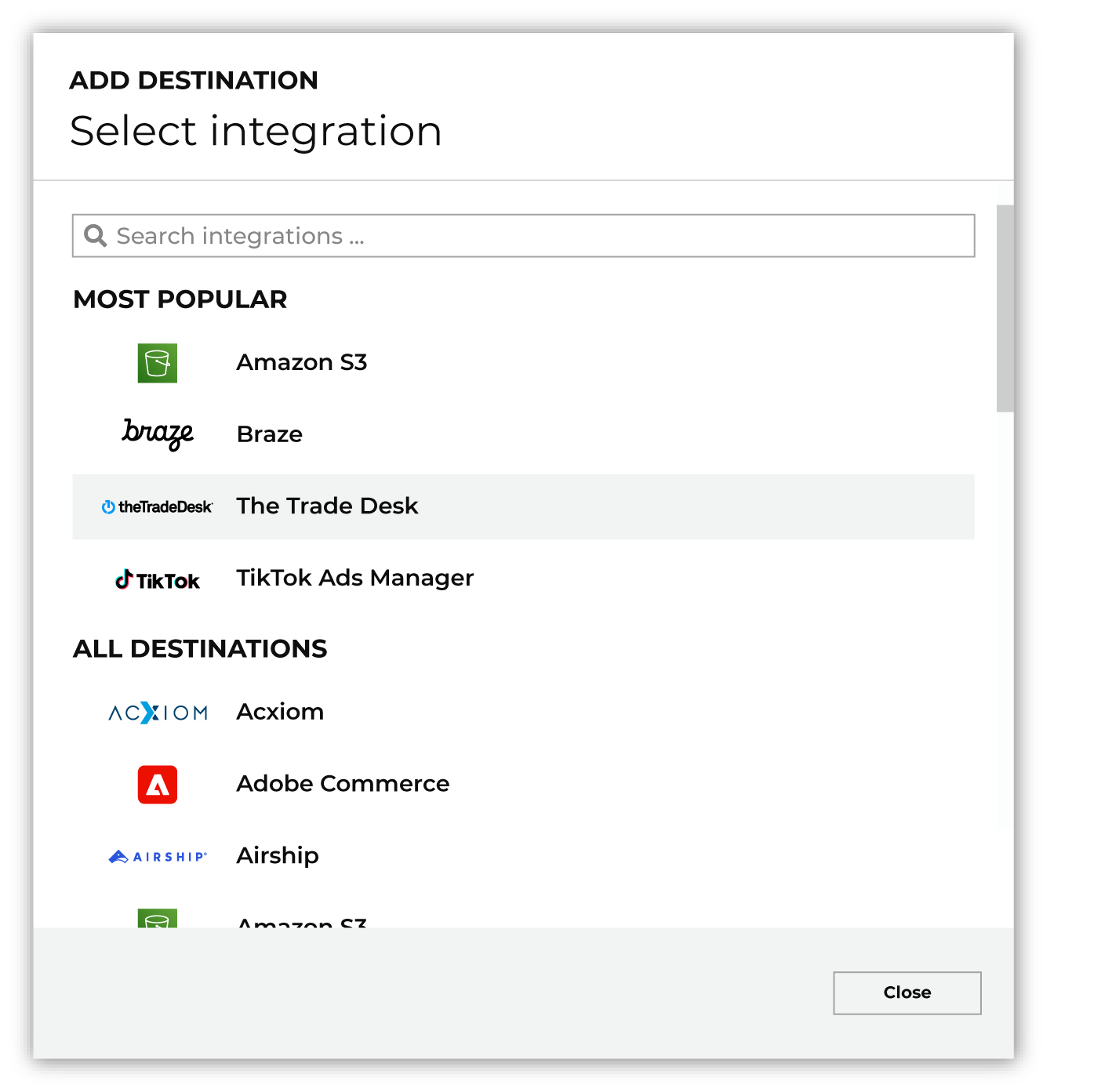
To configure a destination for Tulip, do one of the following:
|
|
|
Select the credential for Tulip from the Credential dropdown, and then click Continue. Tip Amperity validates the connection when the destination is saved. If the connection cannot be validated, an error is shown and the destination is not saved. |
|
|
In the “Destination settings” dialog box, assign the destination a name and description that ensures other users of Amperity can recognize when to use this destination. Configure business user access By default a destination is available to all users who have permission to view personally identifiable information (PII). Enable the Admin only checkbox to restrict access to only users assigned to the Datagrid Operator and Datagrid Administrator policies. Enable the PII setting checkbox to allow limited access to PII for this destination. Use the Restrict PII access policy option to prevent users from viewing data marked as PII anywhere in Amperity and from sending data to downstream workflows. |

|
Configure the following settings, and then click “Save”. Primary key
|

|
After configuring this destination users may use orchestrations to send query results Tulip. |

|
Validate the audience with Tulip by using a sample audience with a very small membership. For example: 10 or 100 members or the minimum audience size recommended by Tulip. Send the sample audience to Tulip and verify the sample audience is correct in Tulip. Make adjustments if necessary. Only send full audiences after validation is complete. |
Data validation
Before it sends anything, Amperity checks that the query results have a column named external_id. Without one, the run fails and nothing is sent. Amperity does not check the values in that column, and sends a row whose external_id is empty with an empty externalId. Filter those rows out of your query.
Each batch has its own outcome, and a batch that fails does not stop the others. The run details show which batches failed and why.
Outcome for a batch |
What Amperity reports |
|---|---|
Tulip rejects the batch when it is submitted |
Every row in the batch failed. This is what happens when a batch fails Tulip validation: Tulip rejects the whole batch, not only the rows that are invalid. The message lists the Tulip error codes from the response, but not the error messages, because those can repeat customer data. |
Tulip accepts the batch, but reports errors on submission |
A message lists the error codes. The job continues, and its result decides the outcome for the batch. |
The job finishes as |
Every row in the batch was sent. |
The job finishes as |
The rows that the job’s failure report lists failed, and the rest were sent. The run details show up to 10 of the reasons Tulip gives for each batch, each naming the customer by external ID, for example “Tulip rejected customer <external ID>: <reason>”. If Amperity cannot read the failure report, or the report lists no rejected rows, every row in the batch is counted as sent, and a message names the job so that you can ask Tulip about it. |
The job finishes as |
Every row in the batch failed. The run details show up to 10 reasons from the job’s failure report. |
The job finishes as |
Every row in the batch failed. The message names the job. Contact Tulip support with the job ID. |
The job does not finish within 15 minutes |
Every row in the batch failed. The message names the job. Ask Tulip about the job if this happens again. |
Tulip responds without a job ID or a job status |
Every row in the batch failed. The message lists the fields the response contained. Contact Amperity support with the message. |
Rate-limit responses and Tulip server errors are retried automatically, with backoff, before a batch is counted as failed.
Some conditions stop the entire run instead of failing a batch:
The query results have no
external_idcolumn. This is caught before any data is sent.Tulip rejects the API key, or the key does not have permission for a request. Confirm the key with your Tulip administrator.
Tulip responds that the address was not found. Confirm that the credential’s API URL is the host of your Tulip cluster, without a path.
Every batch in the run failed. When no row reaches Tulip, the cause is usually the columns the query returns rather than the data in individual rows. Check the errors reported for each batch.
A run that stops partway does not withdraw the batches Tulip already accepted.
When every batch fails, Amperity does not record the run as successful, so the next run sends the same rows again. When at least one row is sent, the run completes and reports the failed rows. Those rows are not sent again until their attributes change.